Create Sub-Patches
Usine has a complete hierarchic patch organization. Each patch can contain other patches called sub-patches. Sub-patches can contain themselves, other sub-sub-patches, etc.
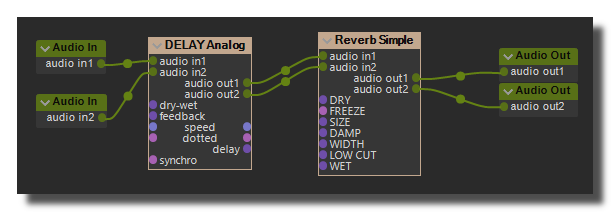
There is no difference between patch, or sub-patch except that a sub-patch may have data input and output modules. Here is a example of a patch wich contains 3 sub-patches.
Polyphonic Sub-Patches
Usine provides an efficient way to handle polyphony in sub-patches. The global idea is to design a single patch and ask to Usine to duplicate it into several clones, also called voices which are processed in parallel.
The polyphony concept can be used in many situations:
- create polyphonic synth
- multi-channel & multiphony treatment
- any data or audio manipulation, to replace repeated patches,
- etc.
4in 4out Random Delay
Let's take an example, a simple 4in –> 4out random audio delay.
From the browser, drag & drop an empty sub-patch onto a main patch.
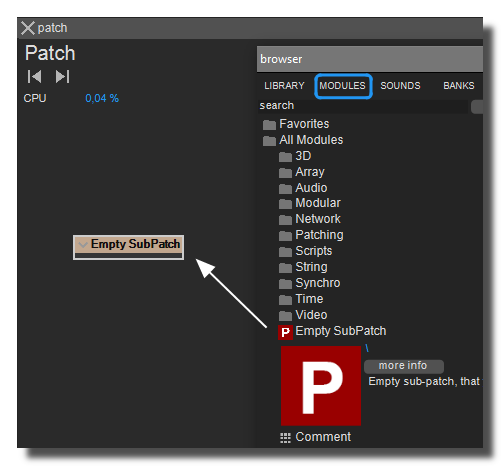
Go to into this sub-patch ([DBL-CLICK]), then add the following modules:
- audio inputs
- audio outputs
- audio delay (choose stereo in the query window)
- random generator
And connect them as:
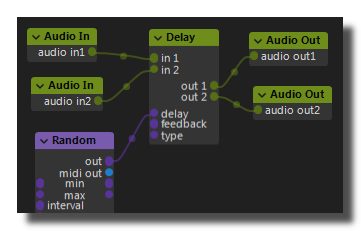
This patch is stereo, and we would like to turn it into a quadraphonic one. For that, double click inside the sub-patch to go back in the parent patch and right click on the sub-patch to open its settings panel:
Change the polyphony slider (set it to 2) and click on the apply polyphony button.
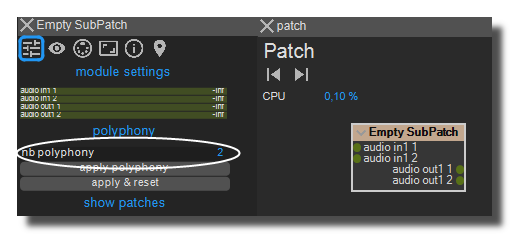
The sub-patch has its inputs and outputs duplicated.
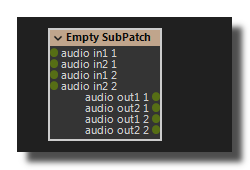
In other words, we have created a quadraphonic random delay by setting the polyphony of a stereo patch to 2.
In polyphonic sub-patches, the changes become active only after the apply polyphony button has been pressed.
4in 4out Volume
We suppose that we want to create a simple 4in 4out audio volume. This patch is actually not very interesting because this module already exists natively in Usine, but it's a good example.
From the browser, drag & drop an empty sub-patch onto a main patch.
Go to into the sub-patch ([DBL-CLICK]), then add the following modules
- audio inputs
- audio outputs
- mono audio volume (choose mono in the query window)
- gain fader
And connect them as:
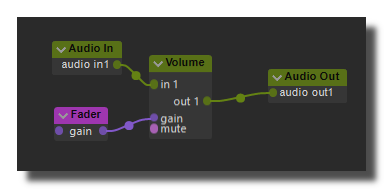
Set the polyphony slider to 4, and click on the apply polyphony button.
Now, if we comeback into the parent patch we can see something like
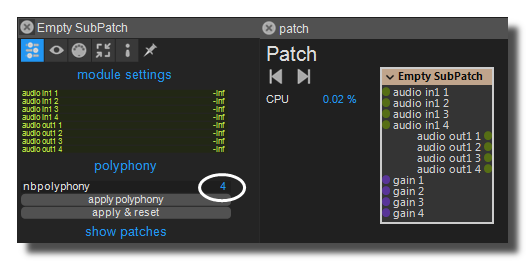
Input, output, and the gain fader have been duplicated 4 times.
It can be interesting to have the gain fader duplicated 4 times, but in our case, it's better to have only one gain fader which controls the 4 channels at the same time?
For that, select the gain fader module in order to display its settings panel and turn the single in poly ON.
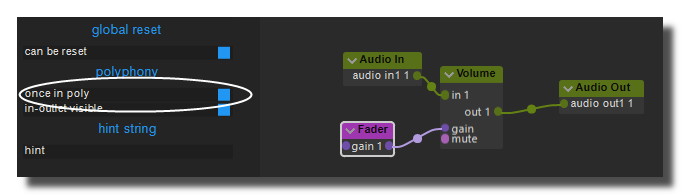
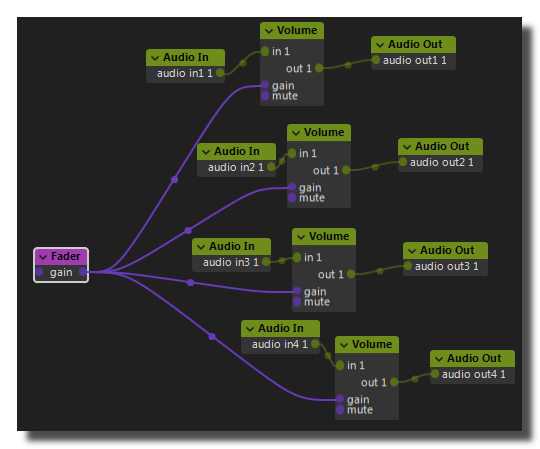
This switch asks to Usine to not duplicate the control according the polyphony. The gain fader will be created only once and will control all the gain parameters.
Use again the apply polyphony button, Now in the parent patch the sub-patch looks like:
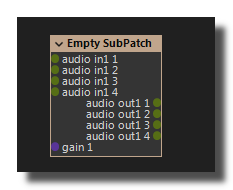
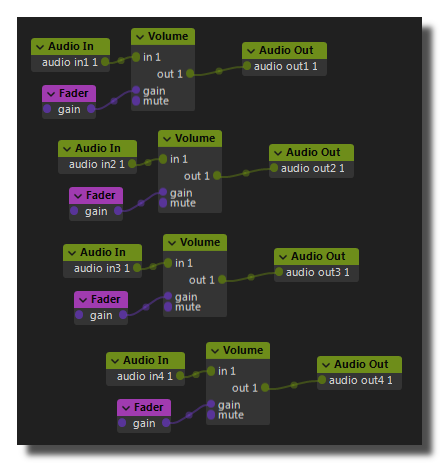
When we apply a polyphony=4, internally the patch is duplicated 4 times.
It means that the poly sub-patch above is equivalent to:
But if we turn the single in poly of the gain fader ON it becomes equivalent to:
4 in 1 out Audio mixer
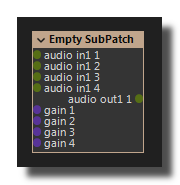
The single in poly option can be activated for audio outputs modules.
Here is an audio mixer where only the audio output module have the option single in poly activated:
Advanced Polyphony
Usine can provide more powerful and complex polyphony managements with two special modules:
- poly-sub-patch-polyphony: gives the total polyphony of the sub-patch.
- poly-current-voice-number: gives the current polyphony voice number.
For example, we want to create a patch with 4 sample players playing 4 different samples.
- the polyphony voice 1 plays the sample 0,
- the polyphony voice 2 plays the sample 1,
- etc.
Let's create the following sub-patch. The data in and audio outputs modules are set to single in poly.
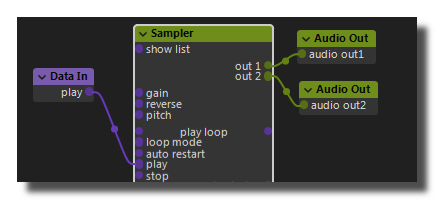
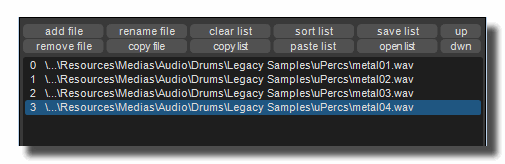
Double click on the sampler module to add 4 wave files (here metal 1 to metal 4):
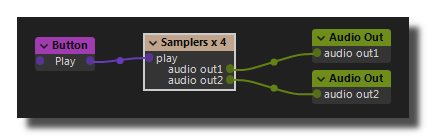
Add a play button, two audio outs, then select the sub-patch (renamed "Samplers x4") and set the polyphony=4. Finally, click on the apply and reset button.
If you rearrange the wave display positions on the control panel, it can look like:
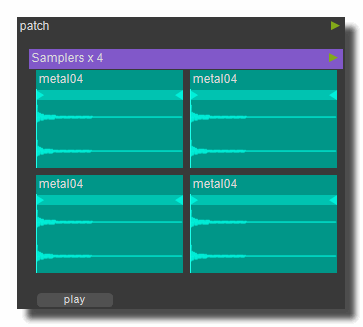
Now, the only problem is that all samplers are playing the same file... In order to tell that the sampler-voice1 has to play the sample 0, the sampler-voice2 has to play the sample 1, etc.
We can use the poly-current-voice-number module patched like:
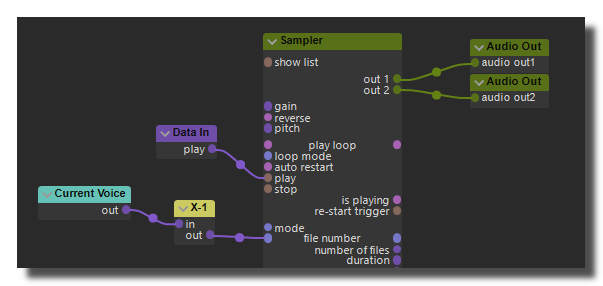
Don't forget to click the apply polyphony again.
You can verify yourself, looking into each patch voice separately, by clicking on the voices buttons. Then you can see that the voice 1 is playing the sample 0 and son on:
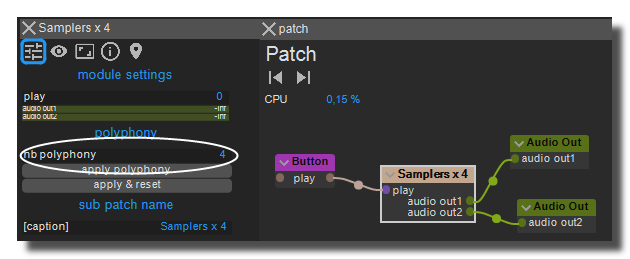
Apply polyphony and apply and reset
When you make some changes in the sub-patches, you'll need to apply the polyphony again. There's a difference in the way Usine recreates the sub-patch polyphony when using this two buttons.
apply the polyphony
Applies the polyphony and try to keep the most of the previous settings (layouts, samples and so...)
apply and reset
Resets all settings and recreates the polyphonic sub-patch from scratch. It's more or less the same action than when you create the polyphony the first time: samplers have all the same sample, layout are all in the same place etc. This button will also rebuild all the objects ID's.
Remember that each patch shared on the local network use its own ID (identification number). Useful especially If you experience of patches that don't send information to the good target.
So to resume, apply polyphony when you made minor changes apply and reset when you want rebuilt all from scratch.
Sub-patch module inlets and outlets
The sub-patch module displayed in the parent patch has the inlets and outlets of its panel: its display location, the mouse and touch information, the bitmap of its drawing and the drag & drop of files.
location
display location
Determines where the control panel of the module is displayed. Default control panel.
- invisible: the object is not displayed.
- control panel: in the control-panel of the current patch.
- parent control panel: in the control-panel of the parent patch.
- top parent control panel: in the control-panel of the top parent patch (main patch).
- container: in the container of the current patch.
- parent container: in the container of the parent patch of the current patch.
- top parent container: in the container of the top parent patch of the current patch.
- popup window: in the popup of the current patch.
- top header: in the top-header-panel.
- toolbox: in the toolbox-panel.
- ib only: in the interface-builder-panel only.
- workspace: in the workspace-panel design panel.
- current rack: in the rack containing the top parent patch.
- main menu: in the main menu panel on the left of the window.
- container 1 to container 32: in the additional container with that number, wherever it is (see additional container). If the container does not exist, a warning is displayed.
Some modules only offer the first eight options. Top header, toolbox, ib only, popup and main menu are exclusive with also visible in interface builder: choosing one of them resets it to no with a warning.
When the location is set to a container or a popup which doesn't exist in the current sub-patch, Usine uses the container or popup of the parent patches. If none is available a warning is displayed and the location goes back to control panel.
additional container
Declares the control as an additional container, identified by a number from 1 to 32 (no = not a container, default), so that any other control of the workspace can be placed into it with display location set to the same container number. Each number can be used by only one container at a time: choosing a number already in use shows a warning and resets the setting to no.
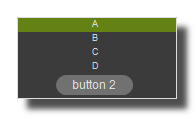 a button inside a listbox
also visible in interface builder
Determines if the control is also displayed in the interface-builder-panel in addition to its display location. Default no. Not saved in design templates.
- no: not shown in the interface builder.
- always: always shown in the interface builder.
- if patch ON: shown only while the parent patch is running (for a rack, this option reads if rack is ON).
Cannot be combined with a display location set to top header, toolbox, ib only, popup or main menu: the setting is reset to no with a warning.
mouse tab settings
Settings related to mouse, touch screen and drag&drop.
mouse & gesture
mouse dwn
Outlet giving the mouse button state on the control:
- 1 while the left mouse button is pressed on the control
- 0 otherwise (the value goes back to 0 a few milliseconds after the button is released).
Read only, not saved with the patch.
In multi-touch environment, can be an array of [0..1] values, one value per finger touching the control.
mouse wheel
Outlet giving the last mouse wheel movement as a number of wheel notches (positive when the wheel is rolled forward, negative when rolled backward, following the operating system convention), limited to the [-4..4] range. The value goes back to 0 about 25 ms after each wheel event, so it is 0 while the wheel is idle. Not saved with the patch.
mouse wheel enabled
When ON, the value of the control can be changed with the mouse wheel; when OFF, the wheel is ignored by this control. Default ON. Unless the disable click to use mouse wheel expert setting is active, the control must first be clicked (selected) before the wheel acts on it. On faders, the wheel step is reduced by the precision factor when touch hi precision applies or when SHIFT is held, and the value wraps around when circular mouse is ON.
dbl click
Trigger outlet flashed (value 1) when the user double-clicks on the control.
mouse active
When ON, the fader can be moved by dragging it with the mouse; when OFF, dragging no longer changes the value (the control still reports its mouse events, and the value can still be changed by other means such as the mouse wheel or the value editing). Default ON.
mouse x
Outlet giving the mouse X position on the control in relative coordinates from 0=most-left to 1=most-right, updated on mouse down, mouse move and mouse up. Read only, not saved with the patch.
In multi-touch environment, can be an array of [0..1] values, one value per finger touching the control.
mouse y
Outlet giving the mouse Y position on the control in relative coordinates from 0=top to 1=bottom, updated on mouse down, mouse move and mouse up. Read only, not saved with the patch.
In multi-touch environment, can be an array of [0..1] values, one value per finger touching the control.
bitmap
See manipulate-bitmaps.
bitmap in
Bitmap pointer input. When connected, the received bitmap replaces the background image of the panel of the module, so any video or bitmap flow can be drawn behind the control.
Use [CTRL + Click] to reset the input.
bitmap out
Bitmap pointer output giving access to the current drawing of the panel of the module, updated each time the panel is repainted. Connect it to a video or bitmap module to reuse the rendering of the control.
touch pressure
Outlet giving an estimation of the finger pressure on a multi-touch screen, in the [0..1] range, computed from the size of the contact area of the finger relative to the size of the control. Always 0 when the control is used with the mouse. Read only, not saved with the patch.
The pressure value is not available on all touch screens.
gesture
Array outlet updated each time a touch gesture is recognized on the control. It contains 6 values: [gesture ID, initial X, initial Y, final X, final Y, speed], X and Y being relative coordinates on the control. Gesture IDs: 1=pan left, 2=pan right, 3=pan up, 4=pan down with one finger, 5 to 8=the same pans with two fingers, 100=short hold and 101=long hold with one finger, 102=short hold and 103=long hold with two fingers. For hold gestures only the initial position is filled, the other values are 0. Not saved with the patch.
In touch and multi-touch environment, returns an array of the fingers movements See multi-touch
reset
auto reset
When ON, the control is reset (same action as the reset command of the module) as soon as the mouse button is released on it. Default OFF.
Only on faders and knobs.
drag & drop
See using-drag-drop.
drag enabled
When ON, the content of the listbox can be dragged with the mouse and dropped on another control: the drag starts as soon as the mouse moves a few pixels with the button held down. When OFF, no drag is started from this control, except when CTRL+SHIFT are held while dragging. Default OFF. Only on listboxes (not on comboboxes).
allow drop
When ON, files and other draggable items can be dropped on this control; when OFF, the control refuses any drop.
drop file name
Text outlet receiving the full path of the last file dropped on the control. The same path is also stored in the DRAG_FILENAME global variable. Read only, not saved with the patch.
clear drop file name
Button that empties the drop file name outlet.
vertical mouse
When ON, the knob value follows the vertical movements of the mouse: drag up to increase, drag down to decrease. When OFF, it follows the horizontal movements: drag right to increase, drag left to decrease. Default ON. Only on knobs.
touch screen
touch hi precision
Determines when the high precision mode (see precision factor) is applied to mouse and touch movements:
- disabled: never applied automatically, it can still be obtained by holding SHIFT while dragging.
- touch screen: applied only while the control is touched on a touch screen.
- always: applied with the mouse as well as with a touch screen. Default disabled on faders, touch screen on knobs.
precision factor
Divider applied to the mouse or touch movements in high precision mode: the cursor moves N times slower than the pointer, so with a factor of 8 the pointer must travel 8 times the width of the control to cover the whole range. Range [1..100], default 8. Used when touch hi precision applies or when SHIFT is held while dragging; also slows down the mouse wheel steps (by the square root of the factor).
mouse mode
Behavior of the fader or knob when it is dragged with the mouse or a finger:
- relative: a click does not change the value; the drag moves it from its current value, a drag over the whole length of the control covering the whole range.
- absolute: as soon as the pointer moves with the button held, the value jumps to the position of the pointer on the control, then follows the drag. Default relative.
In both modes, holding SHIFT while dragging slows the movement down by the precision factor, [CTRL+click] sets the control to its reset value, and a double click opens the value editor when the value editing mode is on double click.
When the inlet of the control is connected, the incoming value is applied again at each cycle and wins over the mouse: the control goes back to it as soon as it is dragged. With set only if has changed ON, the inlet only acts when its value changes, and the mouse can move the control in between.
circular mouse
When ON, the value wraps around when the mouse drag or the mouse wheel goes beyond the range: past the maximum, the value continues from the minimum and vice versa. When OFF, the value is clamped to its range. Default OFF.
keyboard arrows
keyboard arrows enabled
When ON, the value of the control can be modified with the UP and DOWN arrow keys of the keyboard when the control has the focus: each key press adds or subtracts the inc-dec value of the module (one tenth of it while SHIFT is held, at least 1 for integer values), and comboboxes jump to the previous or next item. Default OFF.
focus & cursor
mouse over
Read only outlet: 1 while the mouse pointer is over the control, 0 otherwise. Not saved with the patch.
mouse cursor
Shape of the mouse pointer when it hovers over the control. Default arrow. During a resize or a point edit, the pointer temporarily takes the shape of the current operation.
- default: default pointer of the system
- none: the pointer is hidden
- arrow: standard arrow
- cross: cross-hair
- beam: text I-beam
- size NESW: diagonal resize arrow (north-east / south-west)
- size NS: vertical resize arrow
- size NWSE: diagonal resize arrow (north-west / south-east)
- size WE: horizontal resize arrow
- up arrow: vertical arrow
- hour glass: busy pointer
- drag: drag pointer
- no drop: forbidden drop pointer
- H split: horizontal splitter
- V split: vertical splitter
- multi drag: multiple items drag pointer
- SQL wait: wait pointer
- no: forbidden pointer
- app start: arrow with busy indicator
- help: arrow with question mark
- hand point: pointing hand
- size all: move (four arrows) pointer
selection
selected
Read only outlet: 1 while the control is selected, 0 otherwise. A control becomes selected when it is clicked and is deselected when another control is clicked; SHIFT+click adds a control to the current selection or removes it from it. Not saved with the patch.
See also
- Empty Sub-Patch (SUB-PATCH)
- Tutorial : Patching
- Using Drag & Drop
- Manipulate Bitmaps
- Flow types
- Manipulate Comma-Text
- Use Quick-Links
- Get Multi-touch and Gesture info
- Example : interactive delay
- Patching Commands
- Create Sub-Patches
- Usine Object Get
- Usine On OSC Receive
- Usine On MIDI Receive
- Patching
- Flow Resample
- Flow Pass if Changed Multi
- Patch Send Internal Message
- Flow Wait Multi
- Patch Password Protect
- Flow Freeze Multi
- Patch On Initialization
- Flow to Data Rate
- Flow Resample Multi
- Flow Pass Multi
- Flow Freeze
- Poly Current Voice Number
- Poly Array value
- Flow Collection Stack
- Flow Collection Circular Buffer
- Flow Collection Queue
- Flow Track Hold
- Flow Stop
- Flow Wait
- Flow Swap
- Patch On Activation
- Flow Pass
- Flow Stop Multi
- Flow Thru Multi
- Flow From 1 to 0
- Patch ON-OFF
- Poly Sub-Patch Polyphony
- Flow Collection List
- Patch Comment
- Flow Pass if Changed
- Flow Toggle
- Poly Voice Dispatcher MIDI
- Flow Thru
- Poly Voice Dispatcher MPE
- Flow Is NULL
- Patch Info Editor
- Patch On DeActivation
- Flow to Audio Rate
- Patch Bypass
- Flow Sample Hold
- Flow From 0 to 1
- Flow Has Changed
See also
- Data Manipulation Calc Min (SUB-PATCH)
- Multi Knob (SUB-PATCH)
- MIDI Send All Notes OFF (SUB-PATCH)
- Data Manipulation Hysteresis (SUB-PATCH)
- Light MIDI to Dimmer (SUB-PATCH)
- Empty Sub-Patch (SUB-PATCH)
- Phase Voc Forward (SUB-PATCH)
- Audio Analysis Beat Follower Threshold (SUB-PATCH)
- Data Generator Random Integer (SUB-PATCH)
- MIDI Delay Feedback Pitch (SUB-PATCH)
- Audio Analysis Beat Follower (SUB-PATCH)
- Generalized VBAP 2D (SUB-PATCH)
- MIDI Freez (SUB-PATCH)
- Color Spectrum (SUB-PATCH)
- Data Manipulation Rec XY (SUB-PATCH)
- Phase Voc Inverse (SUB-PATCH)
- Data Manipulation Local Max (SUB-PATCH)
- Data Manipulation Calc Max (SUB-PATCH)
- Data Manipulation Local Min (SUB-PATCH)
- Data Generator Random Law (SUB-PATCH)
- Create Sub-Patches
version 7.0.250921
Edit All Pages