Setup
The main configuration panel for all your Audio and MIDI Devices, your personal folders for Sounds and Plug-ins, Network use and the Kiosk mode, see each link to access a specific tab.
Tabs
- Setup tab Global
- Setup tab Audio
- Setup tab MIDI
- Setup tab Light
- Setup tab Video
- Setup tab Laser
- Setup tab Folders
- Setup tab Plugins
- Setup tab Modular
- Setup tab Network
- Setup tab Touch-screen
- Setup tab Expert
- Setup tab Kiosk
- Setup tab AI
- Setup tab User
- Setup tab About
- Setup tab Debug
Pages
- native: the FireMonkey canvas, drawn by the CPU.
- skia: the Skia 2D library, drawn by the CPU (default).
- skia openGL: Skia drawn by the GPU through OpenGL.
- skia vulkan: Skia drawn by the GPU through Vulkan, or through OpenGL when Vulkan 1.1 is not available.
- native: the FireMonkey canvas, drawn by the CPU (default).
- skia metal: Skia drawn by the GPU through Metal.
- metal: the FireMonkey canvas drawn by the GPU through Metal.
- normal: the default.
- low: can reduce significantly CPU load, but also reduces graphic precision.
- best: on Windows, with the Skia engine drawn by the CPU (skia), the texts drawn directly in a window use ClearType (LCD) antialiasing when ClearType is on in Windows: they are sharper, especially on a screen at 100 %, for a little more CPU when they are drawn. The texts that Usine draws in an image first, such as the modules of the patch editor, and the texts of transparent windows stay in grayscale. The texts take it when they are drawn again. The screenshots of Usine then show the colored edges of ClearType.
- Quick Configuration
- Additional and Override Setup
- Setup
- Setup tab User
- Setup tab About
- Setup tab Modular
- Setup tab Expert
- Setup tab Folders
- Setup tab MIDI
- Setup tab Plugins
- Setup tab Debug
- Setup tab Touch-screen
- Setup tab AI
- Setup tab Global
- Setup tab Light
- Setup tab Kiosk
- Setup tab Laser
- Setup tab Video
- Setup tab Network
- Setup tab Audio
- Usine Setup Settings
- on Windows, this command recreate the MIDI devices manager to provide a full reset of all devices. More efficient than the rescan devices command above.
- on MacOS it does a simple rescan devices as the command above.
- all formats: every message is accepted (default).
- a precise format, such as $32 video cassette machines: only that format.
- a general format ($01 lighting, $10 sound, $20 machinery, $30 video, $40 projection, $50 process control, $60 pyro): the whole family, for example $30 video (general) accepts $30 to $3F.
- Quick Configuration
- Additional and Override Setup
- Setup
- Setup tab User
- Setup tab About
- Setup tab Modular
- Setup tab Expert
- Setup tab Folders
- Setup tab MIDI
- Setup tab Plugins
- Setup tab Debug
- Setup tab Touch-screen
- Setup tab AI
- Setup tab Global
- Setup tab Light
- Setup tab Kiosk
- Setup tab Laser
- Setup tab Video
- Setup tab Network
- Setup tab Audio
- Usine Setup Settings
- Lower values (e.g. 100 ms): frames are recycled faster, using less memory, but complex video chains may experience glitches if a frame is reused too early.
- Higher values (e.g. 200–300 ms): frames stay available longer, which is safer for patches with many video modules in sequence, but increases memory usage.
- largest win : the smallest video is enlarged to fit to the largest video size; use more CPU.
- smallest win : the largest video is reduced to fit to the smallest video size; use less CPU.
- low : nearest neighbor, each pixel takes the color of the closest source pixel: the lowest CPU load, but jagged edges,
- hi : bilinear interpolation between the 4 closest source pixels: a smooth result for a moderate CPU load (default),
- ultra hi : bilinear filter that averages all the source pixels covered by each output pixel, of the same quality as FFmpeg's swscale: the best result for strong reductions, but the highest CPU load. It is built into Usine and does not need FFmpeg.
- Quick Configuration
- Additional and Override Setup
- Setup
- Setup tab User
- Setup tab About
- Setup tab Modular
- Setup tab Expert
- Setup tab Folders
- Setup tab MIDI
- Setup tab Plugins
- Setup tab Debug
- Setup tab Touch-screen
- Setup tab AI
- Setup tab Global
- Setup tab Light
- Setup tab Kiosk
- Setup tab Laser
- Setup tab Video
- Setup tab Network
- Setup tab Audio
- Usine Setup Settings
- current-section: number of the current section.
- sections-list: list of section's captions as a comma-text.
- Quick Configuration
- Additional and Override Setup
- Setup
- Setup tab User
- Setup tab About
- Setup tab Modular
- Setup tab Expert
- Setup tab Folders
- Setup tab MIDI
- Setup tab Plugins
- Setup tab Debug
- Setup tab Touch-screen
- Setup tab AI
- Setup tab Global
- Setup tab Light
- Setup tab Kiosk
- Setup tab Laser
- Setup tab Video
- Setup tab Network
- Setup tab Audio
- Usine Setup Settings
Usine's global setup tab. Various interface layouts and performances options.
import old setup
Imports all the settings from a previous Usine's installation. Click the button and select the folder (Win) or the .app (MAC) of the previous version.
This will copy the /Config/ folder of the old Usine to the new installation, including Snapshots, Devices, Addons, Browser Favorites, Plug-ins, Templates, Trash, Recent workspaces.
Requires a restart of Usine to apply the change.
global Interface
main language
Sets the language Usine is displayed in, English or French.
color Style
Color style of Usine.
global zoom scale
Allows the adjustment of zoom for the entire Usine interface.
Useful to adjust the interface size on tablets.
performances
Various tweaking options of the engine.
graphic engine
Graphic engine used to draw the interface of Usine. A change is applied at the next start of Usine.
On Windows:
On macOS:
Metal needs macOS 10.15 or later; on an older system both Metal engines use Skia drawn by the CPU.
On Linux: native (default) or skia.
When the Skia library (libskia.dll, libskia.dylib or libskia.so) is missing, the Skia engines are replaced by native; on macOS the item then reads skia metal (not available).
It may seem counter-intuitive, but for video projects it is better to choose an engine drawn by the CPU in order to give the video engine full access to the graphics card, and not share it with the Usine interface.
buffered drawing
Usine will use a 2 steps buffering for drawing. This improves the graphic performances, but decrease the render quality especially when controls are zoomed.
fast text canvas
Try to draw text faster, but takes more memory.
graphic quality
Option to choose the graphic quality to increase the global performance.
refresh speed
Sets the global Usine refresh speed. For low value (5 ms) Usine is very reactive and the graphic display looks smooth but cost more CPU.
25 ms is a good value in most situations.
CPU count
Number of logical processors of the computer. Read only.
max number of threads
Determines the maximum number of threads allowed in Usine.
Each rack is processed in a separate thread.
max number of sub threads
Some heavy modules and sub-patch calculation are split into several sub-threads. This Number of sub-threads max allowed, you can increase it if your CPU has a lot of cores.
disk buffer size
Disk Buffer Size of the reading audio file buffer.
A good value is around 2000ms. Increase if you use large multi-channels files.
CPU load max
Sets the CPU protection level. If the CPU Load is greater than the CPU maximum level, the process engine stops for few seconds, to avoid hard crash of your system.
Generally 90% is a good value modern processor. If you want to disable this protection set the value to 100%.
draw in the background thread
Ask Usine to refresh the GUI as often as possible, but always in the background. Increase fluidity at the expense of CPU consumption.
floating windows
Switch the selected windows into floating mode.
floating window for patches
Switch the patch-editor-panel into a floating window.
floating window for settings
Switch the settings-panel into a floating window.
settings window height
Height of the settings window in percent of the screen height.
Only if floating window for settings is activated
floating window for grid
Switch the grid-panel into a floating window.
floating window for popups
Switch the panel-popup into a floating window.
See also
Audio and sound cards settings.
drivers
Choose your sound card driver mode in the available drivers list.
in/out
Choose the device for the selected driver.
nb in
Number of inputs of the selected Sound card.
nb out
Number of outputs of the selected Sound card.
sample rate
Choose the working sample rate.
Remember that 44100Hz is generally enough for live situations and CPU friendly.
buffer size
Buffer size in sample (latency). This is the setting to change to reduce or increase the audio latency. See latency.
Don't forget that in the real world (not in the marketing) all drivers have 1 input and 2 output buffers. It means that to get the real latency, you always have to multiply by at least 3!
show driver
Click to open the Sound card panel.
WIN only.
block size
In Usine (like in almost all audio softwares) the audio flow is sliced and processed by blocks. This parameter indicates the current block size. It does not add latency as long as it is smaller than or equal to the buffer size; when the buffer size is smaller, Usine adds block size - buffer size samples of latency.
inputs
Activates Audio inputs to makes them available in Usine.
outputs
Activates Audio outputs to makes them available in Usine.
soft Clipping
Soft Clipping limiter: prevent audio saturation of the sound card.
audio engine running
Lets you know the state of the audio engine and if it is active.
pre-listen gain
Gain applied when you pre-listen a sample in the browser-panel.
external wave editor
wave editor
Specifies your favorite wave editor path.
audio in
generator on all inputs
When ON, add a 20Hz signal on all active inputs.
Useful for testing audio chain.
generator gain
Gain of the generated signal.
fast vu-meters
When ON, use a fast response time for the input vu-meters.
device
audio device
Name of the current audio device.
See also
MIDI global settings.
rescan devices
Rescans and updates the list of available MIDI devices connected to the system.
Can be used for Hot plugged in MIDI devices.
reset devices
Resets all MIDI devices connected to the system (shutdown an reopen).
If a device fails to respond, this option is useful to reset the device in hopes of regaining functionality.
recreate MIDI devices
Can be used for Hot plugged in MIDI devices.
inputs / outputs
Shows available and connected MIDI devices. It allows you to activate devices you want to use.
For example in the picture below, the Launchpad mini controller is enabled and ready to use as MIDI Input.
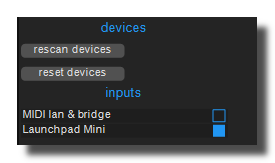
midi lan & bridge
Activates the built-in MIDI-to-LAN interface that allows MIDI communication between computers running Usine on the Local Network.
memorize device name in learn
Tells Usine to remember device names during MIDI-learn. Thus, the MIDI assignment will also depend on the device used.
MIDI feedback to all devices
When ON, the MIDI feedback is sent to all motorized devices, even if they are not concerned by the MIDI learn.
Since HH3.0.133 the MIDI learn is associated with the name of the device. When this option is ON it turns Usine to old (prior HH3.0.133) MIDI feedback behavior.
send ALL NOTES OFF on stop sync
When activated, Usine sends the a MIDI All Note Off message when sync has stopped.
ignore active sensing messages
Some MIDI controllers send continuously active sensing messages. When ON, Usine filters them directly.
This way the trace panel and your MIDI devices are not polluted by this message.
always enable all MIDI inputs
When this option is activated, Usine will automatically activate all available MIDI inputs.
always enable all MIDI outputs
When this option is activated, Usine will automatically activate all available MIDI outputs.
MIDI show control Input
Various MIDI SHOW CONTROL settings for the reception of MSC information.
MSC device ID
Current Usine's MSC device ID.
MSC group
Current Usine's MSC group.
MSC format
Command format (type of equipment) of the MSC messages Usine reacts to:
Messages sent to $7F all-types are always accepted.
device
MIDI device
Name of the current MIDI device.
See also
Global configuration parameters for ArtNet, sACN and DMX .
The Usine's light engine can manage Enttec Open DMX, Enttec USB pro devices, as well as all ArtNet and sACN devices connected to the Ethernet port.
on Mac OSX you'll probably have installation troubles with DMXUSB PRO devices. It's generally caused by FTDI drivers conflicts. So in this case you can try the free utility app FTDI Driver Control 1.0.3 to disable the built-in FTDI driver.
on Windows, if you have troubles with Enttec USB Pro devices, you can try to install the FTDI CDM Drivers or Windows D2XX Drivers from the FTDI website.
rescan devices
Rescans all connected USB DMX devices. Usine can connect up to four devices.
reset devices
Resets all connected devices (shutdown and restart). Use it if you encounter issues.
outputs
List of Connected USB DMX devices to activate inside Usine.
DMX active
Turns the DMX engine ON. Must be activated to run Usine's DMX.
num of plots
Number of actives plots.
ArtNet settings
artNet active
Turns the ArtNet engine ON.
artNet port out
Output port used for the ArtNet communication (send messages). By default the port is 6454.
artNet in active
Activates the reception of ArtNet messages in Usine. To get messages use the light-artnet-sacn-input.
artNet port in
Input port used for the ArtNet communication (get incoming messages). By default the port is 6454.
artNet automatic poll
When ON Usine's, Usine will automatically send 'ArtNet Poll' data to retrieve all connected devices.
poll ArtNet
Sends an 'ArtNet Poll' data manually, useless if ArtNet automatic poll is ON.
ArtNet devices list
List of the ArtNet devices found on the network by the polls (see artNet automatic poll and poll ArtNet). Read only.
sACN settings
sACN active
Turns the sACN engine ON.
sACN port out
Output port used for the sACN communication (send messages). By default the port is 5568.
sACN in active
Activates the reception of sACN messages in Usine. To get messages use the light-artnet-sacn-input.
sACN port in
Input port used for the sACN communication (get incoming messages). By default the port is 5568.
Global settings
DMX frame rate
Sets the maximum DMX frame rate (packets sent per second). Usine will send packets only if necessary.
clear on stop
Clears all DMX parameter set as "master" when the engine is turned OFF (Blackout).
auto increment channels
When ON, the channels are automatically incremented when assigning DMX parameters.
DMX device
dmx
File name of the USB DMX device found in /Resources/Devices and loaded when Usine starts. Read only. When no device is loaded, the tab shows no DMX USB device loaded instead.
See also
Video options of Usine.
video active
Activates/deactivates the video engine.
video in devices
Activates/deactivates the video inputs devices (several inputs possible). Also choose the resolution and framerate in the list of possible settings.
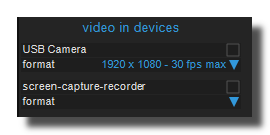
For IP camera's you must use the video-ip-camera module.
video aspect ratio
Choose the target format of the video ie. the final display form factor like 16/9, 3/4, etc. All video player modules will automatically adapt the videos to the proportions of the final target.
If not defined is chosen, the scaling will be done at the end of the process, generally in the output video device.
video frame lifetime
Duration (in milliseconds) during which a video frame is protected from being recycled by the frame pool.
Usine uses a frame pool to manage video frame memory efficiently. Instead of constantly allocating and freeing large bitmap objects, frames are borrowed from a shared pool and returned for reuse once they expire. The lifetime defines how long a frame remains reserved after being created — ensuring all downstream modules in the processing chain have time to read it before it gets recycled.
The default value is 100 ms, which works well for most patches. Increase it if you observe visual artifacts in complex video processing chains.
video frame rate
Video engine speed in fps (frames per second). It concerns only the internal video engine of Usine. and has a limited impact on the real output framerate. Hi values can overload CPU but improve the fluidity. The recommended value is 100 fps
video mix strategy
Determines the mix-down strategy when 2 video flow are in the same wire and have to be mixed together.
video resampling quality
Determines the quality used for images resampling and rescaling, for example by the video-geometric-resize module, for the second input of the video modules with two inputs, for the mix of video flows of different sizes and in the video outputs.
video preload images in memory
When ON the video-player-image preloads images in memory. It can reduce the access time of images but increases the memory load.
Video conversion tools
About Video Compression
Most of video files are compressed to keep their size on disk as small as possible. The main drawback is that it's generally impossible to play frames in a random order, especially backward (You can only play a video forward).
If you want to have a precise access to frames, convert video files into motion-JPEG with the convert video to motionJPEG tool.
You can also convert the file into separated images (one image per frame) with the convert video to images tool. Then, images can be loaded into Video Player Image module.
convert video to JPG images
Converts a Video file into separated JPG images, to be able to load them into Video Player Image module.
convert video to PNG images
Converts a Video file into separated PNG images, to be able to load them into Video Player Image module.
convert video to motionJPEG
Convert a Video file into a motionJPEG format file. It increases the size on disk but can solve many frame to frame access issues.
video conversion compression
Compression rate used for the motionJPEG compression. Low values for best quality, hi values for low quality.
This option is only visible in God Mode
convert video to HAP
Convert a Video file into a HAP format file. It increases the size on disk but can solve many frame to frame access issues. See hap codec.
extract audio from video
Extracts the audio flow of a video into a wav file to be able to load it into a Sampler module.
See also
Global configuration parameters for laser devices.
Usine currently works only with the Helios Laser DAC. The laser output is only available on Windows: on macOS and Linux this tab only shows not available.
rescan
Lists all the Helios-laser-DAC devices available on the computer.
ID
Name of each Helios-laser-DAC found, from ID 0 to ID 7 (up to 8 devices). The number is the device ID to set in the device-output-laser module.
laser speed
Speed of the laser devices in points per second, from 1000 to 65535 (default 30000): each frame is drawn at this rate. 65535 is the most the Helios DAC accepts: a higher value read from an older setup file is limited to 65535.
See also
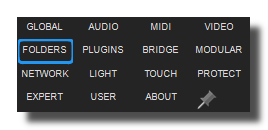
Sets favorites folders for your personal library, Sounds, videos, fixtures and MIDI files and for the recording, etc. Personal folders will appear in the browser-panel.
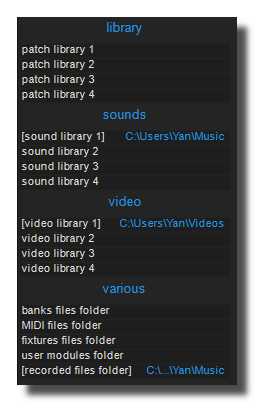
patch library
Specifies patches, racks, devices and workspaces library browser's path.
sound library
Specifies sounds library browser's path.
By default it's the /Music/ folder of your system.
video library
Specifies your Video files browser's path.
recorded audio files folder
Specifies where sounds recorded in Usine are saved by default.
recorded video files folder
Specifies where videos recorded in Usine are saved by default.
MIDI files folder
Specifies where your personal MIDI files are stored.
banks files folder
Specifies where your personal sampler bank files are stored.
fixtures files folder
Specifies where your personal fixtures files are stored.
user modules folder
Specifies where your personal user modules files are stored.
use local /temp folder
When ON, Usine stores its temporary and cache files in a local /temp folder inside the application directory (<Usine install>/Config/Temp/) instead of the system's default temp directory (e.g. C:\Users\<name>\AppData\Local\Temp\ on Windows). The local temp folder is also automatically cleared on startup.
This is useful for portable installations (e.g. running Usine from a USB drive) or to keep all Usine-related files self-contained within the application folder.
clear images cache
Clears the images cache used by Usine to speed up image loading.
clear audio peak cache
Clears the audio peak cache used by Usine to speed up waveform drawing.
See also
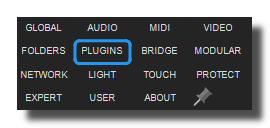
plug-ins folders
You can specify up to 6 different folders for your plug-ins.
 On Windows, default VST Plug-ins folder is
generally
C:Program Files/VSTPlugIns.
 On MAC, plug-ins are located at
/Library/Audio/Plug-Ins/.
rescan changes
If you add or install a new Plug-in, you can quickly check the plug-ins folder and update the browser.
rescan all
Use this button to rescan all the plug-ins folders from scratch.
plugin devices
lister
File name of the plug-in lister device found in /Resources/Devices, used to scan the plug-ins folders. Read only.
wrapper
File name of the plug-in wrapper device found in /Resources/Devices, used to load and run the plug-ins. Read only.
See also
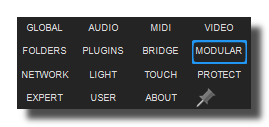 Usine's modular setup tab.
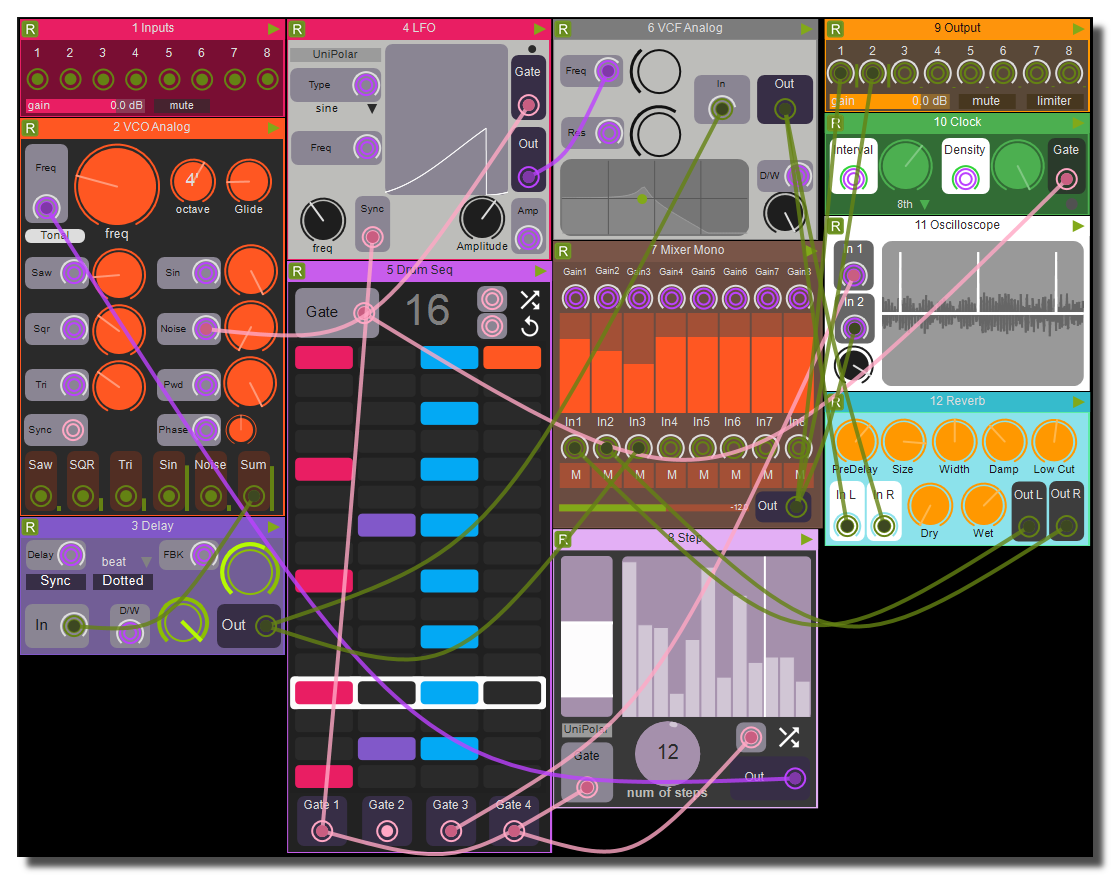 example of modular interface
wire opacity
Sets the opacity for the wires.
wire gravity
Sets the gravity for the wires.
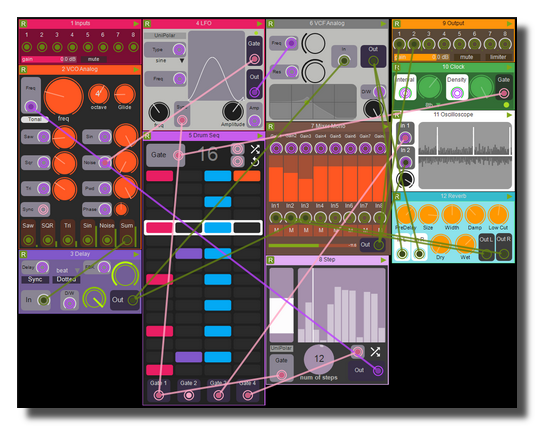 minimum gravity
wire width
Sets the width for the wires.
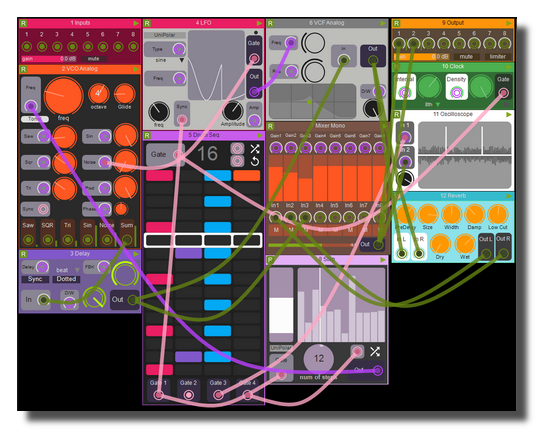 maximum width
display range knob on tlet
Display the range indicator on the modules modular-in
 ON
 OFF
See also
The OSC and Network options of Usine where you can activate OSC (Open Sound Control) and share on network capabilities.
network active
Turns the network and OSC engine ON (receive and send).
adapter
Network adapter used by the network and OSC engine: all adapters (default) or one of the adapters of the computer, shown as name (IP address). With an adapter chosen, broadcast messages are sent only to the subnet of this adapter, and incoming messages coming from another subnet are ignored.
The filter works by subnet: two adapters connected to the same subnet cannot be separated.
network speed
Speed of the network engine when data are sent. For a speed=20ms, Usine sends data and SHARED commands every 20 milliseconds.
opened ports
The local ports numbers used to receive OSC messages.
Can be a comma separated list of integers in the range [0..65535].
For example 2002 or 2002,2003,5623,1336
input buffer size
Size of the buffer for incoming network data. Increase it if you receive a large amount of data.
OSC out translator file
Name of the OSC messages translator file for outgoing messages. Can be used to convert automatically outgoing OSC messages. See osc-translator.
OSC in translator file
Name of the OSC messages translator file for incoming messages. Can be used to convert automatically incoming messages. See osc-translator.
show network errors
When ON, displays network errors in the trace-panel.
local IP addr & subnet
List of the network adapters of the computer, with for each one its name, its local IP address and its subnet mask. If you only see 127.0.0.1, the computer is not connected to a network. Read only.
The list is read when Usine starts and when a network setting changes. Click refresh IP to read it again.
refresh IP
Reads again the list of the network adapters, their IP addresses and their subnet masks, and the host name.
host name
Name of the computer as seen on the Network.
share active
Turns the Network share engine ON.
share adapter
Network adapter used by the share engine: all adapters (default) or one of the adapters of the computer, shown as name (IP address). With an adapter chosen, the detection and the shared commands are sent only to the subnet of this adapter, and the share messages coming from another subnet are ignored.
The filter works by subnet: two adapters connected to the same subnet cannot be separated.
share port
Port number used on the network for patch sharing. This port is determined automatically by Usine according to the number of Usine instances present in localhost.
share broadcast mask
Subnet mask used for network sharing for detection of other Usine on the network.
Can be used to restrict the shared network to a sub net.
send tempo and synchro info
Sends tempo and synchronization information to the Network. This computer will be considered as a master.
Only one connected computer should have this option to avoid conflicts
send grid sections info
Sends and synchronize information about sections to the Network. This computer will be considered as a master.
Only one connected computer should have this option to avoid conflicts
When ON, it automatically synchronizes grids of all connected computer to the master grid.
On slaves computers, new buses are created:
send playlist info
Sends playlist information to the Network. This computer will be considered as a master.
Only one connected computer should have this option to avoid conflicts
When ON, it automatically synchronizes playlist of all connected computer to the master grid.
send global arrays
Global option to disable or enable the sharing of global-arrays modules. When this option is ON, Usine can send all values over the network.
When OFF, sending is disabled even if the send to shared computers setting of global-arrays modules is activated.
compress network flows
When ON, compresses data sent on the network to reduce the bandwidth. Can be useful for slow network connections.
Increases the CPU load a bit.
use small MTU
When ON, uses small MTU (Maximum Transmission Unit) for network packets. Can be useful for some network configurations.
connected computers
Displays the list of all the connected computers on the Network running Usine.
Share active must be ON on all connected computers. All the connected computers must run Usine 7.1.261118 or later (SHARE protocol 3): a computer running an earlier version exchanges no global array, bus or MIDI with them, and the trace panel names it and asks to update Usine on it.
internet
You need a connection to get help pages inside Usine or to register with your activation key. You can disable the internet connection in expert-tab disable internet connection.
connected to internet
Read only property which indicates if Usine is connected to internet.
The test for connection is made at startup, so if its status has changed you must use the command test internet connection bellow.
IP address internet
Address of the computer on internet.
Only available when connected to internet is ON.
test internet connection
Tests manually internet availability.
remote control
Allows the remote control of Usine from a web page. See remote-control.
enable remote control
Turns ON/OFF the remote control capabilities.
remote ID
ID used for remote control identification. Must be a string with letters and digits in the set [A..Z,a..z,0..9].
remote server
Address of the remote access server, by default http://remote.brainmodular.com/ it is the official brainmodular remote server, do not change it unless you have good reasons to do so.
open remote client
Opens the user's default web browser and navigates to https://www.brainmodular.com/remote/ to see the remote access to Usine.
remote port
Port used by the web socket to communicate with Usine. By default 80, do not change it unless you have good reasons to do so.
remote control connected
Indicates if Usine is currently connected to a remote web page. Inside a patch you can use this field with the usine-setup-settings module.
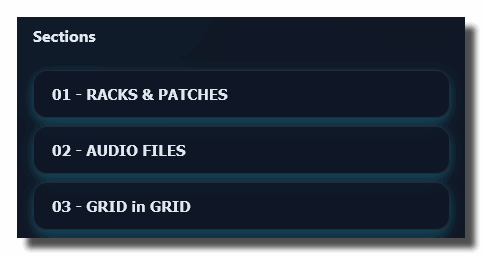
show sections list
When ON, displays the list of sections on the remote web page.
show previous next buttons
When ON, displays the previous and next buttons on the remote web page.

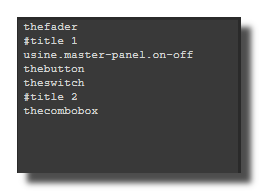
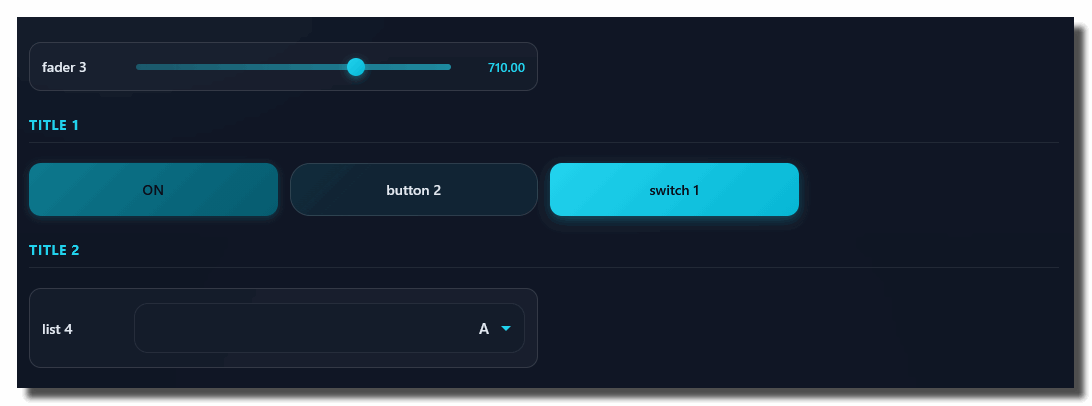
custom controls addr
User remote addresses for custom remote controls. See remote-controls.
See also
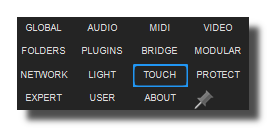
Usine's touch screens setup tab.
Windows only.
enable touch screen
Enable/Disable the touch screen feature.
activate double click
When ON, Usine considers two consecutive touch-down as a double click.
disable right click
When ON, Usine disables the right click feature (touch and hold).
disable touch protection for dbl click
When ON, Usine disables the touch protection for double click (prevents false double clicks).
trace gestures names
Traces gesture's names (the finger movement recognition).
See multi-touch for more infos.
use virtual keyboard
Displays the virtual keyboard when text entry is needed. Useful on tablets.
virtual keyboard zoom scale
Determines the zoom applied to the virtual keyboard.
See also
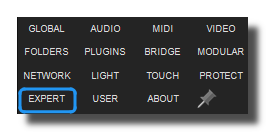
Various settings and commands for expert users.
startup options
Various option applied when Usine starts.
full screen
Opens the main interface in full screen when Usine starts.
window width at startup
Width of the Usine window at startup, in pixels (default 1244).
window height at startup
Height of the Usine window at startup, in pixels (default 700).
auto play
Turns the main process engine ON automatically.
auto play Grid
Starts the grid-panel automatically.
Only if the grid is not empty.
show grid
Opens the grid-panel automatically.
Only if the grid is not empty.
show interface builder
Opens the interface builder automatically.
show toolbox
Opens the toolbox automatically.
on shutdown
Various option applied when Usine quits.
save setup on quit
Determines if the configuration files is automatically saved when Usine quits. Disable for special installation to be sure that the original setup will never be lost if the user has changed it.
clean usine on quit
Determines if Usine is cleaned on quit. If disabled Usine will quit much faster but, with some workspaces, will not be destroyed properly by the Operating System.
save large inlets
don't save large in/outlets
When ON, the values of the inlets and outlets holding more than large in/outlets limit size elements (arrays, texts...) are not saved in the patches, which keeps the files small. Default OFF.
large in/outlets limit size
Number of elements above which an inlet or an outlet is not saved when don't save large in/outlets is ON. From 128, default 1024.
layout & design
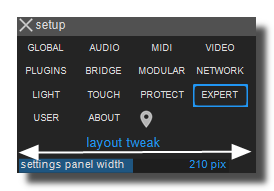
settings panel width
Width of the items in the settings-panel.
disable draw selection square
Do not display the white square around selected objects.
extended accents char set
Extends the characters set to resolve some compatibility of file names with special characters.
Mac OSX only
disable red value when size=0
Disable the display of values in red when the size is flux is zero.
bezier curves in patches
Choose between smooth Bezier or straight curves in the patch-editor-panel.
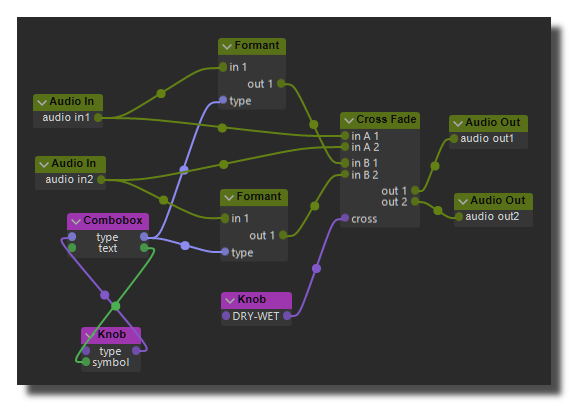 Bezier curves enabled
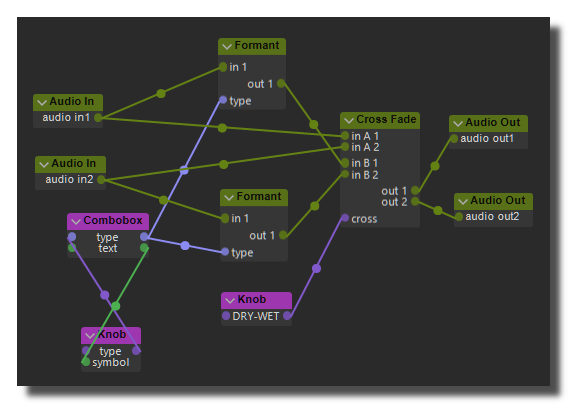 Bezier curves disabled
disable flow compatibility warning
Disables the warning "dotted line" when connecting incompatible flow types in the patch-editor-panel.
smooth cpu values
Enable or disable the smoothing of CPU consumption values in the patch-editor-panel.
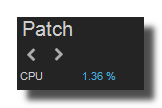 CPU consumption
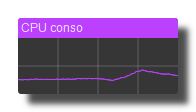 smooth enabled
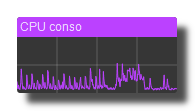 smooth disabled
disable remote hilite
The controls are surrounded by a clear edge when activated by a remote control (MIDI or OSC learn for example), the network or an automation. When this option is active, edge drawing is disabled and may reduce graphics engine load in case of heavy remote control flow.
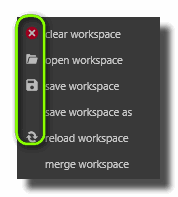
disable icons in contextual menu
Disables the display of context menu icons.
disable mouse over effect
Disables the color highlight of a control when the mouse hovers over it. When ON, the toolbar of a panel also stays displayed after the mouse leaves the panel.
hide remote learn indicator
Does not display the assignment indicator.
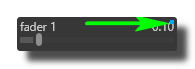
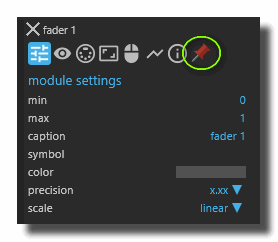
disable pin in separate window
Disables displaying settings in a separate window when pinned.
internet
disable internet connection
Disables the internet connection of Usine.
disable upgrade message
Disables the message "this patch/workspace has been created with a newer version of Usine, please upgrade".
Usine will not verify that the workspace/patch you want to load is compatible with the current version.
Be aware that, generally, newer workspaces/patches are not compatible with an old version of Usine and can't be loaded properly.
hints & tooltips
disable hints
Disables display of hints strings.
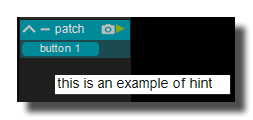
disable hints on modules
Disables display of hints strings on modules in the patching panel.
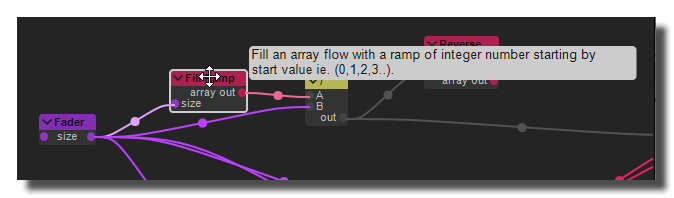
hints delay
Determines the time delay for displaying hints when the mouse stops moving.
hints font name
Font used for hints strings.
disable tips display
Disables display of tips strings.
audio files
adapt audio files pitch to sample rate
Ensure that the pitch of audio files is correct whatever the sound card sampling rate.
disable locate audio files
Disables the locator-panel when media files are missing in the workspaces, racks and patches. Missing files will be ignored.

max nb opened files
Maximum number of opened files in Usine. On OSX a process can open only 256 files at the same time (ie: audio files with the stay-on-disk option or video files). To ensure Usine's stability, you must keep the limit under the maximum allowed. more info
keyboard and mouse
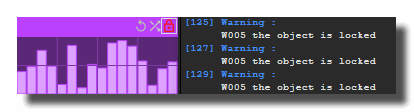
disable warning on locked objects
Disables the trace warning when you try to modify a locked object (ie. step-panel).
disable click to use mouse wheel
Disables having to click on an object to zoom with the mouse wheel.
disable hidden strings
Disables all the hidden-string.
disable all key learn
Disables all Usine's key learns. Either completely or only in kiosk mode.
disable alt click to rename
Disables the ability to rename objects with the [alt+click] combination.
disable mouse wheel zoom
Disables the ability to zoom with the mouse wheel.
other
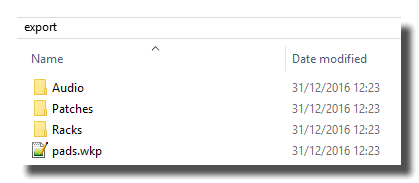
export separated rack/patch
If this option is activated, when you export a workspace, Usine will create folder with all patches and racks exported as individual files.
save patch json graph
When ON, saves a .json file with the patch graph structure each time you save a patch. Useful for third party tools that would need to analyze patch structure without opening Usine.
disable file-lister modules
Disables all file-lister modules.
disable show trace on error
Disables the appearance of the trace-panel when an error occurs. Either completely or only in kiosk mode.
convolver panel
Opens the convolver panel.
scripts
The time limits of the scripts: a procedure of a script that runs longer than its limit is stopped at its next loop turn, call or exit, one error line is traced, and that procedure stays off until the script is compiled again. A function of Usine that blocks, such as Sleep or a dialog, is not interrupted, and the time spent in a dialog opened by the script is not counted. 0 turns a limit off. These limits are not the watchdog, which keeps counting each error.
script Init time limit
Longest run of the Init procedure of a script, in ms, from 0 (no limit) to 600000, default 10000. An Init stopped by this limit is an error of the script: the parameters it created before the stop exist, and the other procedures run.
script main thread time limit
Longest run, in ms, of the other procedures of a script that run on the main thread: the callbacks in cbMainThread (the default), cbAsync or cbGraphic mode, ProcessIDLE, OnReset, Destroy, and Process when the engine is stopped. From 0 (no limit) to 600000, default 5000.
script other threads time limit
Longest run, in ms, of the procedures of a script that run on the other threads: Process, the callbacks in cbImmediate mode and the chunk notifications. From 0 (no limit) to 600000, default 1000. ProcessThread has no limit.
various
god mode
Adds various options and tweaking commands like save screen shot, gives an access to additional settings and displays more internal error messages. It also activates the debug mode of Usine. Various intern error messages will be displayed but Usine will be slower.
extended objects address
Extend the objects-address to all the settings of the object (not only usual parameters).
on large workspaces enable this option can slow down Usine, especially in scripts.
utilities
benchmark mono-core
Launch a speed calculation test, mono-core CPU oriented, of your computer.
benchmark multi-core
Launch a speed calculation test, multi-core CPU oriented, of your computer.
benchmark block calculation
Launch a block calculation speed test of your computer.
cpu stress
Launch a CPU stress procedure (try to use 100% of CPU).
test memory capacity
Try to allocate as much as possible memory to verify the real available memory.
There is a Possibility that it crashes Usine...
See also
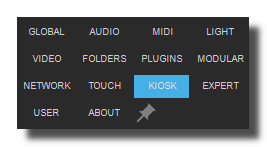
This is the setup for the kiosk mode. See 25.create-stand-alone-application for more details.
This tab is available in the Expert version.
toggle kiosk mode
Click to simulates the kiosk mode for the current project.
password
The password you want to use to activate/deactivate the kiosk mode.
By default the password is : PROTECT.
To leave the kiosk mode, type the password on the keyboard in the Usine window, outside any text field. Type it again to go back to the kiosk mode. Upper and lower case are not distinguished; use only letters and digits, 20 characters at most. See hidden-strings.
deploy folder
Folder where the workspace and medias for the stand-alone application is deployed.
elements to hide
Elements to hide in Kiosk mode especially in the main-menu-panel.
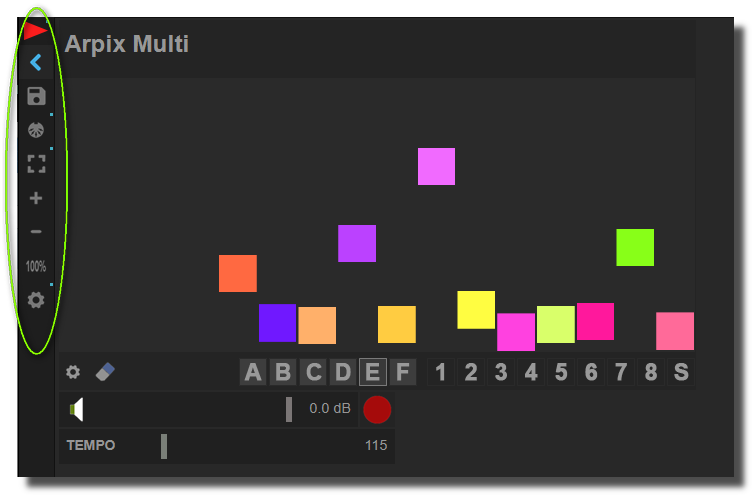
hide main on-off switch
Hide Main ON-OFF switch of the master-panel.
hide master panel
Hide all the master-panel.
hide global synchro panel
Hide the master-synchro-panel.
hide rec automation switch
Hide the Rec Automation icon of the main-menu-panel.
hide MIDI learn switch
Hide the MIDI the learn icon of the main-menu-panel.
hide zoom buttons
Hide the zoom icon of the main-menu-panel.
hide save workspace button
Hide the save workspace command in the main-menu-panel.
hide open workspace button
Hide the open workspace command in the main-menu-panel.
hide setup button
Hide the show setup command in the main-menu-panel.
hide fullscreen button
Hide the full screen command in the main-menu-panel.
hide devices button
Hide the show devices-panel command, so it's impossible to modify devices.
hide start page button
Hide the show start page command, so it's impossible to display the start page. Recommended if your deploy folder contains only one workspace.
application settings
General options of the application.
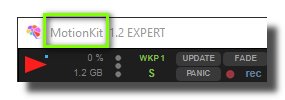
application name
Name of the application as appears in the task manager of the operating system and the window tittle bar.
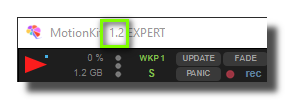
application version
Version of the application as appears in the task manager of the operating system and the window tittle bar.
workspaces are read only
Workspaces in the deploy folder can't be saved in any cases.
splash image
Name of the splash image displayed in front of Usine.
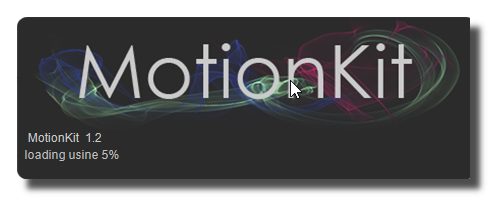
splash image size factor
Size factor of the splash image.
By default the size factor is 1. Increase it to enlarge the splash image.
startpage items size
Size (height) of workspace items in the start-page-panel.
startpage image
Image displayed on the start-page-panel.
See also
The settings of the MCP server of Usine: an AI assistant such as Claude connects to it to build and change your patches. See How to use the MCP server in Usine to connect your assistant.
If the tab shows not available, your Usine edition does not include the AI features.
MCP
enable MCP
Starts the MCP server. The setting is saved: the server starts with Usine from then on.
MCP port
Port of the server, 3100 by default. Change it only when another program uses this port, and give the same port to the assistant (option --port of the install script).
open MCP to the network
Off by default: only the programs of this computer reach the server. Turn it on when the assistant runs on another computer, and open the port in the firewall of this computer. The assistants of the other computers must then send the MCP token below; the programs of this computer that connect through localhost or 127.0.0.1 need none. A tunnel or a proxy that runs on this computer (ssh -R, ngrok...) brings its clients through localhost, so that they need no token either: do not open one to the port of the server.
An assistant that has the token and reaches the port controls Usine: it can load, save and clear your patches, run scripts that read and write files, read the log of Usine, and click and type anything in the windows of Usine as you can. Turn this option on only on a network you trust, and give the token only to the assistants you use.
MCP token
The password that an assistant of another computer sends to the server while open MCP to the network is on: Usine creates one when you turn the network access on and none exists. Give it to the bridge of that computer: option --token <token> of the install script, or the environment variable USINE_MCP_TOKEN; a client that connects without the bridge sends the header Authorization: Bearer <token>, or adds ?token=<token> to the address of the server. The spaces around a token typed or pasted here are removed. A client of this computer that uses another address than localhost or 127.0.0.1 (the network address of the computer, WSL2, a virtual machine, a container) sends it too. Without the right token the server refuses the client (error 401) and warns once in the trace panel for each address. Changing the token restarts the server while the network access is on: the connected assistants reconnect, and those of the other computers need the new token. The token is shown here and saved in clear in the setup file of Usine; a setup that is not saved when Usine quits (save setup on quit off in the expert tab, the command line option -dontsavesetup, an override setup) must hold the line MCP token= itself, or a new token is made at each start.
new MCP token
Creates a new MCP token in place of the current one, which then no longer works: give the new token to the assistants of the other computers. A token given by an additional or override setup cannot be replaced here.
trace MCP messages
Shows each request of the assistant and each answer of Usine in the trace panel, cut to 512 characters. They are always written in the log file of Usine.
show MCP activity
On by default: while the assistant works, the information panel at the top right of the main window names what it does, such as MCP: create module osc-main. The line goes away a few seconds after its last action, and never covers another indication of the panel (the progress of a load, the quantize, the pre-listen). Turn it off to keep the panel for Usine alone.
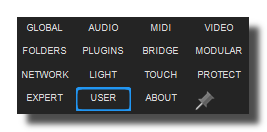
Once your purchased license, it's the place to activate it with your activation key.
You must be connected to Internet to activate Usine, so please deactivate all protections like anti-virus and firewalls software's. The activation is only necessary once.
Activate
activation key
Enter the activation key that you have received.
activate key
Clicks on this button to activate key to finalize your activation.
deactivate key
Click on this button to deactivate the activation key present on the version.
See also
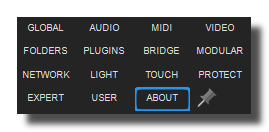
Displays various information about the current version of Usine.
usine version number
Current software version number.
hardware ID
Unique hardware identifier of your computer.
acknowledgements
Usine's implementation use several externals software tools and libraries. Our thanks to their developers.
See also
Tools used to develop and test Usine. They are not needed to use Usine.
tests
clear messages queues
Empties the internal message queues of Usine (main thread, asynchronous and graphic queues) and writes a message in the trace-panel.
replace no found wav by rnd
When ON, an audio file that cannot be found while loading is replaced by an audio file taken at random among the files of Usine, so that a patch can be tested without its samples. Default OFF.
replace no found img by rnd
When ON, an image file that cannot be found while loading is replaced by an image file taken at random among the files of Usine. Default OFF.
force samplers on disk
When ON, the samplers read their audio files from the disk even when they are set to load them in memory. Default OFF.
disable script compile
When ON, the scripts are not compiled: a script module reports script compilation disabled. Default OFF.
disable all user modules
When ON, the user modules (see sdk) are not loaded. Default OFF.
bulk procedures
Commands applied to all the patches and modules of Usine.
complementary
Replaces every color setting of the patches and of the modules by its complementary color, except their global color.
contrast +
Increases the contrast of every color setting of all the controls by 5%, except their global color.
contrast -
Decreases the contrast of every color setting of all the controls by 5%, except their global color.
debug version
The following commands are only available in the debug version of Usine. Each one clears the current workspace first.
create all modules
Creates one module of each class of Usine in a new rack, and checks the help page of each of them.
create all design modules
Creates one module of each class having a control in the control panel, video processing modules excepted.
create all user modules
Creates one module of each user module found in /Resources/Modules, and checks its help page.
create all sub-patches
Creates all the sub-patches found in the application folder, and checks their help pages.
create all scripts
Creates a script module for each script found in the application folder, and checks their help pages.
create all procedures
Creates all the procedures found in the application folder, and checks their help pages.
create all library patches
Opens all the patches of /Resources/Library and of the add-ons, ten patches per rack, with one grid section per rack.
create all racks
Opens all the racks of /Resources/Library and of the add-ons.
verify translator
Writes an error in the trace for each translation key that is not used in the sources of Usine.
verify waves
Writes an error in the trace for each audio file of the library that is not used by any bank, patch or workspace of the library.
create descriptions file
Builds /Resources/Help/short-descriptions-browser.txt, the short descriptions of the modules, scripts and library patches shown in the browser, taken from the first paragraph of their page of the online manual. The items without a page are listed in missing-short-descriptions-browser.txt.
find tutorial modules
Looks for each module in the tutorials of /Resources/Library/Tutorial: the tutorials using each module are listed in /Resources/Help/tutorials.txt, the modules used in no tutorial in missing-tutorials.txt.
create hints panels + verify
Same as create json modules + verify for the panels: hints in hints-panels.txt, missing ones in missing-hints-panels.txt.
download help index
Downloads the index of the online manual, used to find the help page of each object.
AI
Commands of the debug version that write the files of /Resources/AI, read by the AI through the MCP server. create json modules + verify and create all user modules json clear the current workspace first.
create json modules + verify
Creates each module and writes its description in /Resources/AI/modules, read from its page of the manual: the description of the module and of each of its inlets, outlets and settings. Usine shows these texts as the hints of the modules, and the AI reads them. The inlets and settings without description are listed in missing-hints-modules.txt; the inlets whose name starts with not used are left out. A module whose page cannot be read keeps its former description. The descriptions of the user modules are written at the end, as with create all user modules json.
generate library json index
Writes /Resources/AI/library/index.json, the index of the patches, racks and workspaces of /Resources/Library used by the AI: for each file its name, description, comments, module classes, inputs and outputs, and its number of modules, links and sub-patches, then for each port of each module class the classes and ports most often linked to it. The files are read without being opened, and the workspace is not cleared. The end of the index lists the anomalies of the library: files without description, unknown or legacy classes, legacy user modules, and the module classes used by no file.
create all user modules json
Creates each user module found in /Resources/Modules and writes its description for the AI in /Resources/AI/modules: the description of the module and of each of its parameters, as the module gives them. The hints of a user module are not read in this file: the module gives them itself.
create json of manual pages
Writes /Resources/AI/manual, the pages of the manual read by the AI: one JSON file per page, with its title and its text written as Markdown, and index.json, the list of the pages. The pages of the modules are left out: /Resources/AI/modules describes each module. The files of the pages removed from the manual are deleted, and the workspace is not cleared.
See also
version 7.0.250921
Edit All Pages