Playlist Panel
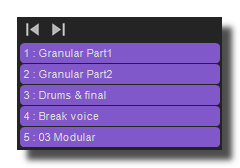
If your live set is made of several workspaces, the Playlist provides an easy way to recall them in a precise order. See use-playlist tutorial.
This can be achieved quickly without any prompt or confirmation dialog, even with a simple MIDI learn or Keyboard assignation.
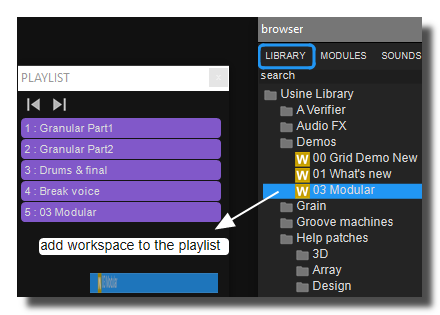
Drag & Drop workspaces directly from the browser on this panel to add a new item in the list.
previous
Loads the previous workspace (the last one when the first one is loaded).
next
Loads the next workspace (the first one when the last one is loaded).
workspace items
Workspaces of the playlist.
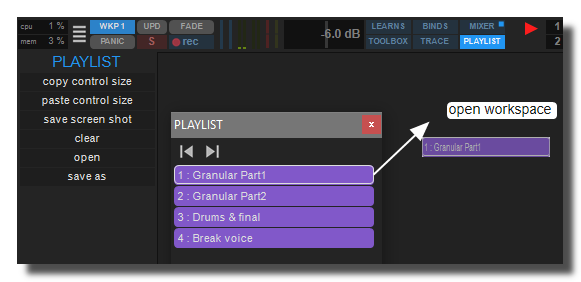 You can open a play list item by Drag & Drop it onto the current workspace, or by double-clicking it.
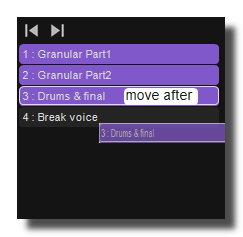 You can change the order by Drag & Drop items on each other.
Commands
clear
Clears the content of the selected object to make it empty.
open
Opens a file of the selected object saved previously.
save as
Saves the selected object as a file with a new name.
Settings
ask for confirmation
When ON, a confirmation pop up will appear before opening a workspace of the list (previous, next or double-click).
See also
version 7.0.250921
Edit All Pages