Setup tab Global
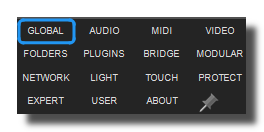
Usine's global setup tab. Various interface layouts and performances options.
import old setup
Imports all the settings from a previous Usine's installation. Click the button and select the folder (Win) or the .app (MAC) of the previous version.
This will copy the /Config/ folder of the old Usine to the new installation, including Snapshots, Devices, Addons, Browser Favorites, Plug-ins, Templates, Trash, Recent workspaces.
Requires a restart of Usine to apply the change.
global Interface
main language
Sets the language Usine is displayed in, English or French.
color Style
Color style of Usine.
global zoom scale
Allows the adjustment of zoom for the entire Usine interface.
Useful to adjust the interface size on tablets.
performances
Various tweaking options of the engine.
graphic engine
Graphic engine used to draw the interface of Usine. A change is applied at the next start of Usine.
On Windows:
- native: the FireMonkey canvas, drawn by the CPU.
- skia: the Skia 2D library, drawn by the CPU (default).
- skia openGL: Skia drawn by the GPU through OpenGL.
- skia vulkan: Skia drawn by the GPU through Vulkan, or through OpenGL when Vulkan 1.1 is not available.
On macOS:
- native: the FireMonkey canvas, drawn by the CPU (default).
- skia metal: Skia drawn by the GPU through Metal.
- metal: the FireMonkey canvas drawn by the GPU through Metal.
Metal needs macOS 10.15 or later; on an older system both Metal engines use Skia drawn by the CPU.
On Linux: native (default) or skia.
When the Skia library (libskia.dll, libskia.dylib or libskia.so) is missing, the Skia engines are replaced by native; on macOS the item then reads skia metal (not available).
It may seem counter-intuitive, but for video projects it is better to choose an engine drawn by the CPU in order to give the video engine full access to the graphics card, and not share it with the Usine interface.
buffered drawing
Usine will use a 2 steps buffering for drawing. This improves the graphic performances, but decrease the render quality especially when controls are zoomed.
fast text canvas
Try to draw text faster, but takes more memory.
graphic quality
Option to choose the graphic quality to increase the global performance.
- normal: the default.
- low: can reduce significantly CPU load, but also reduces graphic precision.
- best: on Windows, with the Skia engine drawn by the CPU (skia), the texts drawn directly in a window use ClearType (LCD) antialiasing when ClearType is on in Windows: they are sharper, especially on a screen at 100 %, for a little more CPU when they are drawn. The texts that Usine draws in an image first, such as the modules of the patch editor, and the texts of transparent windows stay in grayscale. The texts take it when they are drawn again. The screenshots of Usine then show the colored edges of ClearType.
refresh speed
Sets the global Usine refresh speed. For low value (5 ms) Usine is very reactive and the graphic display looks smooth but cost more CPU.
25 ms is a good value in most situations.
CPU count
Number of logical processors of the computer. Read only.
max number of threads
Determines the maximum number of threads allowed in Usine.
Each rack is processed in a separate thread.
max number of sub threads
Some heavy modules and sub-patch calculation are split into several sub-threads. This Number of sub-threads max allowed, you can increase it if your CPU has a lot of cores.
disk buffer size
Disk Buffer Size of the reading audio file buffer.
A good value is around 2000ms. Increase if you use large multi-channels files.
CPU load max
Sets the CPU protection level. If the CPU Load is greater than the CPU maximum level, the process engine stops for few seconds, to avoid hard crash of your system.
Generally 90% is a good value modern processor. If you want to disable this protection set the value to 100%.
draw in the background thread
Ask Usine to refresh the GUI as often as possible, but always in the background. Increase fluidity at the expense of CPU consumption.
floating windows
Switch the selected windows into floating mode.
floating window for patches
Switch the patch-editor-panel into a floating window.
floating window for settings
Switch the settings-panel into a floating window.
settings window height
Height of the settings window in percent of the screen height.
Only if floating window for settings is activated
floating window for grid
Switch the grid-panel into a floating window.
floating window for popups
Switch the panel-popup into a floating window.
See also
- Quick Configuration
- Additional and Override Setup
- Setup
- Setup tab User
- Setup tab About
- Setup tab Modular
- Setup tab Expert
- Setup tab Folders
- Setup tab MIDI
- Setup tab Plugins
- Setup tab Debug
- Setup tab Touch-screen
- Setup tab AI
- Setup tab Global
- Setup tab Light
- Setup tab Kiosk
- Setup tab Laser
- Setup tab Video
- Setup tab Network
- Setup tab Audio
- Usine Setup Settings
version 7.0.250921
Edit All Pages