Rack Panel
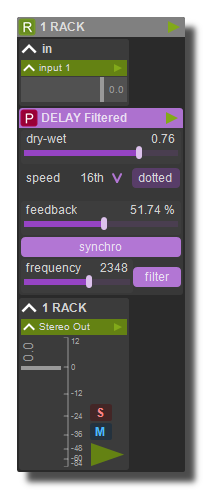 A Rack contains any number of patches.It has a rack-input and a rack-output where you decide what is coming in and where it goes.
It provides the most massive routing you can imagine without dealing with complex auxiliary Buses.
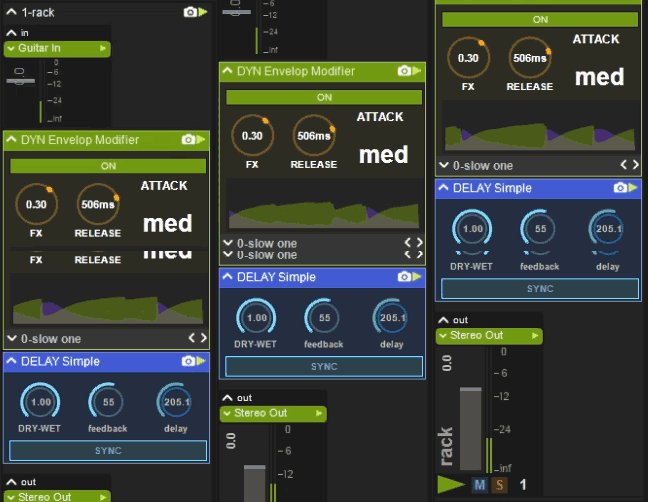 Example with an audio Rack, a mono input, 2 FX's and a stereo output.
Commands
new rack
Adds a new empty rack in the workspace.
clear
Clears the content of the selected object to make it empty.
open
Opens a file of the selected object saved previously.
delete
Deletes the selected object.
save
Saves the selected object as a file.
save as
Saves the selected object as a file with a new name.
export
Export the selected object (patch, rack or workspace). It saves it normally, but also creates folders where all used audio samples, video and images are exported.
This can be used to share with other users and be sure that no media is missing.
duplicate
Duplicates the selected object.
copy
Copies the selected object in the clipboard.
paste
Pastes the clipboard in the selected object.
add new patch
Adds a new empty patch inside the rack.
Settings
name
Name or caption of the object as it appears in its visible interface.
always process
When ON the current Rack is always processed, even if the main engine is OFF.
calculation mode
Calculation modes of the rack:
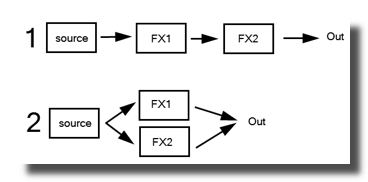
- patches series: patches are calculated one by one in their order in the rack. So the patch 2 will receive audio, MIDI and video from the patch 1; the patch 3 from the patch 2 and so on.
- patches parallels: patches are calculated one by one with flows incoming from the rack-input, and they send audio, MIDI, video flow directly to the rack-output, where their outputs are added.
- one thread per patch: as patches parallels, but each patch is calculated in its own thread, at the same time as the others. If the patches take more than 5 seconds, the error
e060is displayed. - background task: the rack is calculated in a low priority background thread, outside the audio cycle. A new calculation starts only when the previous one is finished, so the rack can skip cycles. Its patches are linked as in patches series. This mode switches process after other racks OFF.
process after other racks
When ON, the rack will be calculated when all other racks have finished their job. Can be used in spacial cases to ensure an optimal synchronization of racks When OFF, racks are calculated in an unpredictable order.
saved in workspace preset
Determines if the rack is saved in the workspace preset.
show when active on usine grid
Determines if the rack or the patch is automatically maximized when it's active on the grid and minimized when inactive.
fit grid line number
Displays the grid line number of the rack "G1", "G2", "G3", etc.
Only if the rack is in the grid.
can be randomized
When ON, this object will be randomized when using the randomize command.
can be reset
When ON, this object will be reset to its default value when using the reset command of its patch.
show when active on usine grid
Determines if the rack or the patch is automatically maximized when it's active on the grid and minimized when inactive.
hint
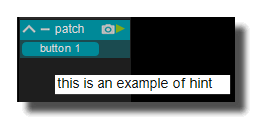
Hint text displayed on mouse over.
hint
Hint text displayed on mouse over.
ustomize Interface Choose which elements are visible in the panel.
rack input
Displays or not the input panel of the Rack.
rack output
Displays or not the output panel of the Rack.
Toolbar
toolbar-enabled
 Switches the patch, rack or panel ON or OFF. When OFF, a patch or a rack is no longer calculated, which saves CPU.
toolbar-minimize
 Minimizes or maximizes the panel.
toolbar-reduce
 Reduce the size of the current object.
toolbar-preset
 Opens/closes the preset panel.
See also
version 7.0.250921
Edit All Pages