Setup tab Video
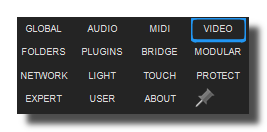
Video options of Usine.
video active
Activates/deactivates the video engine.
video in devices
Activates/deactivates the video inputs devices (several inputs possible). Also choose the resolution and framerate in the list of possible settings.
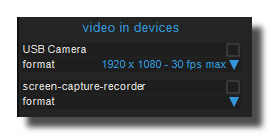
For IP camera's you must use the video-ip-camera module.
video aspect ratio
Choose the target format of the video ie. the final display form factor like 16/9, 3/4, etc. All video player modules will automatically adapt the videos to the proportions of the final target.
If not defined is chosen, the scaling will be done at the end of the process, generally in the output video device.
video frame lifetime
Duration (in milliseconds) during which a video frame is protected from being recycled by the frame pool.
Usine uses a frame pool to manage video frame memory efficiently. Instead of constantly allocating and freeing large bitmap objects, frames are borrowed from a shared pool and returned for reuse once they expire. The lifetime defines how long a frame remains reserved after being created — ensuring all downstream modules in the processing chain have time to read it before it gets recycled.
- Lower values (e.g. 100 ms): frames are recycled faster, using less memory, but complex video chains may experience glitches if a frame is reused too early.
- Higher values (e.g. 200–300 ms): frames stay available longer, which is safer for patches with many video modules in sequence, but increases memory usage.
The default value is 100 ms, which works well for most patches. Increase it if you observe visual artifacts in complex video processing chains.
video frame rate
Video engine speed in fps (frames per second). It concerns only the internal video engine of Usine. and has a limited impact on the real output framerate. Hi values can overload CPU but improve the fluidity. The recommended value is 100 fps
video mix strategy
Determines the mix-down strategy when 2 video flow are in the same wire and have to be mixed together.
- largest win : the smallest video is enlarged to fit to the largest video size; use more CPU.
- smallest win : the largest video is reduced to fit to the smallest video size; use less CPU.
video resampling quality
Determines the quality used for images resampling and rescaling.
- low : basic algorithm low CPU/GPU,
- hi : hi quality algorithm higher CPU/GPU,
- ultra hi : ultra hi quality algorithm very high CPU/GPU.
video preload images in memory
When ON the video-player-image preloads images in memory. It can reduce the access time of images but increases the memory load.
Video conversion tools
About Video Compression
Most of video files are compressed to keep their size on disk as small as possible. The main drawback is that it's generally impossible to play frames in a random order, especially backward (You can only play a video forward).
If you want to have a precise access to frames, convert video files into motion-JPEG with the convert video to motionJPEG tool.
You can also convert the file into separated images (one image per frame) with the convert video to images tool. Then, images can be loaded into Video Player Image module.
convert video to JPG images
Converts a Video file into separated JPG images, to be able to load them into Video Player Image module.
convert video to PNG images
Converts a Video file into separated PNG images, to be able to load them into Video Player Image module.
convert video to motionJPEG
Convert a Video file into a motionJPEG format file. It increases the size on disk but can solve many frame to frame access issues.
video conversion compression
Compression rate used for the motionJPEG compression. Low values for best quality, hi values for low quality.
This option is only visible in God Mode
convert video to HAP
Convert a Video file into a HAP format file. It increases the size on disk but can solve many frame to frame access issues. See hap codec.
extract audio from video
Extracts the audio flow of a video into a wav file to be able to load it into a Sampler module.
See also
- Quick Configuration
- Additional and Override Setup
- Setup
- Setup tab User
- Setup tab About
- Setup tab Modular
- Setup tab Expert
- Setup tab Folders
- Setup tab MIDI
- Setup tab Plugins
- Setup tab Touch-screen
- Setup tab Global
- Setup tab Light
- Setup tab Kiosk
- Setup tab Laser
- Setup tab Video
- Setup tab Network
- Setup tab Audio
- Usine Setup Settings
version 7.0.250921
Edit All Pages