MOGGER Tremolo
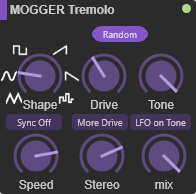
Stereo tremolo in the style of a Moogerfooger: after a drive and a low pass filter (Tone), an LFO with six shapes changes the volume of each side. A second LFO can move Tone.
The audio inputs 1-2 go through an audio-disto-wave-shaper, an audio-filter-moog and an audio-mix-volume per side moved by the LFO, then a crossfade mixes the dry sound and the tremolo to the audio outputs 1-2.
Play a guitar or a drum loop, then raise Stereo.
In the library: 1-Audio > Audio FX > Mogger.
Settings
Random
Gives random values to the controls.
Shape
Shape of the tremolo LFO, from 1 to 6: Triangle, Sine, Square, Ramp, Sawtooth and Random. Click a shape icon around the knob to select it; between two values, the knob blends two shapes.
Drive
Amount of distortion before the filter, from 0.99 to 100.
Tone
Cutoff frequency of the low pass filter, from 100 to 10000 Hz.
Sync On / Sync Off
Sync On: the speed of the LFO follows the tempo, set in the synchro list. Sync Off: the speed is set by Speed.
More Drive
Adds more distortion.
LFO on Tone
When ON, a second LFO moves Tone between the limits of the Tone LFO view, which appears on the panel.
Speed
Speed of the tremolo, from 0.6 to 12 Hz. Shown when the sync switch is OFF (Sync Off).
synchro
Speed of the tremolo as a note value of the tempo, shown when the sync switch is ON (Sync On):
- 4beats
- 2beats
- beat
- 1/2beat
- triplet
- 1/4beat
- 24th
- 1/8beat
Stereo
Phase of the LFO of the right side, from 0 to 0.5.
mix
Balance between the dry sound and the tremolo, from 0 (dry only) to 1 (tremolo only).
Tone LFO
Shown when LFO on Tone is ON.
range
The range fader at the top: the lowest and highest values of Tone reached by the LFO, from 100 to 10000 Hz.
Shape
Shape of the Tone LFO, from 1 to 6. Click a shape icon around the knob to select it.
Linked to Speed
When ON, the Tone LFO runs at twice the Speed of the tremolo.
Speed
Speed of the Tone LFO, from 0.6 to 12 Hz.
Settings window
advanced settings
 Use this icon in the patch header to open these advanced settings. Like the other icons of the header, it shows when the mouse is over the control panel of the patch (the green dot, always shown, turns the patch ON or OFF).
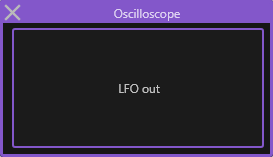
LFO out
View of the tremolo LFO over time.
See also
version 7.0.250921
Edit All Pages