Usine Setup Settings
Provides a replica of the setup-panel and gives you access to the setup of Usine.
See setup-panel for more info.
show setup
Shows or hide the setup panel.
Usine's global setup tab. Various interface layouts and performances options.
import old setup
Imports all the settings from a previous Usine's installation. Click the button and select the folder (Win) or the .app (MAC) of the previous version.
This will copy the /Config/ folder of the old Usine to the new installation, including Snapshots, Devices, Addons, Browser Favorites, Plug-ins, Templates, Trash, Recent workspaces.
Requires a restart of Usine to apply the change.
global Interface
main language
Sets the language Usine is displayed in, English or French.
color Style
Color style of Usine.
global zoom scale
Allows the adjustment of zoom for the entire Usine interface.
Useful to adjust the interface size on tablets.
performances
Various tweaking options of the engine.
hardware acceleration
Turns on the hardware graphic acceleration for the GUI of Usine. Sometime the graphic card can de in conflict with sound card drivers.
- no acceleration : all graphics are calculated by the CPU. Slower but safe.
- direct 2D : all graphics are calculated by the GPU using the Windows Direct2D layer.
- skia : all graphics are calculated by the GPU using the skia 2D layer. See skia.org.
- 3D GPU : all graphics are calculated by the GPU using the Windows DirectX layer. Fonts can be aliased.
It may seem counter-intuitive, but for video projects it is better to disable hardware acceleration in order to give the video engine full access to the graphics card, and not share it with the Usine interface.
buffered drawing
Usine will use a 2 steps buffering for drawing. This improves the graphic performances, but decrease the render quality especially when controls are zoomed.
fast text canvas
Try to draw text faster, but takes more memory.
graphic quality
Option to choose the graphic quality to increase the global performance. Low graphic quality can reduce significantly CPU load, but also reduces graphic precision.
refresh speed
Sets the global Usine refresh speed. For low value (5 ms) Usine is very reactive and the graphic display looks smooth but cost more CPU.
25 ms is a good value in most situations.
max number of threads
Determines the maximum number of threads allowed in Usine.
Each rack is processed in a separate thread.
max number of sub threads
Some heavy modules and sub-patch calculation are split into several sub-threads. This Number of sub-threads max allowed, you can increase it if your CPU has a lot of cores.
disk buffer size
Disk Buffer Size of the reading audio file buffer.
A good value is around 2000ms. Increase if you use large multi-channels files.
CPU load max
Sets the CPU protection level. If the CPU Load is greater than the CPU maximum level, the process engine stops for few seconds, to avoid hard crash of your system.
Generally 90% is a good value modern processor. If you want to disable this protection set the value to 100%.
draw in the background thread
Ask Usine to refresh the GUI as often as possible, but always in the background. Increase fluidity at the expense of CPU consumption.
floating windows
Switch the selected windows into floating mode.
floating window for patches
Switch the patch-editor-panel into a floating window.
floating window for settings
Switch the settings-panel into a floating window.
settings window height
Height of the settings window in percent of the screen height.
Only if floating window for settings is activated
floating window for grid
Switch the grid-panel into a floating window.
floating window for popups
Switch the panel-popup into a floating window.
See also
- Quick Configuration
- Additional and Override Setup
- Setup
- Setup tab User
- Setup tab About
- Setup tab Modular
- Setup tab Expert
- Setup tab Folders
- Setup tab MIDI
- Setup tab Plugins
- Setup tab Touch-screen
- Setup tab Global
- Setup tab Light
- Setup tab Kiosk
- Setup tab Laser
- Setup tab Video
- Setup tab Network
- Setup tab Audio
- Usine Setup Settings
Audio and sound cards settings.
drivers
Choose your sound card driver mode in the available drivers list.
in/out
Choose the device for the selected driver.
nb in
Number of inputs of the selected Sound card.
nb out
Number of outputs of the selected Sound card.
sample rate
Choose the working sample rate.
Remember that 44100Hz is generally enough for live situations and CPU friendly.
buffer size
Buffer size in sample (latency).
Don't forget that in the real world (not in the marketing) all drivers have 1 input and 2 output buffers. It means that to get the real latency, you always have to multiply by at least 3!
show driver
Click to open the Sound card panel.
WIN only.
block size
In Usine (like in almost all audio softwares) the audio flow is sliced and processed by blocks. This parameter indicates the current block size.
inputs
Activates Audio inputs to makes them available in Usine.
outputs
Activates Audio outputs to makes them available in Usine.
soft Clipping
Soft Clipping limiter: prevent audio saturation of the sound card.
audio engine running
Lets you know the state of the audio engine and if it is active.
pre-listen gain
Gain applied when you pre-listen a sample in the browser-panel.
external wave editor
wave editor
Specifies your favorite wave editor path.
audio in
generator on all inputs
When ON, add a 20Hz signal on all active inputs.
Useful for testing audio chain.
generator gain
Gain of the generated signal.
fast vu-meters
When ON, use a fast response time for the input vu-meters.
device
audio device
Name of the current audio device.
See also
- Quick Configuration
- Additional and Override Setup
- Setup
- Setup tab User
- Setup tab About
- Setup tab Modular
- Setup tab Expert
- Setup tab Folders
- Setup tab MIDI
- Setup tab Plugins
- Setup tab Touch-screen
- Setup tab Global
- Setup tab Light
- Setup tab Kiosk
- Setup tab Laser
- Setup tab Video
- Setup tab Network
- Setup tab Audio
- Usine Setup Settings
MIDI global settings.
rescan devices
Rescans and updates the list of available MIDI devices connected to the system.
Can be used for Hot plugged in MIDI devices.
reset devices
Resets all MIDI devices connected to the system (shutdown an reopen).
If a device fails to respond, this option is useful to reset the device in hopes of regaining functionality.
recreate MIDI devices
- on Windows, this command recreate the MIDI devices manager to provide a full reset of all devices. More efficient than the rescan devices command above.
- on MacOS it does a simple rescan devices as the command above.
Can be used for Hot plugged in MIDI devices.
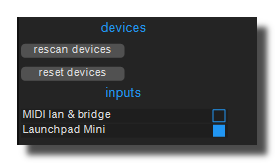
inputs / outputs
Shows available and connected MIDI devices. It allows you to activate devices you want to use.
For example in the picture below, the Launchpad mini controller is enabled and ready to use as MIDI Input.
midi lan & bridge
Activates the built-in MIDI-to-LAN interface that allows MIDI communication between computers running Usine on the Local Network.
memorize device name in learn
Tells Usine to remember device names during MIDI-learn. Thus, the MIDI assignment will also depend on the device used.
MIDI feedback to all devices
When ON, the MIDI feedback is sent to all motorized devices, even if they are not concerned by the MIDI learn.
Since HH3.0.133 the MIDI learn is associated with the name of the device. When this option is ON it turns Usine to old (prior HH3.0.133) MIDI feedback behavior.
send ALL NOTES OFF on stop sync
When activated, Usine sends the a MIDI All Note Off message when sync has stopped.
ignore active sensing messages
Some MIDI controllers send continuously active sensing messages. When ON, Usine filters them directly.
This way the trace panel and your MIDI devices are not polluted by this message.
always enable all MIDI inputs
When this option is activated, Usine will automatically activate all available MIDI inputs.
always enable all MIDI outputs
When this option is activated, Usine will automatically activate all available MIDI outputs.
MIDI show control Input
Various MIDI SHOW CONTROL settings for the reception of MSC information.
MSC device ID
Current Usine's MSC device ID.
MSC group
Current Usine's MSC group.
MSC format
Current Usine's reception MSC format.
device
MIDI device
Name of the current MIDI device.
See also
- Quick Configuration
- Additional and Override Setup
- Setup
- Setup tab User
- Setup tab About
- Setup tab Modular
- Setup tab Expert
- Setup tab Folders
- Setup tab MIDI
- Setup tab Plugins
- Setup tab Touch-screen
- Setup tab Global
- Setup tab Light
- Setup tab Kiosk
- Setup tab Laser
- Setup tab Video
- Setup tab Network
- Setup tab Audio
- Usine Setup Settings
Global configuration parameters for ArtNet, sACN and DMX .
The Usine's light engine can manage Enttec Open DMX, Enttec USB pro devices, as well as all ArtNet and sACN devices connected to the Ethernet port.
on Mac OSX you'll probably have installation troubles with DMXUSB PRO devices. It's generally caused by FTDI drivers conflicts. So in this case you can try the free utility app FTDI Driver Control 1.0.3 to disable the built-in FTDI driver.
on Windows, if you have troubles with Enttec USB Pro devices, you can try to install the FTDI CDM Drivers or Windows D2XX Drivers from the FTDI website.
rescan devices
Rescans all connected USB DMX devices. Usine can connect up to four devices.
reset devices
Resets all connected devices (shutdown and restart). Use it if you encounter issues.
outputs
List of Connected USB DMX devices to activate inside Usine.
DMX active
Turns the DMX engine ON. Must be activated to run Usine's DMX.
num of plots
Number of actives plots.
ArtNet settings
artNet active
Turns the ArtNet engine ON.
artNet port out
Output port used for the ArtNet communication (send messages). By default the port is 6454.
artNet in active
Activates the reception of ArtNet messages in Usine. To get messages use the light-artnet-sacn-input.
artNet port in
Input port used for the ArtNet communication (get incoming messages). By default the port is 6454.
artNet automatic poll
When ON Usine's, Usine will automatically send 'ArtNet Poll' data to retrieve all connected devices.
poll ArtNet
Sends an 'ArtNet Poll' data manually, useless if ArtNet automatic poll is ON.
artNet devices
List of all connected ArtNet devices.
sACN settings
sACN active
Turns the sACN engine ON.
sACN port out
Output port used for the sACN communication (send messages). By default the port is 5568.
sACN in active
Activates the reception of sACN messages in Usine. To get messages use the light-artnet-sacn-input.
sACN port in
Input port used for the sACN communication (get incoming messages). By default the port is 5568.
Global settings
DMX frame rate
Sets the maximum DMX frame rate (packets sent per second). Usine will send packets only if necessary.
clear on stop
Clears all DMX parameter set as "master" when the engine is turned OFF (Blackout).
auto increment channels
When ON, the channels are automatically incremented when assigning DMX parameters.
See also
- Quick Configuration
- Additional and Override Setup
- Setup
- Setup tab User
- Setup tab About
- Setup tab Modular
- Setup tab Expert
- Setup tab Folders
- Setup tab MIDI
- Setup tab Plugins
- Setup tab Touch-screen
- Setup tab Global
- Setup tab Light
- Setup tab Kiosk
- Setup tab Laser
- Setup tab Video
- Setup tab Network
- Setup tab Audio
- Usine Setup Settings
Video options of Usine.
video active
Activates/deactivates the video engine.
video in devices
Activates/deactivates the video inputs devices (several inputs possible). Also choose the resolution and framerate in the list of possible settings.
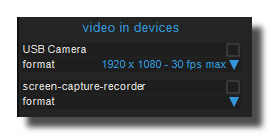
For IP camera's you must use the video-ip-camera module.
video aspect ratio
Choose the target format of the video ie. the final display form factor like 16/9, 3/4, etc. All video player modules will automatically adapt the videos to the proportions of the final target.
If not defined is chosen, the scaling will be done at the end of the process, generally in the output video device.
video frame lifetime
Duration (in milliseconds) during which a video frame is protected from being recycled by the frame pool.
Usine uses a frame pool to manage video frame memory efficiently. Instead of constantly allocating and freeing large bitmap objects, frames are borrowed from a shared pool and returned for reuse once they expire. The lifetime defines how long a frame remains reserved after being created — ensuring all downstream modules in the processing chain have time to read it before it gets recycled.
- Lower values (e.g. 100 ms): frames are recycled faster, using less memory, but complex video chains may experience glitches if a frame is reused too early.
- Higher values (e.g. 200–300 ms): frames stay available longer, which is safer for patches with many video modules in sequence, but increases memory usage.
The default value is 100 ms, which works well for most patches. Increase it if you observe visual artifacts in complex video processing chains.
video frame rate
Video engine speed in fps (frames per second). It concerns only the internal video engine of Usine. and has a limited impact on the real output framerate. Hi values can overload CPU but improve the fluidity. The recommended value is 100 fps
video mix strategy
Determines the mix-down strategy when 2 video flow are in the same wire and have to be mixed together.
- largest win : the smallest video is enlarged to fit to the largest video size; use more CPU.
- smallest win : the largest video is reduced to fit to the smallest video size; use less CPU.
video resampling quality
Determines the quality used for images resampling and rescaling.
- low : basic algorithm low CPU/GPU,
- hi : hi quality algorithm higher CPU/GPU,
- ultra hi : ultra hi quality algorithm very high CPU/GPU.
video preload images in memory
When ON the video-player-image preloads images in memory. It can reduce the access time of images but increases the memory load.
Video conversion tools
About Video Compression
Most of video files are compressed to keep their size on disk as small as possible. The main drawback is that it's generally impossible to play frames in a random order, especially backward (You can only play a video forward).
If you want to have a precise access to frames, convert video files into motion-JPEG with the convert video to motionJPEG tool.
You can also convert the file into separated images (one image per frame) with the convert video to images tool. Then, images can be loaded into Video Player Image module.
convert video to JPG images
Converts a Video file into separated JPG images, to be able to load them into Video Player Image module.
convert video to PNG images
Converts a Video file into separated PNG images, to be able to load them into Video Player Image module.
convert video to motionJPEG
Convert a Video file into a motionJPEG format file. It increases the size on disk but can solve many frame to frame access issues.
video conversion compression
Compression rate used for the motionJPEG compression. Low values for best quality, hi values for low quality.
This option is only visible in God Mode
convert video to HAP
Convert a Video file into a HAP format file. It increases the size on disk but can solve many frame to frame access issues. See hap codec.
extract audio from video
Extracts the audio flow of a video into a wav file to be able to load it into a Sampler module.
See also
- Quick Configuration
- Additional and Override Setup
- Setup
- Setup tab User
- Setup tab About
- Setup tab Modular
- Setup tab Expert
- Setup tab Folders
- Setup tab MIDI
- Setup tab Plugins
- Setup tab Touch-screen
- Setup tab Global
- Setup tab Light
- Setup tab Kiosk
- Setup tab Laser
- Setup tab Video
- Setup tab Network
- Setup tab Audio
- Usine Setup Settings
Global configuration parameters for laser devices.
Actually Usine works only with Helios Laser DAC. Other DAC's will coming soon. The laser module is only available for Windows OS.
rescan
Lists all the Helios-laser-DAC devices available on the computer.
ID
ID of each Helios-laser-DAC available.
laser speed
Maximum speed of the laser's devices in point-per-second.
See also
- Quick Configuration
- Additional and Override Setup
- Setup
- Setup tab User
- Setup tab About
- Setup tab Modular
- Setup tab Expert
- Setup tab Folders
- Setup tab MIDI
- Setup tab Plugins
- Setup tab Touch-screen
- Setup tab Global
- Setup tab Light
- Setup tab Kiosk
- Setup tab Laser
- Setup tab Video
- Setup tab Network
- Setup tab Audio
- Usine Setup Settings
Sets favorites folders for your personal library, Sounds, videos, fixtures and MIDI files and for the recording, etc. Personal folders will appear in the browser-panel.
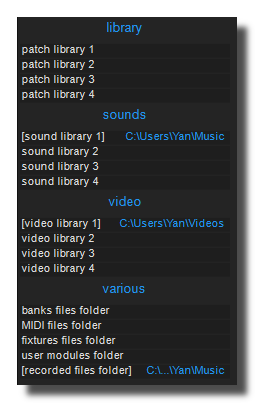
patch library
Specifies patches, racks, devices and workspaces library browser's path.
sound library
Specifies sounds library browser's path.
By default it's the /Music/ folder of your system.
video library
Specifies your Video files browser's path.
recorded audio files folder
Specifies where sounds recorded in Usine are saved by default.
recorded video files folder
Specifies where videos recorded in Usine are saved by default.
MIDI files folder
Specifies where your personal MIDI files are stored.
banks files folder
Specifies where your personal sampler bank files are stored.
fixtures files folder
Specifies where your personal fixtures files are stored.
user modules folder
Specifies where your personal user modules files are stored.
use local /temp folder
When ON, Usine stores its temporary and cache files in a local /temp folder inside the application directory (<Usine install>/Config/Temp/) instead of the system's default temp directory (e.g. C:\Users\<name>\AppData\Local\Temp\ on Windows). The local temp folder is also automatically cleared on startup.
This is useful for portable installations (e.g. running Usine from a USB drive) or to keep all Usine-related files self-contained within the application folder.
clear images cache
Clears the images cache used by Usine to speed up image loading.
clear audio peak cache
Clears the audio peak cache used by Usine to speed up waveform drawing.
See also
- Quick Configuration
- Additional and Override Setup
- Setup
- Setup tab User
- Setup tab About
- Setup tab Modular
- Setup tab Expert
- Setup tab Folders
- Setup tab MIDI
- Setup tab Plugins
- Setup tab Touch-screen
- Setup tab Global
- Setup tab Light
- Setup tab Kiosk
- Setup tab Laser
- Setup tab Video
- Setup tab Network
- Setup tab Audio
- Usine Setup Settings
 Usine's modular setup tab.
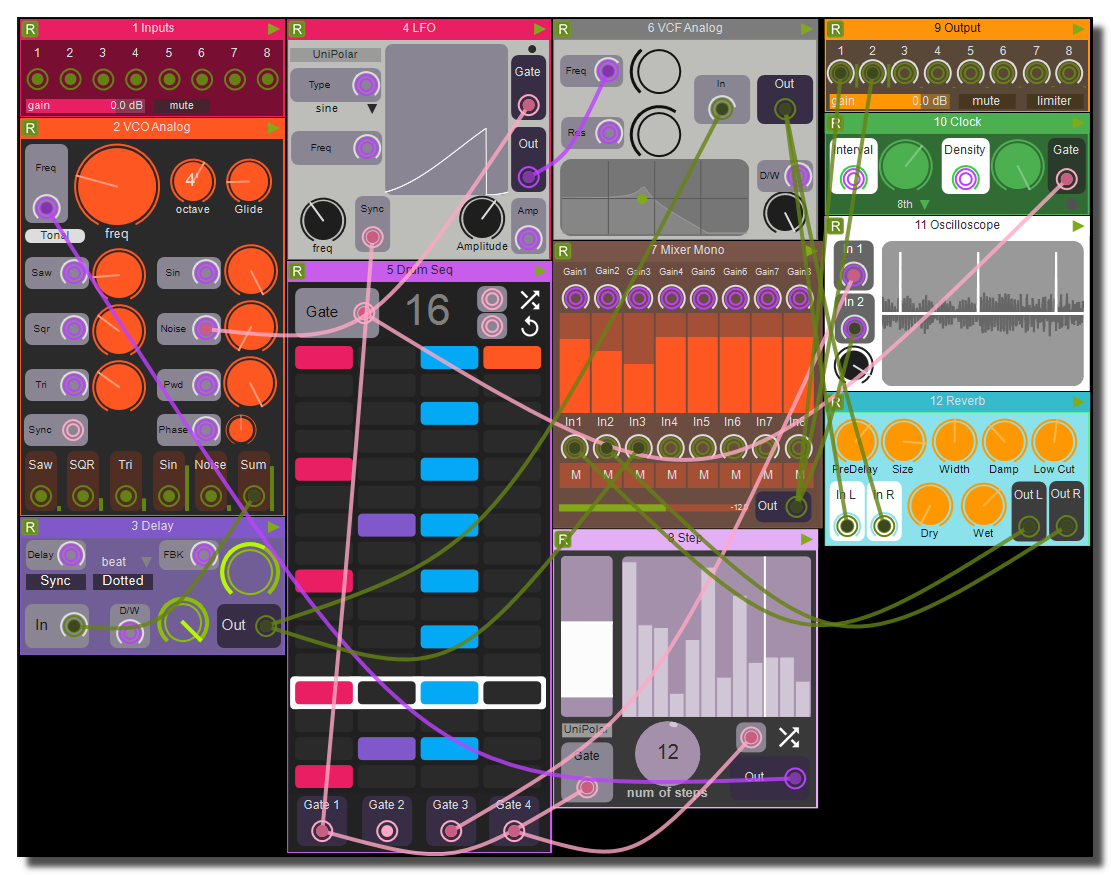 example of modular interface
wire opacity
Sets the opacity for the wires.
wire gravity
Sets the gravity for the wires.
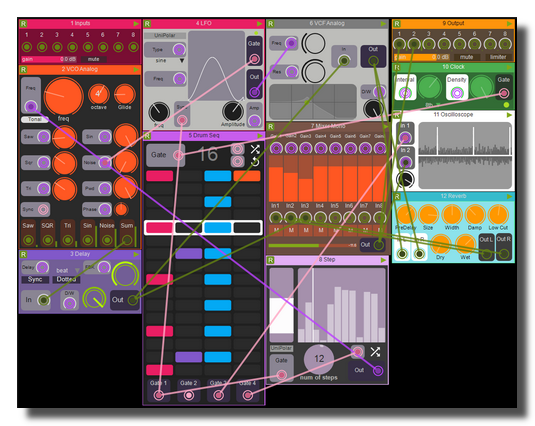 minimum gravity
wire width
Sets the width for the wires.
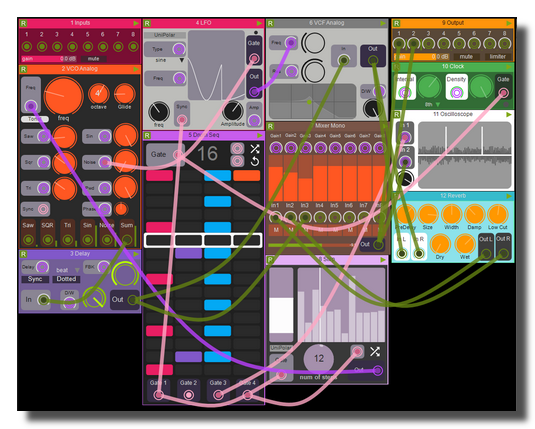 maximum width
display range knob on tlet
Display the range indicator on the modules modular-in
 ON
ON
 OFF
OFF
See also
- Quick Configuration
- Additional and Override Setup
- Setup
- Setup tab User
- Setup tab About
- Setup tab Modular
- Setup tab Expert
- Setup tab Folders
- Setup tab MIDI
- Setup tab Plugins
- Setup tab Touch-screen
- Setup tab Global
- Setup tab Light
- Setup tab Kiosk
- Setup tab Laser
- Setup tab Video
- Setup tab Network
- Setup tab Audio
- Usine Setup Settings
The OSC and Network options of Usine where you can activate OSC (Open Sound Control) and share on network capabilities.
network active
Turns the network and OSC engine ON (receive and send).
network speed
Speed of the network engine when data are sent. For a speed=20ms, Usine sends data and SHARED commands every 20 milliseconds.
opened ports
The local ports numbers used to receive OSC messages.
Can be a comma separated list of integers in the range [0..65535].
For example 2002 or 2002,2003,5623,1336
input buffer size
Size of the buffer for incoming network data. Increase it if you receive a large amount of data.
OSC out translator file
Name of the OSC messages translator file for outgoing messages. Can be used to convert automatically outgoing OSC messages. See osc-translator.
OSC in translator file
Name of the OSC messages translator file for incoming messages. Can be used to convert automatically incoming messages. See osc-translator.
show network errors
When ON, displays network errors in the trace-panel.
iP address local
List of addresses of the computer on the local Network, called the local IP address. If you see 127.0.0.1 it means that you're not connected to a Network.
Only available when share active or OSC active is ON.
host name
Name of the computer as seen on the Network.
share active
Turns the Network share engine ON.
share port
Port number used on the network for patch sharing. This port is determined automatically by Usine according to the number of Usine instances present in localhost.
share broadcast mask
Subnet mask used for network sharing for detection of other Usine on the network.
Can be used to restrict the shared network to a sub net.
send tempo and synchro info
Sends tempo and synchronization information to the Network. This computer will be considered as a master.
Only one connected computer should have this option to avoid conflicts
send grid sections info
Sends and synchronize information about sections to the Network. This computer will be considered as a master.
Only one connected computer should have this option to avoid conflicts
When ON, it automatically synchronizes grids of all connected computer to the master grid.
On slaves computers, new buses are created:
- current-section: number of the current section.
- sections-list: list of section's captions as a comma-text.
send playlist info
Sends playlist information to the Network. This computer will be considered as a master.
Only one connected computer should have this option to avoid conflicts
When ON, it automatically synchronizes playlist of all connected computer to the master grid.
send global arrays
Global option to disable or enable the sharing of global-arrays modules. When this option is ON, Usine can send all values over the network.
When OFF, sending is disabled even if the send to shared computers setting of global-arrays modules is activated.
compress network flows
When ON, compresses data sent on the network to reduce the bandwidth. Can be useful for slow network connections.
Increases the CPU load a bit.
use small MTU
When ON, uses small MTU (Maximum Transmission Unit) for network packets. Can be useful for some network configurations.
connected computers
Displays the list of all the connected computers on the Network running Usine.
Share active must be ON on all connected computers.
internet
You need a connection to get help pages inside Usine or to register with your activation key. You can disable the internet connexion in expert-tab disable-internet-connexion.
connected to internet
Read only property which indicates if Usine is connected to internet.
The test for connection is made at startup, so if its status has changed you must use the command test internet connection bellow.
IP address internet
Address of the computer on internet.
Only available when is connected to internet is ON.
test internet connection
Tests manually internet availability.
remote control
Allows the remote control of Usine from a web page. See remote-control.
enable remote control
Turns ON/OFF the remote control capabilities.
remote ID
ID used for remote control identification. Must be a string with letters and digits in the set [A..Z,a..z,0..9].
remote server
Address of the remote access server, by default http://remote.brainmodular.com/ it is the official brainmodular remote server, do not change it unless you have good reasons to do so.
open remote client
Opens the user's default web browser and navigates to https://www.brainmodular.com/remote/ to see the remote access to Usine.
remote port
Port used by the web socket to communicate with Usine. By default 80, do not change it unless you have good reasons to do so.
remote control connected
Indicates if Usine is currently connected to a remote web page. Inside a patch you can use this field with the usine-setup-settings module.
show sections list
When ON, displays the list of sections on the remote web page.
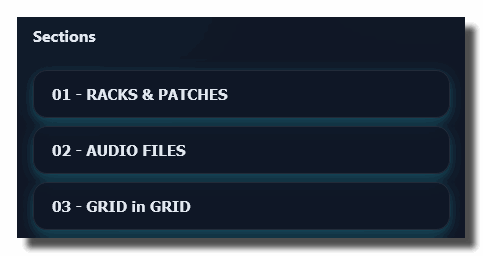
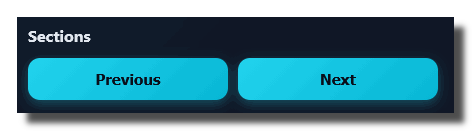
show previous next buttons
When ON, displays the previous and next buttons on the remote web page.
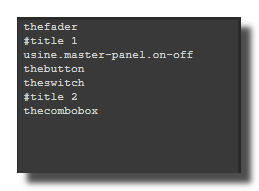
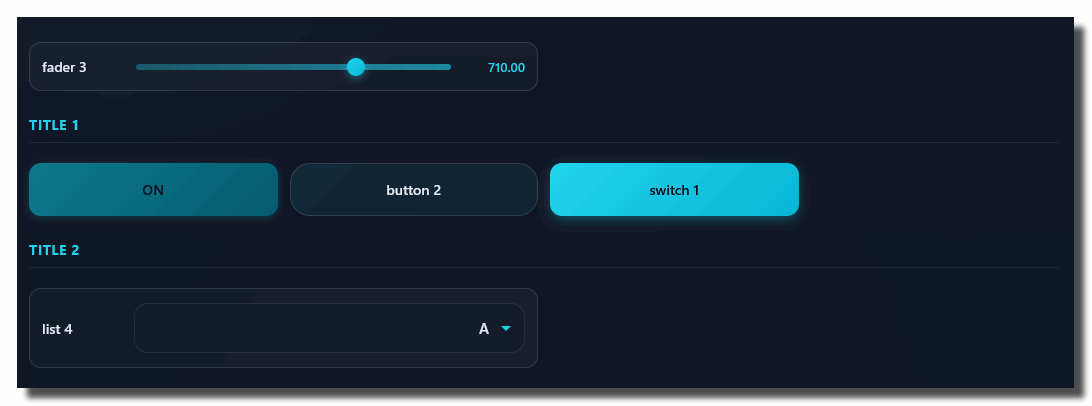
custom controls addr
User remote addresses for custom remote controls. See remote-controls.
See also
- Quick Configuration
- Additional and Override Setup
- Setup
- Setup tab User
- Setup tab About
- Setup tab Modular
- Setup tab Expert
- Setup tab Folders
- Setup tab MIDI
- Setup tab Plugins
- Setup tab Touch-screen
- Setup tab Global
- Setup tab Light
- Setup tab Kiosk
- Setup tab Laser
- Setup tab Video
- Setup tab Network
- Setup tab Audio
- Usine Setup Settings
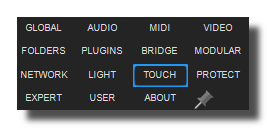
Usine's touch screens setup tab.
Windows only.
enable touch screen
Enable/Disable the touch screen feature.
activate double click
When ON, Usine considers two consecutive touch-down as a double click.
disable right click
When ON, Usine disables the right click feature (touch and hold).
disable touch protection for dbl click
When ON, Usine disables the touch protection for double click (prevents false double clicks).
trace gestures names
Traces gesture's names (the finger movement recognition).
See multi-touch for more infos.
use virtual keyboard
Displays the virtual keyboard when text entry is needed. Useful on tablets.
virtual keyboard zoom scale
Determines the zoom applied to the virtual keyboard.
See also
- Quick Configuration
- Additional and Override Setup
- Setup
- Setup tab User
- Setup tab About
- Setup tab Modular
- Setup tab Expert
- Setup tab Folders
- Setup tab MIDI
- Setup tab Plugins
- Setup tab Touch-screen
- Setup tab Global
- Setup tab Light
- Setup tab Kiosk
- Setup tab Laser
- Setup tab Video
- Setup tab Network
- Setup tab Audio
- Usine Setup Settings
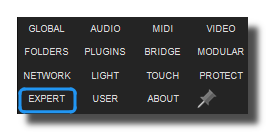
Various settings and commands for expert users.
startup options
Various option applied when Usine starts.
full screen
Opens the main interface in full screen when Usine starts.
window width at startup
Size in height of the Usine window at startup.
window height at startup
Size in width of the Usine window at startup.
auto play
Turns the main process engine ON automatically.
auto play Grid
Starts the grid-panel automatically.
Only if the grid is not empty.
show grid
Opens the grid-panel automatically.
Only if the grid is not empty.
show interface builder
Opens the interface builder automatically.
show toolbox
Affiche la toolbox automatiquement.
on shutdown
Various option applied when Usine quits.
save setup on quit
Determines if the configuration files is automatically saved when Usine quits. Disable for special installation to be sure that the original setup will never be lost if the user has changed it.
clean usine on quit
Determines if Usine is cleaned on quit. If disabled Usine will quit much faster but, with some workspaces, will not be destroyed properly by the Operating System.
layout & design
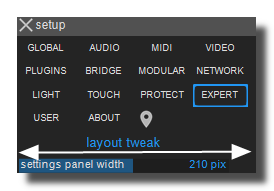
settings panel width
Width of the items in the settings-panel.
disable draw selection square
Do not display the white square around selected objects.
extended accents char set
Extends the characters set to resolve some compatibility of file names with special characters.
Mac OSX only
disable red value when size=0
Disable the display of values in red when the size is flux is zero.
bezier curves in patches
Choose between smooth Bezier or straight curves in the patch-editor-panel.
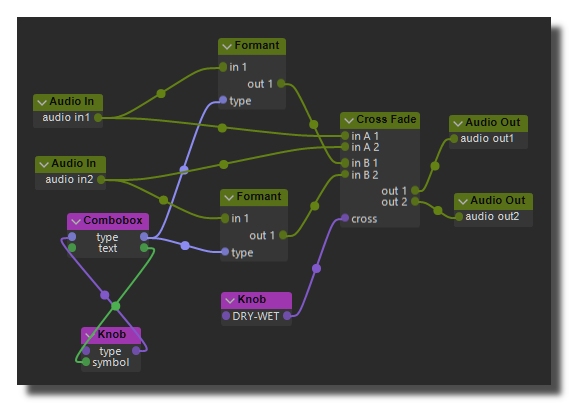 Bezier curves enabled
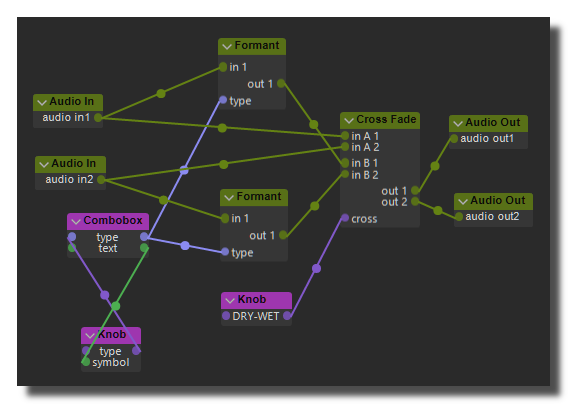 Bezier curves disabled
disable flow compatibility warning
Disables the warning "dotted line" when connecting incompatible flow types in the patch-editor-panel.
smooth cpu values
Enable or disable the smoothing of CPU consumption values in the patch-editor-panel.
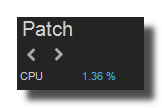 CPU consumption
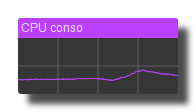 smooth enabled
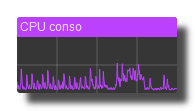 smooth disabled
disable remote hilite
The controls are surrounded by a clear edge when activated by a remote control (MIDI or OSC learn for example), the network or an automation. When this option is active, edge drawing is disabled and may reduce graphics engine load in case of heavy remote control flow.
disable icons in contextual menu
Disables the display of context menu icons.
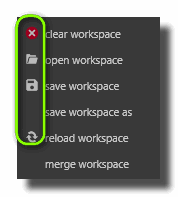
disable mouse over effect
Enables the color animation when a control is hoovered.
hide remote learn indicator
Does not display the assignment indicator.
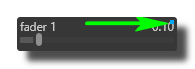
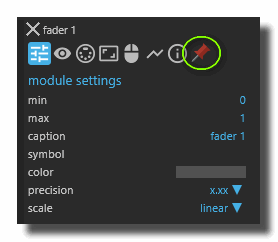
disable pin in separate window
Disables displaying settings in a separate window when pinned.
internet
disable internet connection
Disables the internet connection of Usine.
disable upgrade message
Disables the message "this patch/workspace has been created with a newer version of Usine, please upgrade".
Usine will not verify that the workspace/patch you want to load is compatible with the current version.
Be aware that, generally, newer workspaces/patches are not compatible with an old version of Usine and can't be loaded properly.
hints & tooltips
disable hints
Disables display of hints strings.
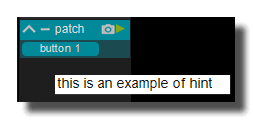
disable hints on modules
Disables display of hints strings on modules in the patching panel.
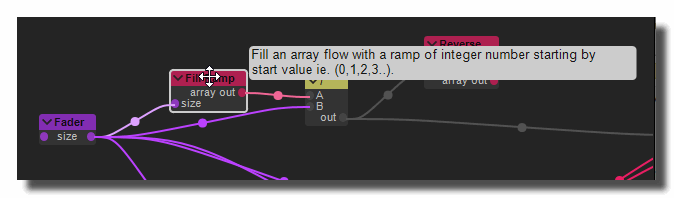
hints delay
Determines the time delay for displaying hints when the mouse stops moving.
hint font name
Font used for hints strings.
disable tips display
Disables display of tips strings.
audio files
adapt audio files pitch to sample rate
Ensure that the pitch of audio files is correct whatever the sound card sampling rate.
disable locate audio files
Disables the locator-panel when media files are missing in the workspaces, racks and patches. Missing files will be ignored.

max nb opened files
Maximum number of opened files in Usine. On OSX a process can open only 256 files at the same time (ie: audio files with the stay-on-disk option or video files). To ensure Usine's stability, you must keep the limit under the maximum allowed. more info
keyboard and mouse
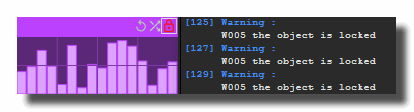
disable warning on locked objects
Disables the trace warning when you try to modify a locked object (ie. step-panel).
disable click to use mouse wheel
Disables having to click on an object to zoom with the mouse wheel.
disable hidden strings
Disables all the hidden-string.
disable all key learn
Disables all Usine's key learns. Either completely or only in kiosk mode.
disable alt click to rename
Disables the ability to rename objects with the [alt+click] combination.
disable mouse wheel zoom
Disables the ability to zoom with the mouse wheel.
other
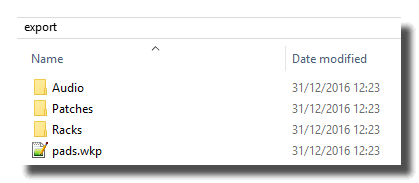
export separated rack/patch
If this option is activated, when you export a workspace, Usine will create folder with all patches and racks exported as individual files.
save patch json graph
When ON, saves a .json file with the patch graph structure each time you save a patch. Useful for third party tools that would need to analyze patch structure without opening Usine.
disable file-lister modules
Disables all file-lister modules.
disable show trace on error
Disables the appearance of the trace-panel when an error occurs. Either completely or only in kiosk mode.
convolver panel
Opens the convolver panel.
various
god mode
Adds various options and tweaking commands like save screen shot, gives an access to additional settings and displays more internal error messages. It also activates the debug mode of Usine. Various intern error messages will be displayed but Usine will be slower.
extended objects address
Extend the objects-address to all the settings of the object (not only usual parameters).
on large workspaces enable this option can slow down Usine, especially in scripts.
utilities
benchmark mono-core
Launch a speed calculation test, mono-core CPU oriented, of your computer.
benchmark multi-core
Launch a speed calculation test, multi-core CPU oriented, of your computer.
benchmark block calculation
Launch a block calculation speed test of your computer.
cpu stress
Launch a CPU stress procedure (try to use 100% of CPU).
test memory capacity
Try to allocate as much as possible memory to verify the real available memory.
There is a Possibility that it crashes Usine...
See also
- Quick Configuration
- Additional and Override Setup
- Setup
- Setup tab User
- Setup tab About
- Setup tab Modular
- Setup tab Expert
- Setup tab Folders
- Setup tab MIDI
- Setup tab Plugins
- Setup tab Touch-screen
- Setup tab Global
- Setup tab Light
- Setup tab Kiosk
- Setup tab Laser
- Setup tab Video
- Setup tab Network
- Setup tab Audio
- Usine Setup Settings
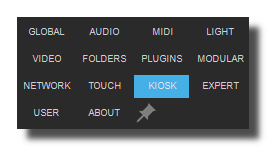
This is the setup for the kiosk mode. See 25.create-stand-alone-application for more details.
This tab is available in the Expert version.
toggle kiosk mode
Click to simulates the kiosk mode for the current project.
password
The password you want to use to activate/deactivate the kiosk mode.
By default the password is : PROTECT.
deploy folder
Folder where the workspace and medias for the stand-alone application is deployed.
elements to hide
Elements to hide in Kiosk mode especially in the main-menu-panel.
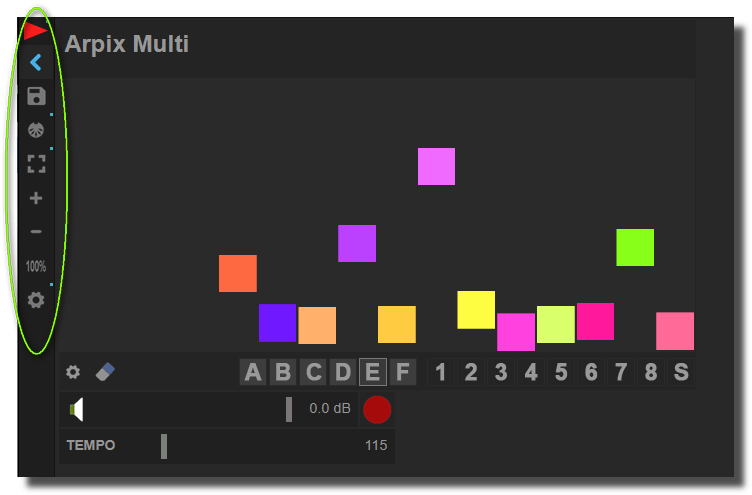
hide main on-off switch
Hide Main ON-OFF switch of the master-panel.
hide master panel
Hide all the master-panel.
hide global synchro panel
Hide the master-synchro-panel.
hide rec automation switch
Hide the Rec Automation icon of the main-menu-panel.
hide MIDI learn switch
Hide the MIDI the learn icon of the main-menu-panel.
hide zoom buttons
Hide the zoom icon of the main-menu-panel.
hide save workspace button
Hide the save workspace command in the main-menu-panel.
hide open workspace button
Hide the open workspace command in the main-menu-panel.
hide setup button
Hide the show setup command in the main-menu-panel.
hide fullscreen button
Hide the show setup command in the main-menu-panel.
hide devices button
Hide the show devices-panel command, so it's impossible to modify devices.
hide start page button
Hide the show start page command, so it's impossible to display the start page. Recommended if your deploy folder contains only one workspace.
application settings
General options of the application.
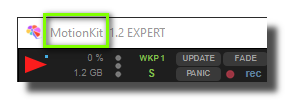
application name
Name of the application as appears in the task manager of the operating system and the window tittle bar.
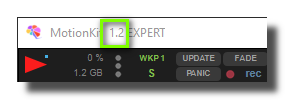
application version
Version of the application as appears in the task manager of the operating system and the window tittle bar.
workspaces are read only
Workspaces in the deploy folder can't be saved in any cases.
splash image
Name of the splash image displayed in front of Usine.
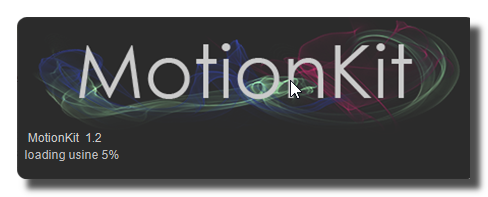
splash image size factor
Size factor of the splash image.
By default the size factor is 1. Increase it to enlarge the splash image.
startpage items size
Size (height) of workspace items in the start-page-panel.
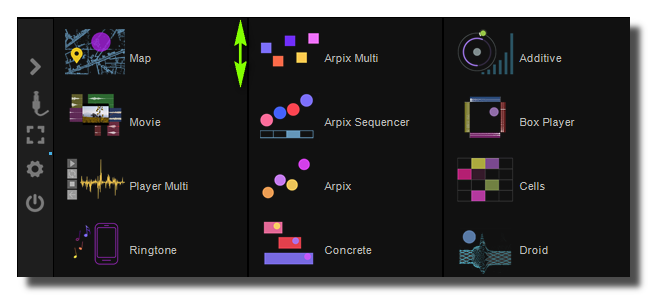
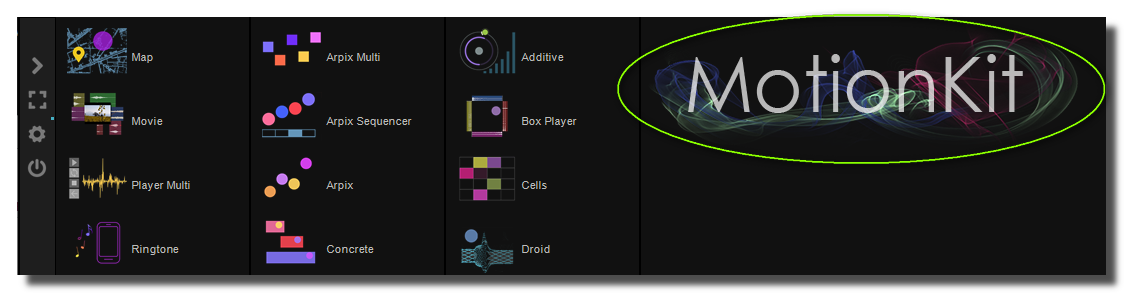
startpage image
Image displayed on the start-page-panel.
See also
- Quick Configuration
- Additional and Override Setup
- Setup
- Setup tab User
- Setup tab About
- Setup tab Modular
- Setup tab Expert
- Setup tab Folders
- Setup tab MIDI
- Setup tab Plugins
- Setup tab Touch-screen
- Setup tab Global
- Setup tab Light
- Setup tab Kiosk
- Setup tab Laser
- Setup tab Video
- Setup tab Network
- Setup tab Audio
- Usine Setup Settings
Once your purchased license, it's the place to activate it with your activation key.
You must be connected to Internet to activate Usine, so please deactivate all protections like anti-virus and firewalls software's. The activation is only necessary once.
Activate
activation key
Enter the activation key that you have received.
activate key
Clicks on this button to activate key to finalize your activation.
deactivate key
Click on this button to deactivate the activation key present on the version.
See also
- Quick Configuration
- Additional and Override Setup
- Setup
- Setup tab User
- Setup tab About
- Setup tab Modular
- Setup tab Expert
- Setup tab Folders
- Setup tab MIDI
- Setup tab Plugins
- Setup tab Touch-screen
- Setup tab Global
- Setup tab Light
- Setup tab Kiosk
- Setup tab Laser
- Setup tab Video
- Setup tab Network
- Setup tab Audio
- Usine Setup Settings
Displays various information about the current version of Usine.
usine version number
Current software version number.
hardware ID
Unique hardware identifier of your computer.
acknowledgements
Usine's implementation use several externals software tools and libraries. Our thanks to their developers.
See also
- Quick Configuration
- Additional and Override Setup
- Setup
- Setup tab User
- Setup tab About
- Setup tab Modular
- Setup tab Expert
- Setup tab Folders
- Setup tab MIDI
- Setup tab Plugins
- Setup tab Touch-screen
- Setup tab Global
- Setup tab Light
- Setup tab Kiosk
- Setup tab Laser
- Setup tab Video
- Setup tab Network
- Setup tab Audio
- Usine Setup Settings
Common Settings
info
show manual
Button. Opens the manual page of the selected object (or of its parent module for a control) in the web browser. If no page exists for this object, an error is traced in the trace panel.
For more details about information/help creation, see create-help-file.
description
Free multi-line text attached to the module, saved with the patch. It is only meant as an internal note for the patch designer: it is not displayed in the interface.
ID's
visible only in god mode, see setup-panel-tab-expert.
unique ID
Read-only, not saved. Current private numeric ID of the object, used internally to identify it (for example as the target of a bind ID).
preset ID
Read-only, not saved. Private ID used to store and recall the values of this control in presets.
recreate ID
Button. Generates a new unique ID, original ID and preset ID for the object. Use it if you experience difficulties in Polyphonic mode or if two objects share the same ID. Preset values and binds referring to the old IDs are lost.
Object Remote Address
absolute
Read-only, not saved. Absolute address of the object in the Usine objects tree, built from the workspace root. This is the address to use to reach the object from scripts, the objects panel or remote messages. Only shown for objects that are registered in the objects list. See objects-address.
local
Read-only, not saved. Address of the object relative to the current patch, valid inside that patch only. See objects-address.
user addr
Free user-defined address for the object (empty by default). When set, the object is also registered in the objects tree under this name, so it can be reached independently of its position in the workspace (the value is also reported in the mouse-over and mouse-down chunks). Changing it rebuilds the objects list. Only available on objects that support a user address. See objects-address.
See also
- Quick Configuration
- Additional and Override Setup
- Setup
- Setup tab User
- Setup tab About
- Setup tab Modular
- Setup tab Expert
- Setup tab Folders
- Setup tab MIDI
- Setup tab Plugins
- Setup tab Touch-screen
- Setup tab Global
- Setup tab Light
- Setup tab Kiosk
- Setup tab Laser
- Setup tab Video
- Setup tab Network
- Setup tab Audio
- Usine Setup Settings
version 7.0.250921
Edit All Pages