Video Stylize Dither
Turns the video flow into pure black and white pixels: the brighter an area, the more of its pixels are white, so the image looks like a fine grain of dots (error diffusion dithering).
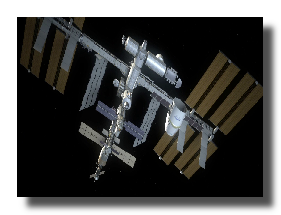
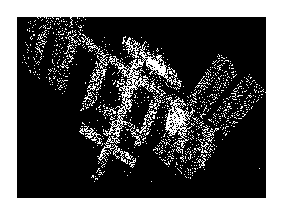
Every output pixel is opaque black or opaque white: the colors and the transparency of the input are dropped, and the output keeps the size of the input. Seen from a distance, the share of white pixels in an area matches its brightness: about one pixel in ten in a 10 % gray, one in two in a 50 % gray, nine in ten in a 90 % gray. The module has no setting of its own: the look is controlled by the image sent to it (see the tips below).
How it works
- The brightness of a pixel is (R + G + B) / 3, rounded down: the average of its red, green and blue values, from 0 for black to 255 for white. Red, green and blue count the same: pure red, pure green and pure blue all give one white pixel in three.
- The pixels are processed row by row from the top, each row from left to right.
- Each pixel adds its brightness to the light handed on by the pixels processed before it. If the total reaches 255, the pixel becomes white and 255 is taken from the total; otherwise the pixel becomes black and the whole total is left over.
- The leftover is handed on in four equal quarters: to the next pixel on the right and to the three pixels below (below left, below, and below right, which also gets the rounding remainder). The light that would go past the left or right side of the frame, or below the last row, is lost.
- Each frame starts from scratch: nothing is carried from one frame to the next. A still image always gives the same pattern, but in moving or noisy video the dots change from frame to frame, because a small change in one pixel can rearrange the dots to its right and below it.
What to expect
- Black areas stay fully black: a black pixel counts 0, and the light it receives from its neighbors always stays below 255.
- White areas stay fully white: a white pixel counts 255, which turns it white by itself, whatever the light it receives from its neighbors.
- The top of the frame comes out darker than the image, because the first rows receive no light from above. On the top row, the areas up to 75 % gray (191) are fully black, and in the dark areas the first white dots only appear after a few rows: after 2 rows in a 25 % gray (64), 5 rows in a 12.5 % gray (32), 11 rows in a 6 % gray (16).
- The sides of the frame come out darker too, because the light that goes past them is lost. The leftmost column is almost black up to about 64 % gray and only partly white above, while between 50 % and 64 % gray the column next to it is almost fully white: a black and white double line runs along the left side. The rightmost column is mostly darker than the image, for example about one white pixel in eight instead of one in two in a 50 % gray.
- Flat areas give regular textures rather than a random grain: lines and grids of dots in the dark and light grays, maze-like stripes in the mid grays.
Tips
- To change the density of the dots, change the image before the module, for example with video-color-contrast, video-color-levels or video-color-lightness: a brighter image gives more white dots, a darker one fewer.
- For a coarser grain, reduce the image with video-geometric-resize before the module and enlarge the result with a second Resize after it. With the video resampling quality of the setup-panel-tab-video set to low (nearest neighbor), the enlarged dots stay sharp black and white squares; with hi or ultra hi they get gray edges.
- To keep the colors, mix the result with the original image in video-mix-blend-modes in multiply mode: the white dots show the original colors and the black ones stay black.
Formerly Video Geometric Pixels Distribution.
Settings
bypass
Bypasses the module processing when activated (ON).
- OFF (0): Module processes normally
- ON (1): Input passes directly to output without processing
video in
Video input flow(s).
video out
Video output flow(s).
process time
Total time used for the calculation of the module.
Common Settings
info
show manual
Button. Opens the manual page of the selected object (or of its parent module for a control) in the web browser. If no page exists for this object, an error is traced in the trace panel.
For more details about information/help creation, see create-help-file.
description
Free multi-line text attached to the module, saved with the patch. When it is not empty, it is shown as the hint of the module (mouse over the module header in the patch) in place of the default module hint, even when the module hints are disabled.
ID's
visible only in god mode, see setup-panel-tab-expert.
unique ID
Read-only, not saved. Current private numeric ID of the object, used internally to identify it (for example as the target of a bind ID).
preset ID
Read-only, not saved. Private ID used to store and recall the values of this control in presets.
recreate ID
Button. Generates a new unique ID, original ID and preset ID for the object. Use it if you experience difficulties in Polyphonic mode or if two objects share the same ID. Preset values and binds referring to the old IDs are lost.
Object Remote Address
absolute
Read-only, not saved. Absolute address of the object in the Usine objects tree, built from the workspace root. This is the address to use to reach the object from scripts, the objects panel or remote messages. Only shown for objects that are registered in the objects list. See objects-address.
local
Read-only, not saved. Address of the object relative to the current patch, valid inside that patch only. See objects-address.
user addr
Free user-defined address for the object (empty by default). When set, the object is also registered in the objects tree under this name, so it can be reached independently of its position in the workspace (the value is also reported in the mouse-over and mouse-down chunks). Changing it rebuilds the objects list. Only available on objects that support a user address. See objects-address.
See also
version 7.0.250921
Edit All Pages