Video Mapping Soft Edge
Applies a soft edge to the video flow: each side of the image fades to black.
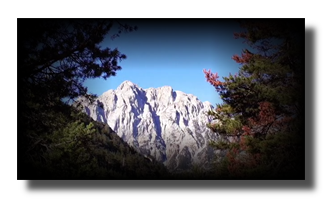
Formerly Video Blur Soft Border.
Settings
bypass
Bypasses the module processing when activated (ON).
- OFF (0): Module processes normally
- ON (1): Input passes directly to output without processing
video in
Video input flow(s).
video out
Video output flow(s).
process time
Total time used for the calculation of the module.
left
Softness amount on the left side.
right
Softness amount on the right side.
top
Softness amount on the top side.
bottom
Softness amount on the bottom side.
Each amount is the width of its border as a fraction of the frame width (left, right) or height (top, bottom): 0 gives no border, 0.5 half the frame. A border goes from black on the outermost pixel to the full image at its inner edge, and opposite borders of the same amount are symmetric.
Opposite borders above 0.5 overlap and multiply: the centre no longer reaches full brightness (with left = right = 1 it keeps about a quarter of it with the linear and smooth curves).
curve
Shape of the fade inside the borders:
- linear: the brightness rises evenly from the edge, close to the former look of the module.
- smooth: the default. An S-shaped fade (smoothstep) that settles slowly into black at the edge and joins the image without a visible line where the border starts; the corners are rounded.
- edge blend: for projectors whose images overlap. The fade is smooth in light rather than in pixel values (for a 2.2 gamma display), so that two projectors overlapping by the same border add up to an even brightness. On a single screen the border looks brighter than with smooth.
Patches saved before the curve setting existed open with smooth.
Common Settings
info
show manual
Button. Opens the manual page of the selected object (or of its parent module for a control) in the web browser. If no page exists for this object, an error is traced in the trace panel.
For more details about information/help creation, see create-help-file.
description
Free multi-line text attached to the module, saved with the patch. When it is not empty, it is shown as the hint of the module (mouse over the module header in the patch) in place of the default module hint, even when the module hints are disabled.
ID's
visible only in god mode, see setup-panel-tab-expert.
unique ID
Read-only, not saved. Current private numeric ID of the object, used internally to identify it (for example as the target of a bind ID).
preset ID
Read-only, not saved. Private ID used to store and recall the values of this control in presets.
recreate ID
Button. Generates a new unique ID, original ID and preset ID for the object. Use it if you experience difficulties in Polyphonic mode or if two objects share the same ID. Preset values and binds referring to the old IDs are lost.
Object Remote Address
absolute
Read-only, not saved. Absolute address of the object in the Usine objects tree, built from the workspace root. This is the address to use to reach the object from scripts, the objects panel or remote messages. Only shown for objects that are registered in the objects list. See objects-address.
local
Read-only, not saved. Address of the object relative to the current patch, valid inside that patch only. See objects-address.
user addr
Free user-defined address for the object (empty by default). When set, the object is also registered in the objects tree under this name, so it can be reached independently of its position in the workspace (the value is also reported in the mouse-over and mouse-down chunks). Changing it rebuilds the objects list. Only available on objects that support a user address. See objects-address.
See also
- Video Mapping Inset
- Video Mapping Scale
- Video Mapping Grid Projection
- Video Mapping Soft Edge
- Video Mapping Grid
- Video Mapping Crop Resize
- Video Mapping Multi Crop
- Video Mapping Perspective
- Video Mapping Path Mask Outside
- Video Mapping Path Mask Inside
- Video Mapping Rotation Simple
- Video Mapping Crop
- Video Mapping Rotation
- Video Mapping Translation
- Video Mapping Shearing
version 7.0.250921
Edit All Pages