Tutorial : The Light Engine
Usine now provides DMX/ArtNet light engine that is totally synchronized with audio and video.
Le moteur lumière de Usine gère les interfaces Enttec Open DMX et Enttec USB Pro, ainsi que tous les périphériques ArtNet et sACN connectés au port Ethernet.
Sur Mac OSX, vous rencontrerez probablement des problèmes d'installation avec les interfaces DMX USB PRO. Ils sont généralement dus à un conflit de pilotes FTDI. Dans ce cas, vous pouvez essayer l'utilitaire gratuit FTDI Driver Control 1.0.3 pour désactiver le pilote FTDI intégré au système.
Sur Windows, si vous avez des problèmes avec les interfaces Enttec USB Pro, vous pouvez essayer d'installer les FTDI CDM Drivers ou les Windows D2XX Drivers depuis le site de FTDI.
Setup DMX with OPENDMX USB devices
Open the setup-panel-tab-light.
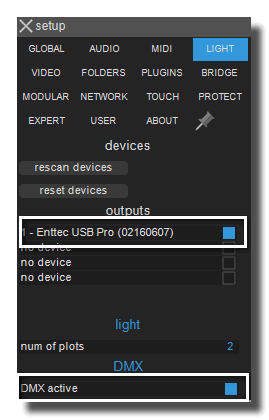
If your device is properly connected it should appears in the setup. [Click] on the line of the device to enable it. Then [Click] on DMX active to turn the light engine of Usine ON.
Setup ArtNet
Open the setup-panel-tab-light.
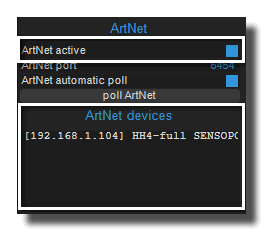
[Click] on ArtNet active to turn the light engine of Usine ON. Wait few seconds to see all connected devices on the network. If nothing happens, try to [Click] on poll ArtNet to launch manually the discover process. Don't forget to verify that your devices are on the same network than the computer.
By default the ArtNet port is 6454, it's the usual port, you normally don't have to change it.
Create a plot
See plot-panel.
When the light engine is ON Usine add a new master light-panel in the top-header-panel. By default 2 plots are available but you can change that in the setup-panel-tab-light field num of plots.

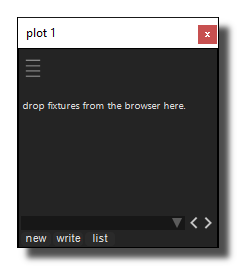
[Click] on plot 1 to display the first plot-panel. For now the plot is empty.
Open the browser-panel tab fixtures to see available fixtures in Usine. And [Drag&Drop] fixtures from the browser to the plot. See fixture-panel.
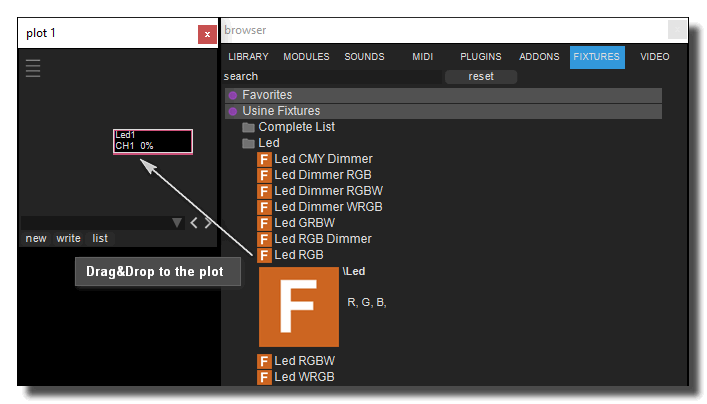
[Right-Click] on the new fixture created in the plot to see its settings. By default the fixture is set on the channel 1,2,3 for a RGB and 1,2,3,4 for a RGBW.
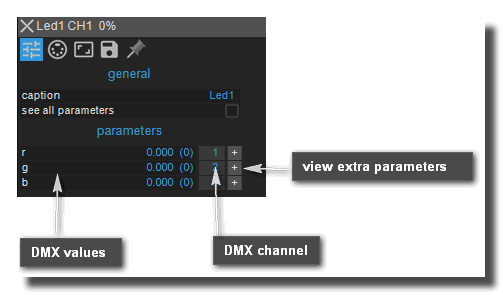
- DMX values: values of the DMX channel. In Usine it's in the range [0..1], 1 means 100%.
- DMX channel: channel number for the value in the range [1..512]. [Click] to enter a new value.
- view extra parameters: display some extra information and settings about the current channel.
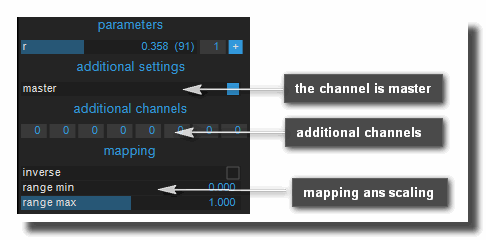
- master: the channel is a dimmer.
- additional channels: the channel is duplicated to up to 8 extra DMX channels. For example, you can send DMX on channel 1,11,21,31, etc. at the same time.
- mapping: used to adapt the DMX value to a specific range or to inverse the response curve.
Use fixtures in patches
We have created a very simple plot. Let's see now how we can use it in Usine.
Create a new empty rack [Ctrl/Cmd+T] and display the structure of the patch with a [Dbl-Click] on the control-panel. Then, [Drag&Drop] the fixture from the plot to the patch structure.
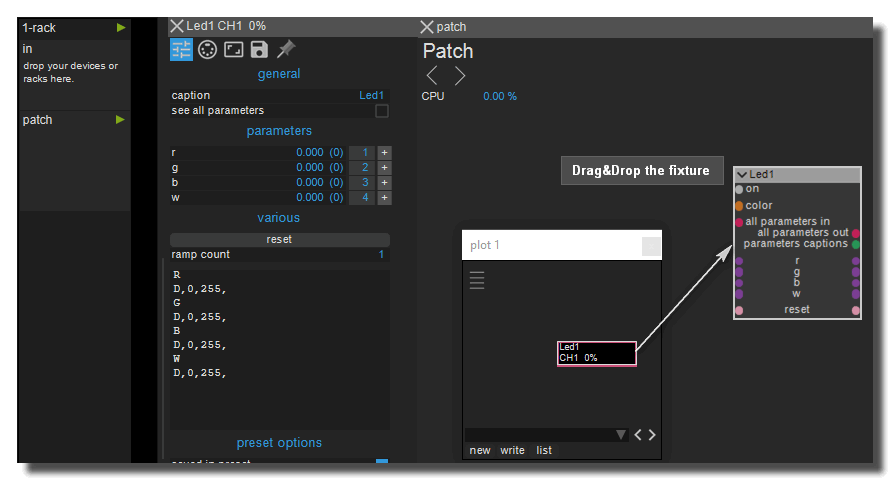
Usine has created a new module for the dropped fixture. Then you can use inlets/outlets in your patch as any module of Usine.
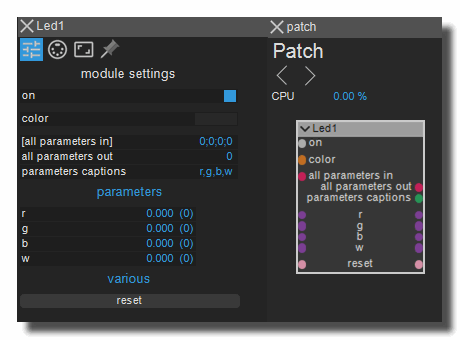
It now possible to connect modules like in the simple patch bellow.
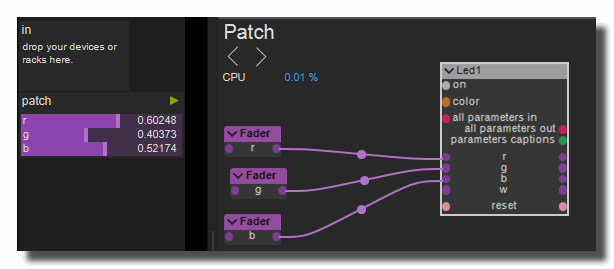
As it's a RGBW light, Usine as created a color inlet we can use it directly in the patch like
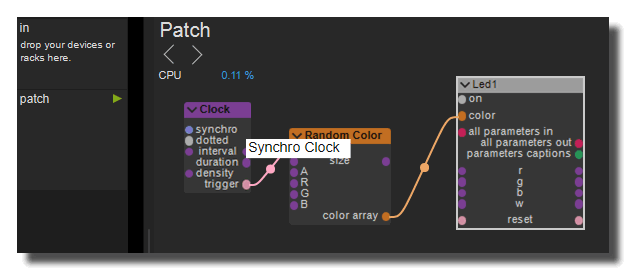
Use fixtures in the Grid
You can put fixures also in the grid-panel with a simple [Drag&Drop] from the plot.
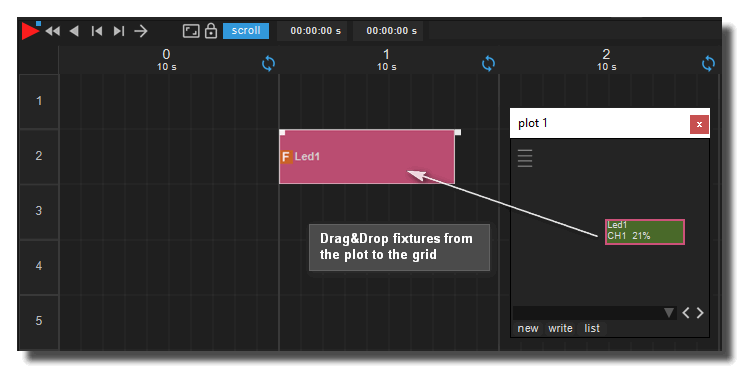
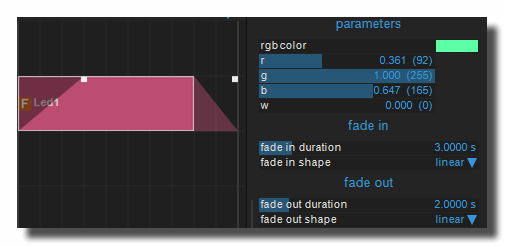
In the grid, [right-Click] on the fixture to display its settings. And for example set its color.
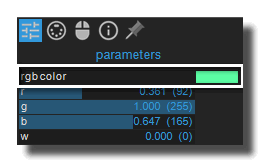
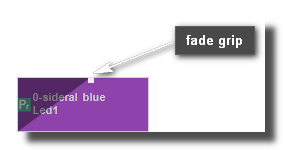
You can also set the fade-in and fade-out time for the fixture.
Use presets
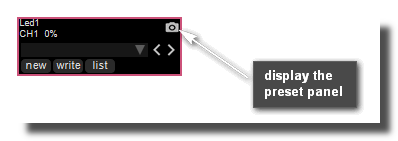
Each fixture has its own preset-panel. To display the preset panel [Click] on the camera icon.
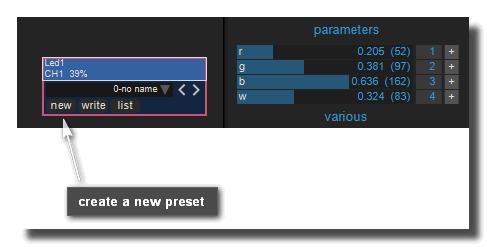
Then to create a new preset with the current state of the fixture, [Click] on create.
After you can rename the preset with [Alt-Click], for example to sideral-blue
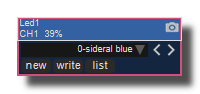
Finaly, show the list of presets of the fixtures and drop it on the grid.
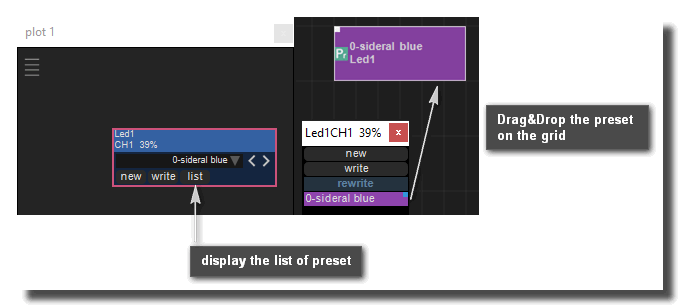
and define a fade time to recall the preset.
reate a ramp of fixtures
It's easy to define a ramp as a set of identical fixtures. In the settings of the fixture set any number in the ramp count parameter. For example 4, to get a ramp of 4 RGB lights.
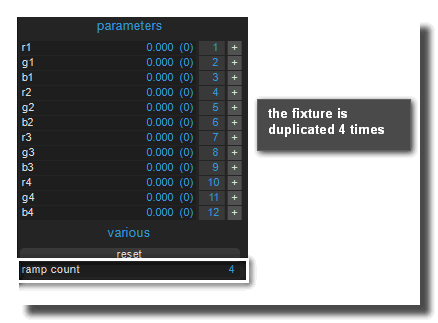
If you drop it into a patch simple inlets become arrays of values.
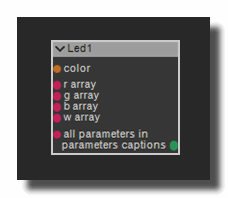
change the fixture type on the fly
In the settings of the fixture you have an access to the channels definition.
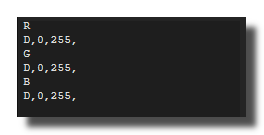
Then you can edit it and change on the fly any parameters, for example change the RGB fixture to RGBW
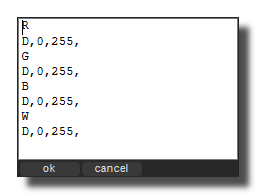
The fixture is automatically converted into a RGBW.
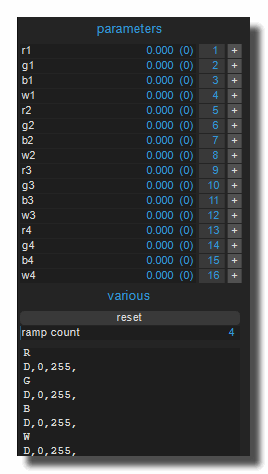
More about Light
- Master Light Panel
- Fixtures Group Panel
- Plot Panel
- Fixture Panel
- Light MIDI to Dimmer (PATCH)
- Setup onglet Lumière
- Tutorial : Le Pixel Mapping
- Tutorial : The Light Engine
- Light
- Light Direct ArtNet sACN Array
- Light Send Channel Name
- Light ArtNet sACN Input
- Light Direct DMX Array
- Light Plot Channels List
- Light Color Array to ArtNet
- Light Fixture
- Light Clear Channel
- Light Direct DMX Channel
- Video to Color Array
- Video to Data Array
- Video Pixel Mapper
- Color Array to Video
- Array Chaser
- Usine Master Light Settings
- Bus Set DMX
- Bus Get DMX
Tutoriel Usine
- Tutorial : Basic Commands you have to know
- Tutorial : Patching
- Tutorial : Audio Plug-ins
- Tutorial : The Grid
- Tutorial : The Light Engine
- Tutorial : The Video Engine
- Tutorial : Use Modular
- Tutorial : Record audio
- Tutorial : Interface Builder (IB)
- Tutorial : Use the Mixer Panel
- Tutorial : Use the Playlist
- Tutorial : Create Stand-Alone Application
- Tutorial : Protect a Patch with a password
- Tutorial : Create Help File for a Patch
- Tutorial : Remote control of Usine from Internet
- Tutorial : Global Arrays
- Tutorial : Use Procedures
- Tutorial : Laser Engine
- Tutorial : How to use Chunks
- Tutoriel : Comprendre Usine
- Tutoriel : Assignations MIDI & clavier
- Tutoriel : Surround
- Tutoriel : Customisation de l'interface
- Tutoriel : OSC (Open-Sound-Control)
- Tutoriel : Moteur physique
- Tutoriel : Arduino
- Tutorial : Utiliser les Clusters
- Tutorial : Utiliser les VCA's
- Tutorial : Le Pixel Mapping
version 7.0.250921
Edit All Pages