Setup tab Kiosk
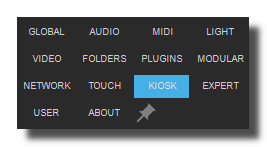
This is the setup for the kiosk mode. See 25.create-stand-alone-application for more details.
This tab is available in the Expert version.
toggle kiosk mode
Click to simulate the kiosk mode for the current project.
password
The password you want to use to activate/deactivate the kiosk mode.
By default the password is : PROTECT.
To leave the kiosk mode, type the password on the keyboard in the Usine window, outside any text field. Type it again to go back to the kiosk mode. Upper and lower case are not distinguished; use only letters and digits, 20 characters at most. See hidden-strings.
deploy folder
Folder where the workspace and medias for the stand-alone application is deployed.
menu elements to hide
Elements to hide in Kiosk mode especially in the main-menu-panel.
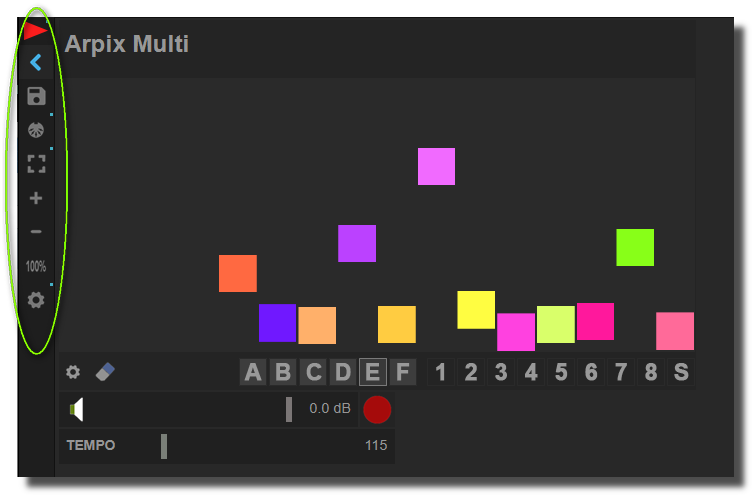
hide main on-off switch
Hide Main ON-OFF switch of the master-panel.
hide master panel
Hide all the master-panel.
hide global synchro panel
Hide the master-synchro-panel.
hide rec automation switch
Hide the Rec Automation icon of the main-menu-panel.
hide MIDI learn switch
Hide the MIDI the learn icon of the main-menu-panel.
hide zoom buttons
Hide the zoom icon of the main-menu-panel.
hide save workspace button
Hide the save workspace command in the main-menu-panel.
hide open workspace button
Hide the open workspace command in the main-menu-panel.
hide setup button
Hide the show setup command in the main-menu-panel.
hide fullscreen button
Hide the full screen command in the main-menu-panel.
hide devices button
Hide the show devices-panel command, so it's impossible to modify devices.
hide start page button
Hide the show start page command, so it's impossible to display the start page. Recommended if your deploy folder contains only one workspace.
application settings
General options of the application.
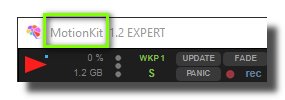
application name
Name of the application as appears in the task manager of the operating system and the window title bar.
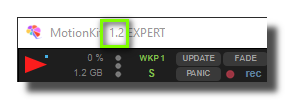
application version
Version of the application as appears in the task manager of the operating system and the window title bar.
workspaces are read only
Workspaces in the deploy folder can't be saved in any cases.
splash image
Name of the splash image displayed in front of Usine.
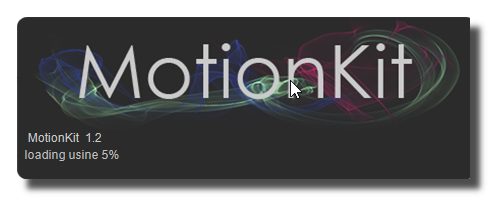
splash image size factor
Size factor of the splash image.
By default the size factor is 1. Increase it to enlarge the splash image.
start-page items size
Size (height) of workspace items in the start-page-panel, from 25 to 100 pixels (default 35).
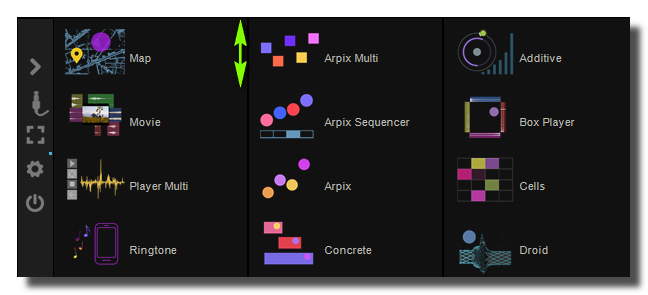
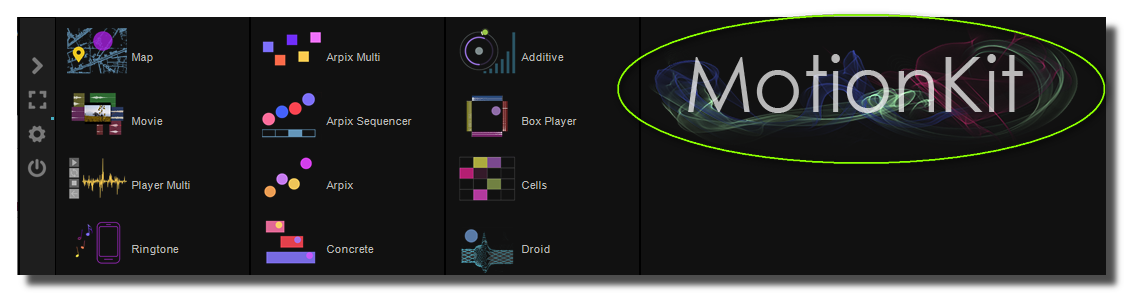
start-page image
Image displayed on the start-page-panel.
See also
- Configuration rapide
- Additional and Override Setup
- Setup
- Setup onglet Utilisateur
- Setup onglet A Propos
- Setup onglet Modulaire
- Setup onglet Expert
- Setup tab Folders
- Setup onglet MIDI
- Setup onglet Plugins
- Setup tab Debug
- Setup onglet Ecrans tactiles
- Setup tab AI
- Setup onglet Global
- Setup onglet Lumière
- Setup tab Kiosk
- Setup onglet Laser
- Setup onglet Vidéo
- Setup onglet Réseau
- Setup onglet Audio
- Usine Setup Settings
version 7.0.250921
Edit All Pages