Grid Panel
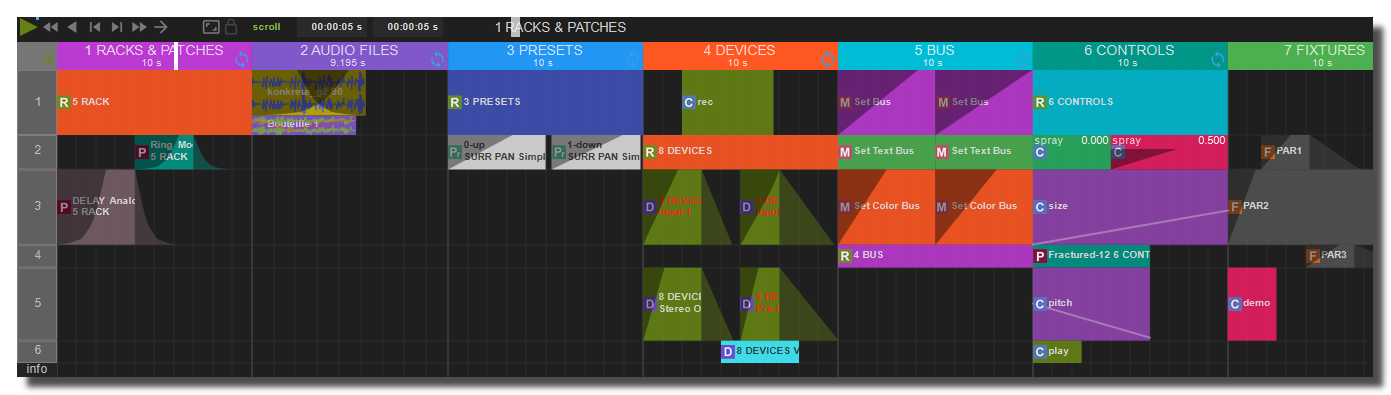
The Grid is a powerful sequencer adapted to live music situation. See grid tutorial. A grid contains grid-elements created by a simple Drag & Drop of racks, patches or presets.
The grid is separated in several sections, representing parts of your song or live performance. Within each you can decide if it is played in loop, paused at the end, or continue to the next section.

Transport Commands
The transport area of the grid provides classic functions such as basic navigation and the jump to next section.
- indications of the section number,
- the name of the current section,
- a continue to next section button,
- section zoom / reset zoom,
- the scroll button which enable/disable the cursor following.
Each of those icons, as most of the objects in Usine, can receive key, MIDI, OSC assignments to be controlled by external devices.
on-off
 Activates/deactivates the playing of the grid. Shortcut [SHIFT + SPACE].
restart from beginning
 Restart the sequence from the beginning.
replay current
 Replays current section.
previous
 Go to previous section grid.
next
 Go to next section.
goto last section
 Go to the last section of the grid.
continue
 Go to the next section at the end of the current one
(overrides the loop mode).
suspend
Suspends the execution of the grid: stop the grid cursor and deactivates all activated elements.
fit size
 Resets the grid size to fit the current panel width.
scroll
 Enables/disables the follow cursor mode during the playback of the grid.
lock
Locks the grid to prevent inadvertent modification.
speed
Speed coefficient applied to the cursor's speed, from 0 to 10 (default 1). This can speed up or slow down the playback speed.
elapsed time
Displays the time elapsed since the beginning of the section.
remaining time
Displays the time remaining until the end of the section.
sections
List of all sections as a combobox.
Commands
add new line
Adds a line at the bottom of the grid.
add new section
Adds a column at the right of the grid.
undo
Undo the last operation.
redo
Redo the last operation.
paste
Pastes the clipboard in the selected object.
clear
Clears the content of the selected object to make it empty.
open
Opens a file of the selected object saved previously.
save as
Saves the selected object as a file with a new name.
Settings
number of lines
Sets the number of lines.
info height
Height in pixels of the zone that displays the descriptions of the sections, from 14 to 300 (default 60).
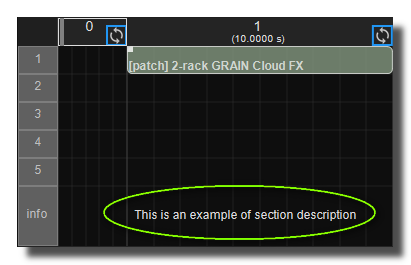 Example of description.
show section number in caption
Determines if the number of the section is displayed in the caption.
load next playlist
Determines if Usine will load the next workspace in the playlist at the end of the last section.
wkp name
If you want to automatically open a new workspace at the end of the last section.
- load next playlist When ON, will load the next workspace in the playlist.
- wkp name Name of the next workspace to load. Only if load next playlist is OFF
fades also on backward
Normally, fades-out are processed only when the grid is forwarding to the next section. When this option is enabled, fade-out are processed also when the grid goes backward to a previous section.
To run or show the grid automatically when a workspace opens, see auto play grid and show grid in the expert tab of the setup.
See also
version 7.0.250921
Edit All Pages