Settings Panel
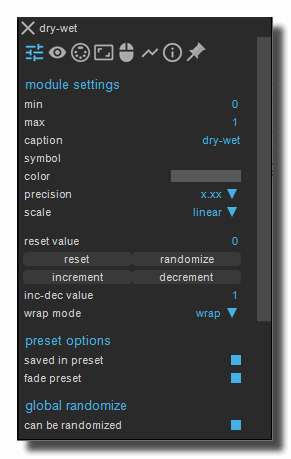
The settings panel displays properties of the selected object. To open the settings panel, use a right click on any object. Once it is opened, a single left click on any object displays its settings.
Properties
 This tab refers to general options. Minimum and maximum values, caption, and more depending on the selected object.
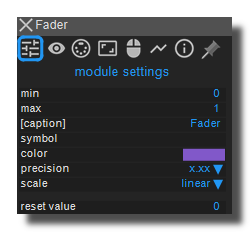 Example for a fader.
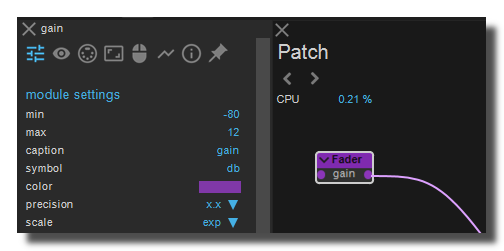 Example for a math module
Design
 The design tab is the place to customize visual aspects of objects. Like backgrounds, captions and borders colors, opacity, etc. See the customize your interface tutorial.
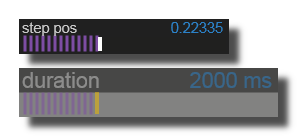 Example of design changes on a fader
Size
 The size tab is the place to customize size, position, rotation parameters of the object.
Remote
 The remote tab is where you manage all your MIDI, key, OSC, etc. learns, and mapping values.
Mouse
 Displays settings about the mouse, bitmaps and touch.
Curves
 Manages automation curves for the selected object.
Info
 Displays the description of the object and the show manual button, which opens the help page of this object.
Commands
save design template
 When you have created a layout for an object you can save it as a design template to recall it later.
Design and Remote tabs, and the Properties tab of some objects.
Click on this icon and enter a name and save it. This will create a small snapshot of your design settings.
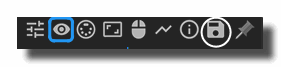
Then, the next time or for a similar object, you'll have only to click on this snapshot to recall it.
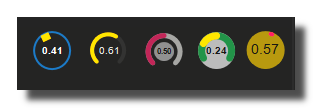 Example with 5 knobs
pin
With an Expert license (and disable pin in separate window OFF in the expert tab of the setup), the pin icon opens the settings of the current object in a separate window, which stays open when you select other objects.
pin settings
 When ON, the settings-panel is locked to the current object.
If you need to lock this panel to an object, for example to study a value
when you change a parameter elsewhere, you can use the pin icon.
By this way, even if you click on another object the settings panel will stay
unchanged.
See also
version 7.0.250921
Edit All Pages