Change Usine Design
It's very easy to customize Usine's controls and change colors and layouts. Almost all visible controls can be changed.
- Activate the god mode in the setup-expert,
- [Shift + Right-Click] on any Usine's control,
- Modify the design settings tab as you want,
- Save the design settings tab.
Example
Let's change, for example, the main ON-OFF switch on the master panel.
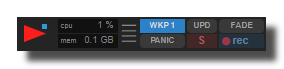 Shift + Right-Click on a control.
Then, the settings-panel / tab-design which is normally hidden, is now visible.
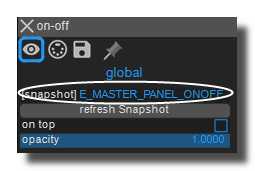
Note the design template name, in our case, it's
USINE_MASTER_PANEL_ONOFF.
In the settings-panel / tab-design of the selected object you can change any layout or colors.
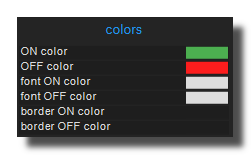
As in the example below
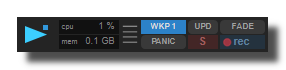
Finally click on save design template button to save the current design.
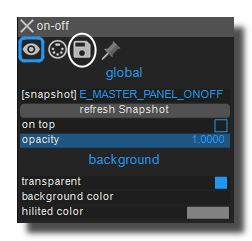
This new design template will be loaded as the default layout for the control.
Info
The design template will be saved in the /Config/Templates/Design folder. In our example,
it will be saved with the name USINE_MASTER_PANEL_ONOFF.tuswitch_tab_design
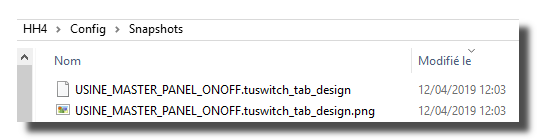
If you need external images for the design template, you can put them in /Config/Templates/Design folder.
See also
- Inside Usine
- Error & Warning Messages
- 32 bits float Audio Format
- Templates Engine (IML)
- Objects Address
- Latency
- Customize Knobs and Faders Design
- MIDI show control Implementation
- CPU Consumption
- Usine Update-Agent
- Hidden Strings
- Usine Watchdog
- Create OSC Translator File
- Command Line Options
- Pointers
- MIDI Implementation
- Change Usine Design
- Additional and Override Setup
version 7.0.250921
Edit All Pages