Workspace Panel
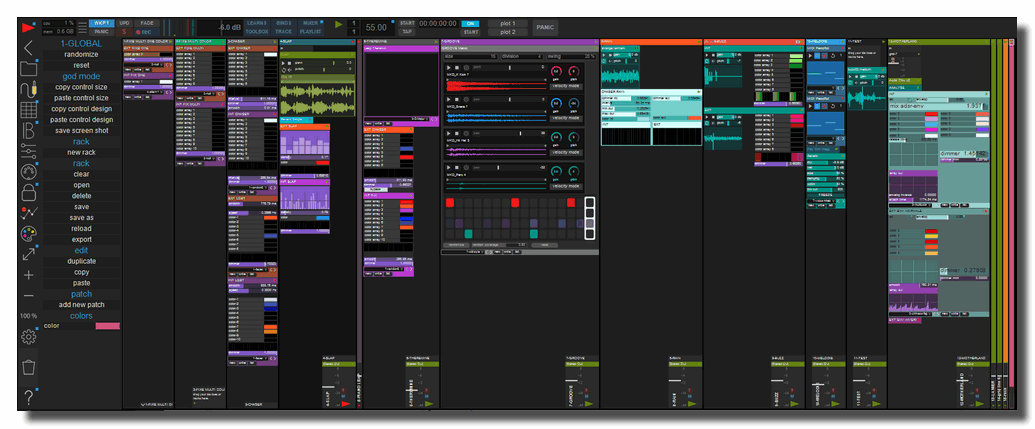
A Workspace refers to the overall environment. In other words it is the main window where you organize your work.
In your Workspace you decide which panels are visible, which sounds to add, effects to use, and automation to tie it all together.
A workspace contains racks and racks contain patches.
When you save the Workspace, all racks are stored along with the underlying patches and settings. It also contains Mixer input and output information (volumes, etc.), synchronization information (tempo, bar length, etc.) and automations (in the grid or movements recordings).
Interface
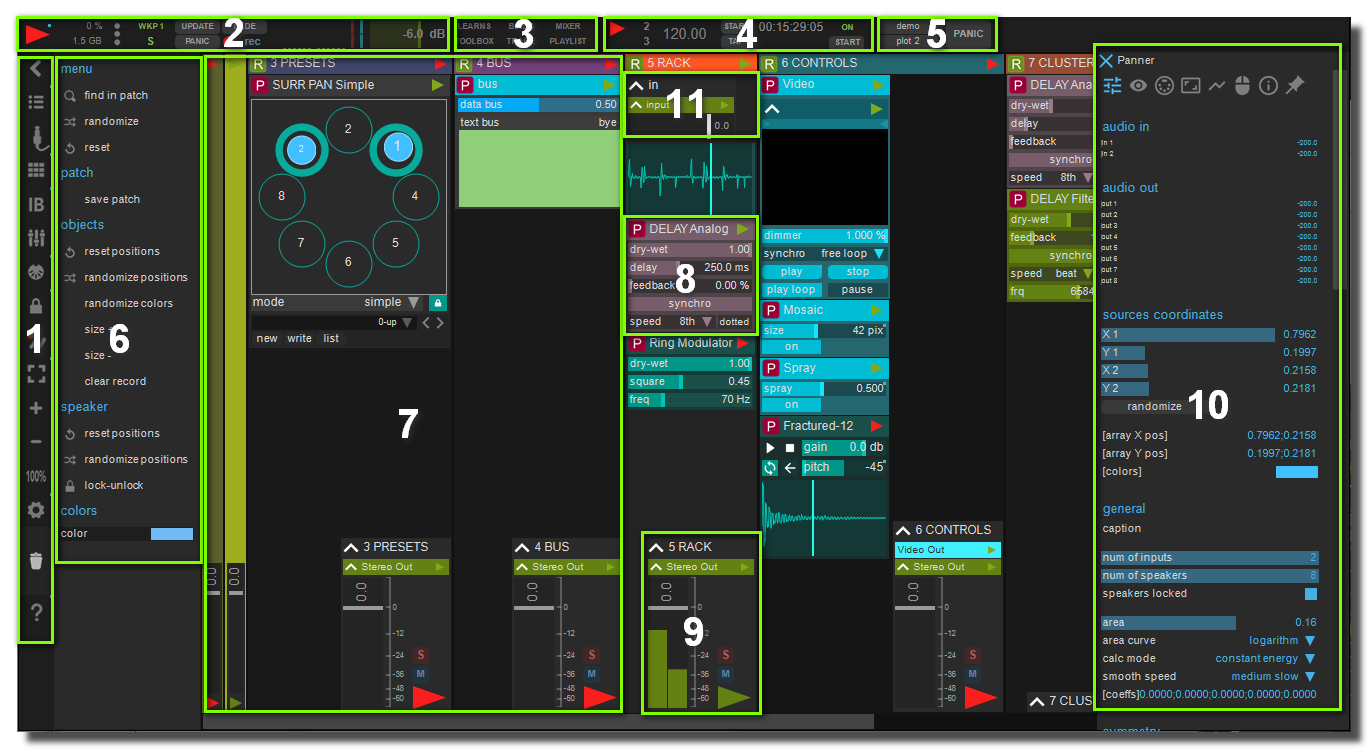
- main-menu: displays several essential commands like show the browser, and activate features like the MIDI/key/OSC learn mode, the automation recording, etc.
- master-panel: this panel contains the main ON/OFF switch (audio and calculation engine), the main volume fader/meters, and several useful indicators.
- Gives access to panels such as the mixer, audio-recorder-panel, and devices.
- master-synchro-panel: this panel is where you can set the tempo and metrics in Usine and displays timecode.
- master-light-panel, gives access to plot-panels
- contextual-menu-panel: this menu will be different depending of the selected object and will display several commands like open, save, delete, etc.
- rack: racks are where you create your Audio, MIDI, DMX, and Video chains. You add inputs (external or internal), add sounds, FX's, and automation curves and finally your Audio/MIDI outputs.
- control-panel: interface of the processing patch. For example a patch can produce or process sound, send DMX commands, and everything you can imagine.
- rack-output: output zone of the rack, generally your sound card output, or a MIDI device.
- settings-panel: properties of the selected object.
- rack-input: input zone of the rack, for example a microphone, or a MIDI device.
Commands
clear workspace
Removes all racks of the Workspace, its grid and its plots, and resets the tempo: you get a new empty Workspace. [CTRL/CMD + N]
open workspace
Opens a previously saved Workspace. [CTRL/CMD + O]
save workspace
Saves the Workspace. [CTRL/CMD + S]
save workspace as
Saves the Workspace with a new name. [SHIFT + CTRL/CMD + S]
reload workspace
Reloads the Workspace as from the original file. [CTRL/CMD + R]
merge workspace
Opens a previously saved Workspace and adds its racks to the current Workspace.
export
Export the selected object (patch, rack or workspace). It saves it normally, but also creates folders where all used audio samples, video and images are exported.
This can be used to share with other users and be sure that no media is missing.
save as container
Saves the Workspace as a container: a folder (extension .usine-workspace) that holds the Workspace file, and its racks, patches, grid, plots, interface builder, mixer, modular wires and synchro in separate files. The files Usine wrote in the folder before are first moved to a backup in the Config/Trash folder of Usine.
new rack
Creates a new multipurpose rack. [CTRL/CMD + T]
paste rack
Pastes a previously copied rack. [CTRL/CMD + V]
delete all wires
Deletes all modular wires. Only shown when modular wires exist.
quit Usine
Quit Usine. [CTRL/CMD + Q]
Settings
filename
Name of the workspace.
show presets panel
Displays the preset-panel of this workspace.
thumbnail
Thumbnail of the workspace displayed in the start-page-panel.
If no thumbnail is specified, Usine will create automatically a thumbnail made of a screen-shot of the first control-panel.
time control
Provides a simple way to schedule Usine behavior, for example to run automatically during a defined time period. Can be helpful in fixed installations.
time control enabled
Enables or disables the time control.
time start
Beginning of the running time in format HH:MM:SS
time end
End of the running time in format HH:MM:SS
Usine will run only between time start and time end: the main engine is switched ON (and the grid starts from its first section) inside this period, and OFF outside it. When time end is before time start, the period runs over midnight.
See also
version 7.0.250921
Edit All Pages