Tutorial : Remote control of Usine from Internet
Usine Remote Control allows you to control your Usine workspace remotely from any web browser. This feature enables you to:
- Monitor Usine's status in real-time
- Switch between workspace sections
- Control custom parameters using buttons, switches, faders, and comboboxes
- Access your Usine session from smartphones, tablets, or other computers
The remote interface uses WebSocket technology for real-time, bidirectional communication between Usine and the web interface.
Step 1: Enable Remote Control
- Open Usine and go to setup-network-tab.
- Locate the remote-control section
- Enable the following options:
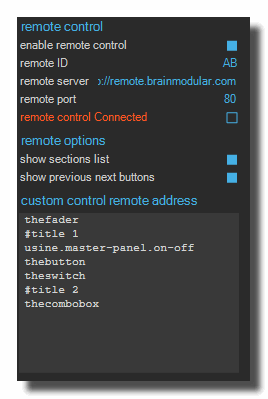
enable remote control
Turn this option ON to activate remote control capabilities.
remote ID
Enter a unique identifier for your Usine instance. This ID must contain only letters and digits (A-Z, a-z, 0-9).
- Example:
ABCD1234 - This ID will be used to connect from the web interface
- Make it easy to remember but unique to avoid conflicts with other users
remote server
The default server is http://remote.brainmodular.com/ (the official BrainModular remote server). The server acts as a relay between Usine and the web interface.
Do not change this unless you have your own relay server
remote port
Default port is 80 for HTTP.
Only change this if you have specific network requirements Most users should leave this at the default value
remote control connected
This indicator shows whether Usine is currently connected to a remote web page. You can also access this status inside a patch using the usine-setup-settings module.
Step 2: Configure Display Options
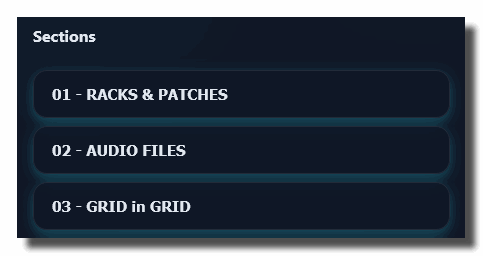
show sections list
When ON, the remote interface will display all available workspace sections as clickable buttons.
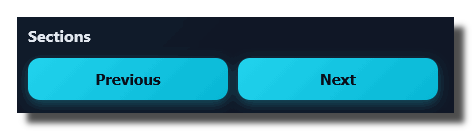
show previous next buttons
When ON, the remote interface will display Previous and Next buttons to navigate between sections.
Step 3: Configure Custom Controls (Optional)
To control specific parameters remotely, you need to configure custom-controls remote-address:
- In the Remote Control section, locate custom-controls-remote-address
- Enter a comma-separated list of user addresses for controls you want to make available remotely
The user addresses are available in the remote control settings of individual modules:
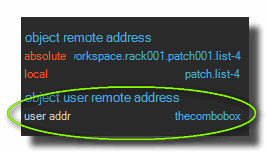
- These addresses correspond to modules in your Usine patch
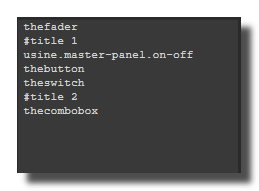
Supported control types:
- Buttons (TuButton modules)
- Switches (TuSwitch modules)
- Faders (TuFader modules)
- Comboboxes (TuListBox modules)
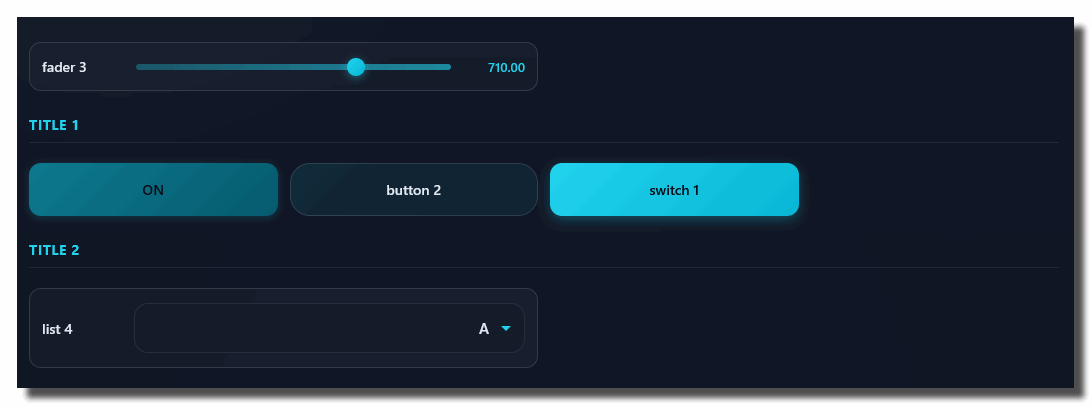
Step 4: Verify Connection
Once configured, check the remote-control-connected indicator:
- Green/Online: Successfully connected to the remote server
- Red/Offline: Not connected (check your internet connection and settings)
Accessing the Remote Interface
- Open a web browser (Chrome, Firefox, Safari, Edge, etc.)
- Navigate to:
http://www.brainmodular.com/remote/ - Enter your Remote ID (the one configured in Usine)
- Click Connect
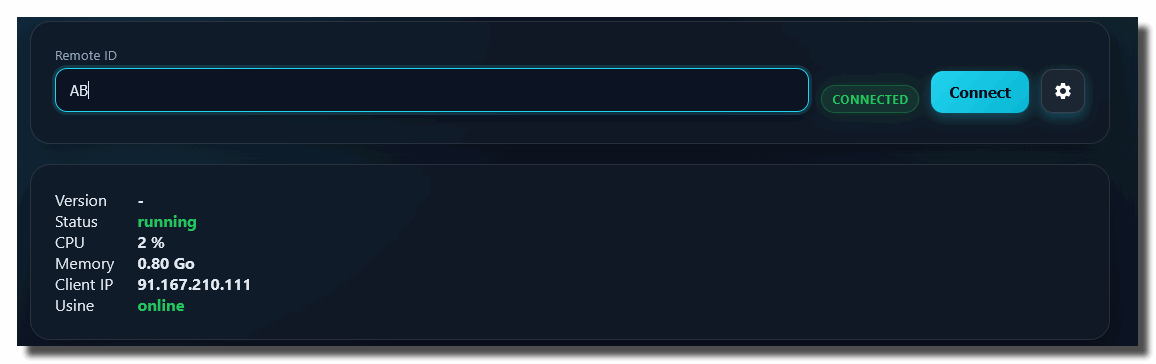
Connection Settings
Server Configuration
Click the gear icon (⚙️) next to the Connect button to reveal the server URL field.
- Default:
http://remote.brainmodular.com:80 - The settings are saved in browser cookies for convenience
Connection Status
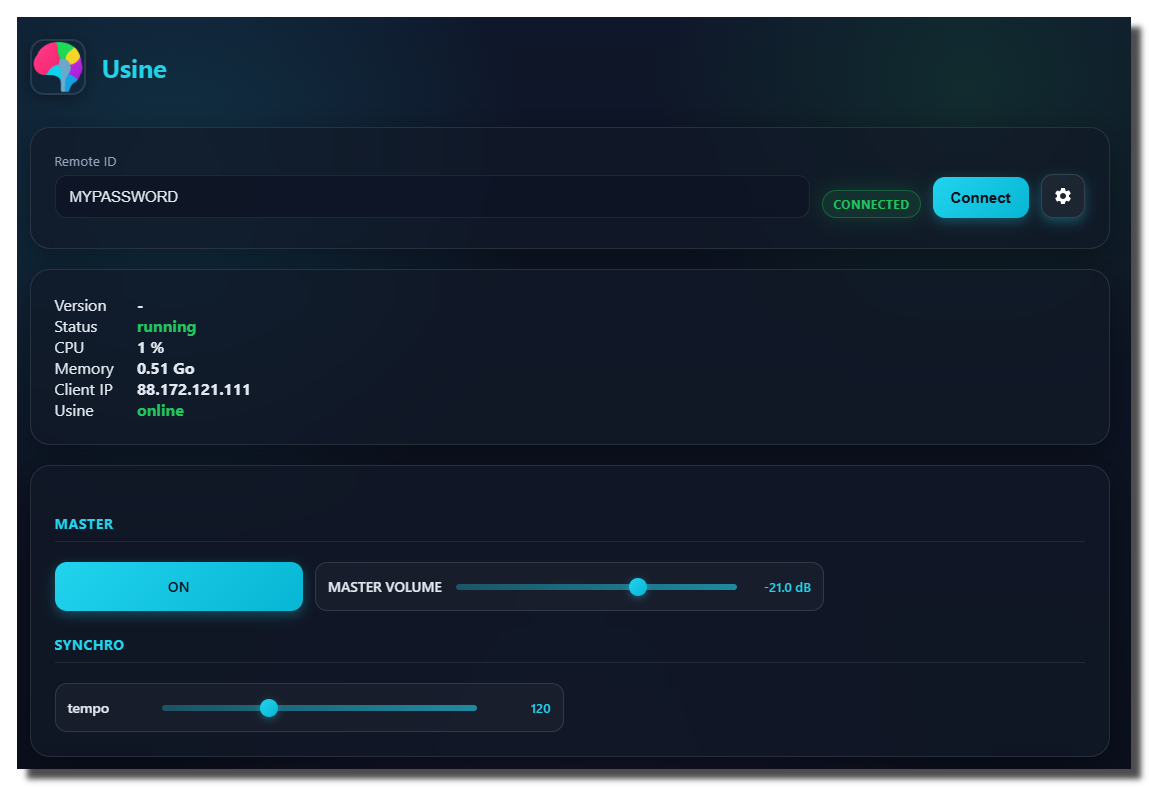
The interface displays three status indicators:
- Connection State: Shows if you're connected to the relay server (green = online, yellow = connecting, red = offline)
- Usine Status: Shows if Usine is running or stopped
- Workspace Name: Displays the current workspace name (if available)
User Interface Overview
Header Section
- App Icon: Usine logo and workspace name
- Connection Status: Real-time connection indicators
- Remote ID Field: Enter your Usine Remote ID
- Connect Button: Establishes connection to Usine
- Setup Button: Toggle server configuration

Session Information Card
Displays real-time information about your Usine session:
- Version: Usine version number
- Status: Current status (running/stopped)
- CPU: CPU usage percentage
- Memory: Memory usage in MB
- Client IP: Your client's IP address
- Usine: Connection status (online/offline)

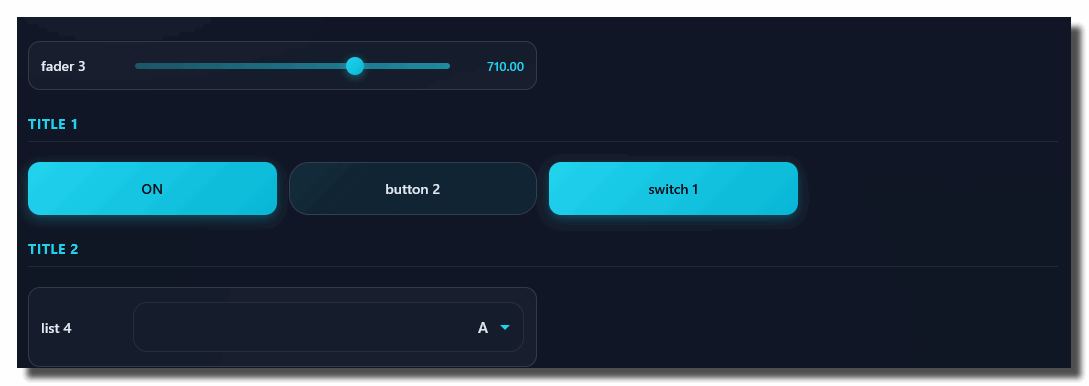
Custom Controls Card
Displays all custom controls configured in Usine (buttons, switches, faders, comboboxes). This section only appears when custom controls are defined.
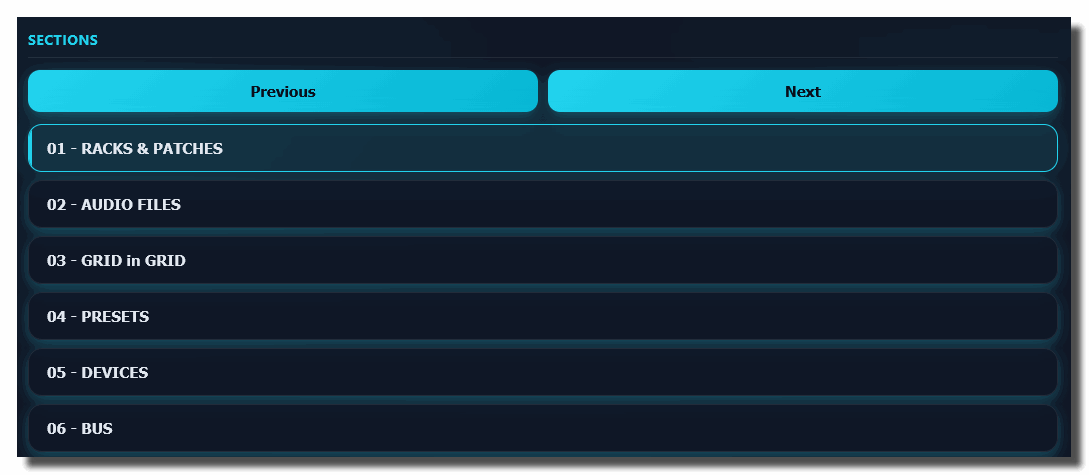
Sections Card
Displays the list of available workspace sections with:
- Previous/Next Buttons: Navigate between sections (if enabled)
- Section List: Clickable buttons for each section (if enabled)
- Active section is highlighted with a cyan accent
Custom Controls
Custom controls allow you to interact with specific parameters in your Usine patch. Each control type serves a different purpose:
Control Types
you can create the following types of custom controls by assigning user addresses of the corresponding modules in the setup-tab-network.
- Button : Trigger momentary actions
- Switch : Toggle between two states (ON/OFF)
- Fader : Control continuous numeric values
- Combobox : Select from a list of predefined options
- Newline : Organize controls into groups with section headers. To create a newline, simply put the
#char at the beginning of the line in the custom-control-remote-adress.
Real-Time Synchronization
All custom controls are bidirectionally synchronized:
From Remote to Usine:
- Changes made in the web interface are immediately sent to Usine
- Usine updates the corresponding module values
From Usine to Remote:
- Changes made in Usine (via automation, other modules, etc.) are reflected in the web interface
- Only property changes trigger control recreation; value changes update in place
Smart Update System:
- The interface detects when control properties change (caption, min/max, items, etc.)
- Only recreates controls when necessary
- Value-only updates are instant and don't disrupt the UI
Browser Compatibility
The remote interface is compatible with:
- ✅ Google Chrome (recommended)
- ✅ Mozilla Firefox
- ✅ Microsoft Edge
- ✅ Safari (iOS and macOS)
- ✅ Mobile browsers (Chrome, Safari, Firefox)
Requirements:
- Modern browser with WebSocket support
- JavaScript enabled
- Cookies enabled (for settings persistence)
Troubleshooting
Cannot Connect
- Verify enable remote control is ON in Usine
- Check that Usine shows "Remote Control Connected"
- Ensure the Remote ID is entered correctly (case-sensitive)
- Check your internet connection
- veryfy that the page
http://remote.brainmodular.com/is reachable by copying the URL in your browser. You should see a blank page with "OK" text. - Try refreshing the web page
Controls Not Appearing
- Verify the user addresses are correctly configured in Usine
- Check that the modules are the correct type (Button, Switch, Fader, ListBox)
- Ensure the user addresses exist in your patch
- Look for error messages in Usine's log
Delayed Response
- Reduce the network speed in Usine's setup (lower value = faster updates)
- Check network conditions (ping, bandwidth)
- Close unnecessary applications using network resources
Mobile Issues
- Use a modern mobile browser (Chrome or Safari)
- Ensure JavaScript and cookies are enabled
- Try landscape orientation for better layout
- Check touch responsiveness settings
Tutoriel Usine
- Tutorial : Basic Commands you have to know
- Tutorial : Patching
- Tutorial : Audio Plug-ins
- Tutorial : The Grid
- Tutorial : The Light Engine
- Tutorial : The Video Engine
- Tutorial : Use Modular
- Tutorial : Record audio
- Tutorial : Interface Builder (IB)
- Tutorial : Use the Mixer Panel
- Tutorial : Use the Playlist
- Tutorial : Create Stand-Alone Application
- Tutorial : Protect a Patch with a password
- Tutorial : Create Help File for a Patch
- Tutorial : Remote control of Usine from Internet
- Tutorial : Global Arrays
- Tutorial : Use Procedures
- Tutorial : Laser Engine
- Tutorial : How to use Chunks
- Tutoriel : Comprendre Usine
- Tutoriel : Assignations MIDI & clavier
- Tutoriel : Surround
- Tutoriel : Customisation de l'interface
- Tutoriel : OSC (Open-Sound-Control)
- Tutoriel : Moteur physique
- Tutoriel : Arduino
- Tutorial : Utiliser les Clusters
- Tutorial : Utiliser les VCA's
- Tutorial : Le Pixel Mapping
version 7.0.250921
Edit All Pages