Audio Filter Equalizer
Multi-band equalizer with up to 64 bands. Each band can independently be one of 8 filter types: low pass, high pass, band pass, notch, low shelf, high shelf, peaking (Cook biquad), or plateau (cascaded Butterworth shelving). All band parameters are also exposed as arrays for programmatic control.
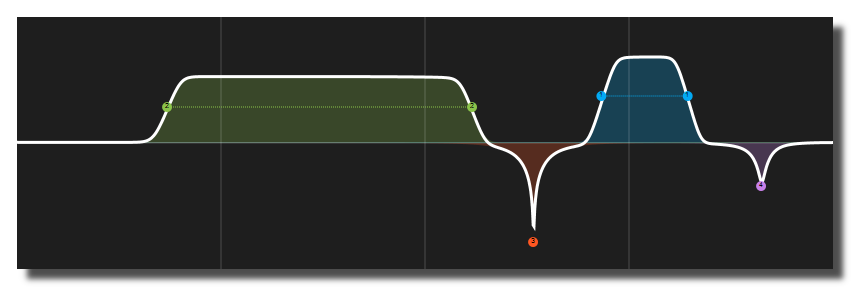
The equalizer combines the precision of a parametric EQ with the flat-topped shaping of a plateau EQ. Standard filter types (low pass through peaking) use Cook/RBJ biquad coefficients. The plateau type creates a flat boost or cut between two frequencies using cascaded Butterworth shelving filters with independent slope orders (1-16) on each side. This makes it possible to mix surgical EQ bands with broadband plateau shaping in a single module.
[click + drag] to move a band selector (frequency + gain)
[shift + drag] to adjust gain only (lock frequency)
[mouse wheel] to adjust the Q factor (peaking/standard types) or the Butterworth order (plateau type)
[dbl click] on a selector to enable/disable the band
Creation query
When inserting the module, a dialog asks for the number of bands (1 to 64, default 4). This determines how many independent EQ bands are available. The number of bands is fixed after creation.
Settings
bypass
Bypasses the module processing when activated (ON).
- OFF (0): Module processes normally
- ON (1): Input passes directly to output without processing
in
Audio input flow(s).
out
Audio output flow(s).
Array ports
All array ports have a length equal to the number of bands. They provide bidirectional synchronization: changing a band control updates the corresponding array element, and writing to an array updates all corresponding band controls.
array type
Filter type for each band as an integer array. Values correspond to:
- 0: low pass
- 1: high pass
- 2: band pass
- 3: notch
- 4: low shelf
- 5: high shelf
- 6: peaking
- 7: plateau
array on
Band on/off state as an integer array (0 = off, 1 = on).
array gain
Gain of each band in dB as a float array.
array Q
Q factor of each band as a float array. Range depends on filter type:
- peaking: 0.3 to 128
- other standard types: 0.3 to 1.0
- plateau: not used (ignored)
array order low
Butterworth order for the low-frequency (up) slope of each band, as an integer array. Only used when the band type is plateau.
array order high
Butterworth order for the high-frequency (down) slope of each band, as an integer array. Only used when the band type is plateau.
array freq low
Frequency of each band in Hz as a float array. For standard types (low pass through peaking) this is the center/cutoff frequency. For plateau type, this is the low cutoff frequency.
array freq high
High cutoff frequency of each band in Hz as a float array. Only meaningful for the plateau type; ignored for other types.
array color
Display color of each band as a color array. Controls the color of the selector dot and the per-band EQ curve in the visual panel.
Per-band controls
Each band has its own set of controls, numbered from 1 to N (the number of bands). The controls that are relevant depend on the selected filter type.
on
Activates or deactivates the band. When off, the band has no effect on the audio signal. Double-clicking a selector in the visual panel also toggles this.
type
Filter type for this band:
- low pass -- attenuates frequencies above the cutoff
- high pass -- attenuates frequencies below the cutoff
- band pass -- passes a frequency band and attenuates outside it
- notch -- removes a narrow frequency band
- low shelf -- boosts or cuts below the cutoff frequency
- high shelf -- boosts or cuts above the cutoff frequency
- peaking -- boosts or cuts around the center frequency with adjustable Q (default)
- plateau -- flat-topped boost or cut between two frequencies with independent Butterworth slopes
When the type changes, the relevant controls are automatically shown or hidden:
- Standard types (0-6): frequency, gain, and Q are active. Order and frequency high are hidden.
- Plateau (7): frequency (low cutoff), frequency high (high cutoff), gain, order low, and order high are active. Q is hidden.
gain
Amount of boost (positive) or cut (negative) in dB. The range is determined by the gain max setting (default +/- 24 dB, maximum +/- 48 dB).
For plateau type, the gain applies to the flat-topped region between the two cutoff frequencies.
frequency
Center frequency (for standard types) or low cutoff frequency (for plateau). Default values are logarithmically distributed across the spectrum based on the band number.
frequency high
High cutoff frequency for the plateau type, in Hz. Only visible when the band type is plateau.
The high frequency must be greater than the low frequency. If frequency is dragged above frequency high, frequency high is automatically adjusted.
Q
Q factor / bandwidth for standard filter types. Higher Q means a narrower, more resonant filter curve:
- peaking: range 0.3 to 128, logarithmic scale.
- other standard types: range 0.3 to 1.0.
Adjustable with the mouse wheel when hovering over the band's selector in the visual panel. Not used for plateau type.
order low
Butterworth filter order for the low-frequency (up) slope of a plateau band:
- 1: gentle slope (6 dB/octave)
- 2: moderate slope (12 dB/octave) -- default
- 4: steep slope (24 dB/octave)
- 8: very steep slope (48 dB/octave)
- 16: maximum steepness (96 dB/octave)
Adjustable with the mouse wheel (on the low selector) when the band type is plateau. Only visible for plateau type.
order high
Butterworth filter order for the high-frequency (down) slope of a plateau band. Same scale as order low. Adjustable with the mouse wheel on the high selector. Only visible for plateau type.
Higher orders give a more rectangular plateau shape but use more CPU. Having independent orders allows asymmetric plateau shapes (e.g. gentle low slope + steep high slope).
color
Display color for this band in the visual panel. Each band gets a unique default color. Affects the selector dot and the per-band EQ curve.
Other controls
last clicked index
Outputs the index (0-based) of the last band whose selector was clicked or double-clicked in the visual panel. Returns -1 if no band is selected. Output only.
plot bins
Array which contains the values of the plotted points.
bins size
Number of points used to draw the equalization curve.
Increase size for a smoother curve.
calc plot bins if invisible
If enabled, the module calculates the filter plot bin's even if it's invisible.
Can be used to chain bitmap layers and hide the original source.
bins size
Number of frequency bins used to compute the EQ response curve for the visual panel. Higher values give a smoother curve but use more CPU.
reset
Resets all the values of the selected object.
It resets to the reset value value for controls and to their default values for panels.
saved in preset
Determines if parameters of this object are saved in the preset-panel.
fade preset
Parameters of the this object can cross faded when you recall a preset in the grid.
Optional setting, does not appear on all objects.
Settings
gain max
Maximum allowed gain value in dB (1 to 48). Changing this value rescales all band gain ranges to +/- the new value.
calc plot bins if invisible
When enabled, the EQ response curve is recalculated even when the visual panel is not visible. Enable this if you need the plot bins output array to be continuously updated (e.g. for driving an external visualizer).
EQ's
multi colors
When ON (default), the response curve of each active band is drawn separately in the band's color: the area under each curve is filled with the filter fill opacity and outlined with the filter line width. When OFF, only the combined curve is drawn and the area under it is filled with the fill color.
show main line
When ON (default), the combined response curve (sum of all active bands) is drawn on top of the per-band curves, using the main line color and main line width. When OFF, the combined curve is not drawn.
main line color
Color of the combined response curve. White by default.
main line width
Thickness in pixels of the combined response curve, from 0 to 100 (logarithmic scale). Default is 2.
fill color
Color of the area under the combined response curve. Only used when multi colors is OFF; when it is ON each band is filled with its own color.
filter line width
Thickness in pixels of the per-band curves drawn when multi colors is ON, from 0 to 100 (logarithmic scale). Default is 1. Set it to 0 to hide the per-band lines and keep only the filled areas.
filter fill opacity
Opacity of the filled areas under the curves, from 0 (transparent) to 1 (opaque). Default is 0.25. Applies to the per-band areas when multi colors is ON, and to the fill color area otherwise.
selector
show selectors
When ON (default), the selector dots of the bands are drawn on the panel and can be dragged with the mouse. When OFF, the selectors, their captions and the plateau horizontal lines are hidden and the panel becomes display only.
selectors size
Diameter in pixels of the selector dots, from 5 to 100. Default is 14.
show selector caption
When ON, the band number is displayed inside each selector dot.
selectors font color
Color of the band number displayed inside the selectors when show selector caption is ON. Defaults to the light font color of the current color set.
selectors caption font size
Font size of the selector captions, expressed as a ratio of the selectors size (0 to 1). Default is 0.4, meaning the text height is 40% of the selector diameter.
show selectors hint
When ON (default), a hint is displayed while a selector is dragged, showing the current values of the band: frequency, gain and Q for standard types; freq low, freq high, gain, order low and order high for the plateau type.
draw plateau horizontal lines
When ON (default), a dotted line in the band's color joins the low and high selectors of each plateau band, materializing the flat-topped region. Bands that are switched off are drawn with a reduced opacity. Has no effect on standard filter types.
Visual panel
The module includes an interactive frequency response display panel. It shows:
- The combined EQ curve (sum of all active bands) as a white line
- Individual per-band curves in each band's color
- Selector dots for each band, positioned at the band's frequency and gain
For standard filter types (low pass through peaking), each band has one selector (at the center frequency). For plateau type, each band has two selectors: one at the low cutoff and one at the high cutoff, both at the half-gain level.
The horizontal axis uses a logarithmic frequency scale (20 Hz to 20 kHz). The vertical axis is linear gain centered at 0 dB.
Mouse interactions on the visual panel
| Action | Effect |
|---|---|
| Click + drag a selector | Move frequency and gain simultaneously |
| Shift + drag | Adjust gain only (frequency is locked) |
| Double-click a selector | Toggle the band on/off |
| Mouse wheel on a selector | Adjust Q (standard types) or order (plateau type). For plateau, the low selector adjusts order low, the high selector adjusts order high |
caption
Displayed caption of the object. Click to enter a new name.
reset
Resets all the values of the selected object.
It resets to the reset value value for controls and to their default values for panels.
can be reset
When ON, this object will be reset to its default value when using the reset command of its patch.
Other Settings
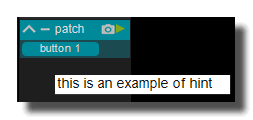
hint
Hint text displayed on mouse over.
background
background color
Background color of the control, used to fill its whole surface behind the caption, the value and the drawing of the control. When the control is disabled the color is dimmed, and when the mouse is over it (with the mouse over effect ON) a slightly lighter shade is drawn.
transparent option must be OFF.
 Blue background color example.
transparent
When ON, the background of the control is not painted at all, so the controls or the patch located behind it remain visible. The background color is ignored and the mouse over highlight uses the global mouse-over color instead of a lighter shade of the background.
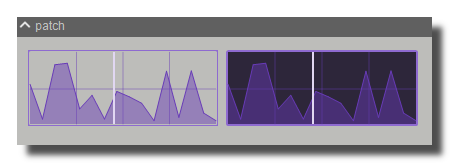 Example, the first module is transparent.
remote highlight color
Color of the contour flashed around the control when its value is modified by a remote source (MIDI, OSC, keyboard, etc.). The contour is drawn for about 100 ms after each remote change. By default it is a lighter shade of the module's quick color. The flash can be disabled globally by the disable remote highlight expert policy.
image file
Optional image drawn as the background of the control, behind the control drawing. Click to choose the file. The image is drawn with the image fit mode and the control opacity.
Only PNG, JPEG and BMP formats are supported. Use [ctrl+click] to reset.
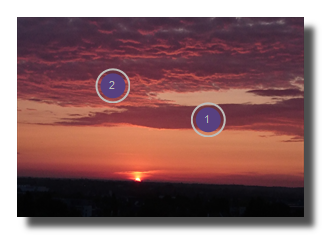 Example on an panel-xy-pad.
image fit mode
Determines how the image file is resized to the size of the control:
- proportional left aligned: the image is scaled to the height of the control, keeps its aspect ratio and is aligned on the left,
- scaled: the image is stretched to the full size of the control (default),
- original: the image keeps its original pixel size and is drawn from the top left corner,
- clipped: the image keeps its aspect ratio and is fitted entirely inside the control,
- scaled with borders: the image is stretched to the size of the control minus its border width,
- centered: the image keeps its aspect ratio, covers the whole control and is centered, the parts outside the control are cropped.
svg filename
Name of an SVG vector file drawn in the background of the control, above the image file. The path is scaled to the size of the control, so the drawing stays sharp at any size.
svg fill color
Color used to fill the shapes of the SVG. Use a fully transparent color to draw the contour only.
svg stroke color
Color used to draw the contour of the SVG shapes. Use a fully transparent color to disable the contour.
For switches only, a second set of colors (svg fill color 2 and svg stroke color 2) is used when the switch is OFF.
svg stroke width
Width of the contour of the SVG shapes, as a fraction of the smallest dimension of the control (0 to 1, default 0.1). The drawn thickness is one third of that fraction, so 0.1 on a 60 pixels wide control gives a 2 pixels contour.
Use 0 to disable the drawing of the contour.
svg margin
Space left between the border of the control and the SVG drawing, as a fraction of half the smallest dimension of the control (0 to 1, default 0.1). At 1 the drawing collapses to the center of the control.
svg keep aspect ratio
When ON (default), the SVG is scaled uniformly so it keeps its proportions and is centered in the available area. When OFF, the SVG is stretched independently in width and height to fill the whole area inside the svg margin.
border
show border
Displays or not the border of the control. When OFF, the border width is still used to compute the inner drawing area, but no border is painted.
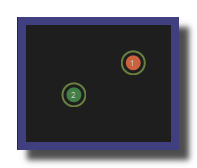 8 pixels border on an panel-xy-pad.
border width
Width of the border in pixels, from 0 to 100 (default 0). The border is drawn inside the control, so a large border reduces the area available for the drawing of the control.
8 pixels border on an panel-xy-pad.
border color
Color of the border of the control.
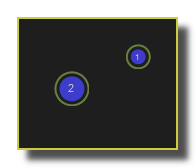 a yellow border on an panel-xy-pad.
border OFF color
Border color of a switch when its state is OFF. For switches this color replaces the generic border color.
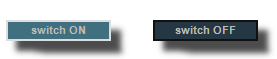 a black OFF border on a switch.
border ON color
Border color of a switch when its state is ON.
a white ON border on a switch.
round size
Radius of the rounded corners of the control in pixels, from 0 to 800 (default 2). Applies to the background, the border and the header of the control.
0 = no rounded corners.
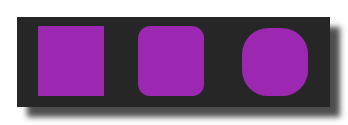 Example on a panel-shape.
don't draw selection border
When ON, the highlighted contour normally drawn around a control selected with the mouse in edit mode is not drawn for this control. Useful on decorative controls where the selection contour disturbs the design. The selection contour can also be disabled globally by the disable draw selected expert policy.
caption
show caption
Displays or not the caption (the name) of the control. When OFF, the whole surface of the control is available for its drawing and its value.
 Example on a fader.
caption horizontal align
Horizontal alignment of the caption inside the control: center, left or right.
caption vertical align
Vertical alignment of the caption inside the control: center, top or bottom.
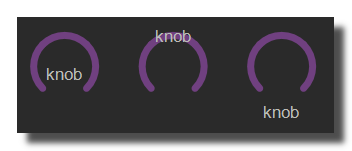 Example on knob: Center, top and bottom.
 Example on switch.
caption font size factor
Multiplier applied to the size of the caption font, from 0 to 2 (default 0.6). The base size depends on the height of the control, so the caption follows the size of the control and this factor makes it bigger or smaller.
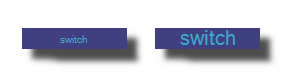 Example on switch.
caption font
Font family used to draw the caption, chosen in the list of the fonts installed on the system. The first item is the default Usine font.
The font is saved by its name, if the font is not installed on another computer the default font is used instead.
 Example with 3 different fonts on switch.
caption font color
Color of the caption text.
 Example on switch.
caption font italic
When ON, the caption is drawn in italic.
 Example on switch.
caption font bold
When ON, the caption is drawn in bold.
 Example on switch.
caption font underline
When ON, the caption is underlined.
 Example on switch.
frames
frames count
Number of frames contained in the background image file, from 1 to 256 (default 1). When greater than 1, the image is treated as a sprite sheet: it is split into equal frames and the frame displayed depends on the current value of the control. This allows custom knobs, faders and switches drawn as a sequence of images. See create your own knobs and faders.
frames alignment
Determines how the frames are stacked in the background image: vertical (frames one below the other, the image is split in height) or horizontal (frames side by side, the image is split in width). See create your own knobs and faders.
global
mouse editing enabled
Determines if the value of the control can be modified by the user with the mouse or the touch screen. When OFF, the control still displays its value and can be modified by its inlets, remotes and presets, but clicks and drags on it are ignored. Useful to build read-only displays.
This setting is not saved in design templates.
receive mouse info
When ON, the control receives mouse information (often called hit-test). When OFF, the control is transparent to the mouse: clicks pass through it to the control located behind. This is useful when controls overlap, only the topmost control with receive mouse info ON gets the mouse events.
This setting is not saved in design templates.
is visible
Sets or gets the visibility of the control. When OFF the control is hidden but keeps processing its value. Typically exposed as an inlet to show or hide parts of an interface from the patch.
global color
Main color of the control. When changed, Usine recomputes all the other colors of the control (background, border, caption, cursor, etc.) with contrasted shades derived from this color, and propagates the change to the child controls of a panel unless they are ignored in parent global color.
ignored in parent global color
When ON, the global color of this control is not modified when the global color of its parent panel, patch or rack changes. Use it to keep a specific color on one control inside a recolored group.
design template name
Name of the design template (a snapshot of the design tab settings) applied when the control is created. The template files are searched in /Resources/Templates/Design and /Config/Templates/Design. Setting a new name reloads the design settings from that file.
The name can be given without extension, ie. LIGHT CLASS instead of LIGHT CLASS.tuknob_tab_design.
Only visible in god mode.
z order
Determines the drawing order of the control relatively to the other controls of the same container:
- normal: the control is drawn in its creation order,
- front: the control is always brought to the front, above all the other controls,
- back: the control is always sent to the back, behind all the other controls.
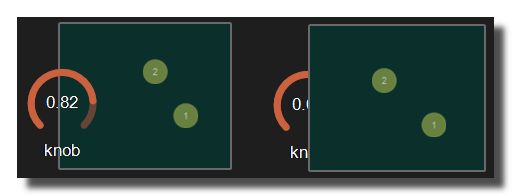 Example with the first knob on top.
opacity
Opacity of the whole control from 0 to 1 (default 1), applied to its background, border, caption and drawing. The opacity is multiplied with the opacity of the parent containers.
0 will give a totally transparent control so invisible.
blur softness
Amount of blur applied to the drawing of the control, from 0 (no blur) to 5.
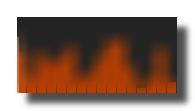 Example of blur.
Be careful, the blur softness use shaders which are not supported by all graphic cards. Can crash Usine.
location
display location
Determines where the control panel of the module is displayed. Default control panel.
- invisible: the object is not displayed.
- control panel: in the control-panel of the current patch.
- parent control panel: in the control-panel of the parent patch.
- top parent control panel: in the control-panel of the top parent patch (main patch).
- container: in the container of the current patch.
- parent container: in the container of the parent patch of the current patch.
- top parent container: in the container of the top parent patch of the current patch.
- popup window: in the popup of the current patch.
- top header: in the top-header-panel.
- toolbox: in the toolbox-panel.
- ib only: in the interface-builder-panel only.
- workspace: in the workspace-panel design panel.
- current rack: in the rack containing the top parent patch.
- main menu: in the main menu panel on the left of the window.
- container 1 to container 32: in the additional container with that number, wherever it is (see additional container). If the container does not exist, a warning is displayed.
Some modules only offer the first eight options. Top header, toolbox, ib only, popup and main menu are exclusive with also visible in interface builder: choosing one of them resets it to no with a warning.
When the location is set to a container or a popup which doesn't exist in the current sub-patch, Usine uses the container or popup of the parent patches. If none is available a warning is displayed and the location goes back to control panel.
additional container
Declares the control as an additional container, identified by a number from 1 to 32 (no = not a container, default), so that any other control of the workspace can be placed into it with display location set to the same container number. Each number can be used by only one container at a time: choosing a number already in use shows a warning and resets the setting to no.
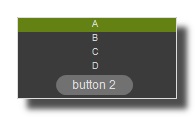 a button inside a listbox
also visible in interface builder
Determines if the control is also displayed in the interface-builder-panel in addition to its display location. Default no. Not saved in design templates.
- no: not shown in the interface builder.
- always: always shown in the interface builder.
- if patch ON: shown only while the parent patch is running (for a rack, this option reads if rack is ON).
Cannot be combined with a display location set to top header, toolbox, ib only, popup or main menu: the setting is reset to no with a warning.
mouse tab settings
Settings related to mouse, touch screen and drag&drop.
mouse & gesture
mouse dwn
Outlet giving the mouse button state on the control:
- 1 while the left mouse button is pressed on the control
- 0 otherwise (the value goes back to 0 a few milliseconds after the button is released).
Read only, not saved with the patch.
In multi-touch environment, can be an array of [0..1] values, one value per finger touching the control.
mouse wheel
Outlet giving the last mouse wheel movement as a number of wheel notches (positive when the wheel is rolled forward, negative when rolled backward, following the operating system convention), limited to the [-4..4] range. The value goes back to 0 about 25 ms after each wheel event, so it is 0 while the wheel is idle. Not saved with the patch.
mouse wheel enabled
When ON, the value of the control can be changed with the mouse wheel; when OFF, the wheel is ignored by this control. Default ON. Unless the disable click to use mouse wheel expert setting is active, the control must first be clicked (selected) before the wheel acts on it. On faders, the wheel step is reduced by the precision factor when touch hi precision applies or when SHIFT is held, and the value wraps around when circular mouse is ON.
dbl click
Trigger outlet flashed (value 1) when the user double-clicks on the control.
mouse active
When ON, the fader can be moved by dragging it with the mouse; when OFF, dragging no longer changes the value (the control still reports its mouse events, and the value can still be changed by other means such as the mouse wheel or the value editing). Default ON.
mouse x
Outlet giving the mouse X position on the control in relative coordinates from 0=most-left to 1=most-right, updated on mouse down, mouse move and mouse up. Read only, not saved with the patch.
In multi-touch environment, can be an array of [0..1] values, one value per finger touching the control.
mouse y
Outlet giving the mouse Y position on the control in relative coordinates from 0=top to 1=bottom, updated on mouse down, mouse move and mouse up. Read only, not saved with the patch.
In multi-touch environment, can be an array of [0..1] values, one value per finger touching the control.
bitmap
See manipulate-bitmaps.
bitmap in
Bitmap pointer input. When connected, the received bitmap replaces the background image of the panel of the module, so any video or bitmap flow can be drawn behind the control.
Use [CTRL + Click] to reset the input.
bitmap out
Bitmap pointer output giving access to the current drawing of the panel of the module, updated each time the panel is repainted. Connect it to a video or bitmap module to reuse the rendering of the control.
touch pressure
Outlet giving an estimation of the finger pressure on a multi-touch screen, in the [0..1] range, computed from the size of the contact area of the finger relative to the size of the control. Always 0 when the control is used with the mouse. Read only, not saved with the patch.
The pressure value is not available on all touch screens.
gesture
Array outlet updated each time a touch gesture is recognized on the control. It contains 6 values: [gesture ID, initial X, initial Y, final X, final Y, speed], X and Y being relative coordinates on the control. Gesture IDs: 1=pan left, 2=pan right, 3=pan up, 4=pan down with one finger, 5 to 8=the same pans with two fingers, 100=short hold and 101=long hold with one finger, 102=short hold and 103=long hold with two fingers. For hold gestures only the initial position is filled, the other values are 0. Not saved with the patch.
In touch and multi-touch environment, returns an array of the fingers movements See multi-touch
reset
auto reset
When ON, the control is reset (same action as the reset command of the module) as soon as the mouse button is released on it. Default OFF.
Only on faders and knobs.
drag & drop
See using-drag-drop.
drag enabled
When ON, the content of the listbox can be dragged with the mouse and dropped on another control: the drag starts as soon as the mouse moves a few pixels with the button held down. When OFF, no drag is started from this control, except when CTRL+SHIFT are held while dragging. Default OFF. Only on listboxes (not on comboboxes).
allow drop
When ON, files and other draggable items can be dropped on this control; when OFF, the control refuses any drop.
drop file name
Text outlet receiving the full path of the last file dropped on the control. The same path is also stored in the DRAG_FILENAME global variable. Read only, not saved with the patch.
clear drop file name
Button that empties the drop file name outlet.
vertical mouse
When ON, the knob value follows the vertical movements of the mouse: drag up to increase, drag down to decrease. When OFF, it follows the horizontal movements: drag right to increase, drag left to decrease. Default ON. Only on knobs.
touch screen
touch hi precision
Determines when the high precision mode (see precision factor) is applied to mouse and touch movements:
- disabled: never applied automatically, it can still be obtained by holding SHIFT while dragging.
- touch screen: applied only while the control is touched on a touch screen.
- always: applied with the mouse as well as with a touch screen. Default disabled.
precision factor
Divider applied to the mouse or touch movements in high precision mode: the cursor moves N times slower than the pointer, so with a factor of 8 the pointer must travel 8 times the width of the control to cover the whole range. Range [1..100], default 8. Used when touch hi precision applies or when SHIFT is held while dragging; also slows down the mouse wheel steps (by the square root of the factor).
mouse mode
Behavior of the fader when the mouse button is pressed on it:
- relative: the value changes relatively to its current value by the amount of the mouse drag, the cursor does not jump on click.
- absolute: the value is directly given by the position of the mouse on the fader, the cursor jumps to the click position. Default relative.
circular mouse
When ON, the value wraps around when the mouse drag or the mouse wheel goes beyond the range: past the maximum, the value continues from the minimum and vice versa. When OFF, the value is clamped to its range. Default OFF.
keyboard arrows
keyboard arrows enabled
When ON, the value of the control can be modified with the UP and DOWN arrow keys of the keyboard when the control has the focus: each key press adds or subtracts the inc-dec value of the module (one tenth of it while SHIFT is held, at least 1 for integer values), and comboboxes jump to the previous or next item. Default OFF.
focus & cursor
mouse over
Read only outlet: 1 while the mouse pointer is over the control, 0 otherwise. Not saved with the patch.
mouse cursor
Shape of the mouse pointer when it hovers over the control. Default arrow. During a resize or a point edit, the pointer temporarily takes the shape of the current operation.
- default: default pointer of the system
- none: the pointer is hidden
- arrow: standard arrow
- cross: cross-hair
- beam: text I-beam
- size NESW: diagonal resize arrow (north-east / south-west)
- size NS: vertical resize arrow
- size NWSE: diagonal resize arrow (north-west / south-east)
- size WE: horizontal resize arrow
- up arrow: vertical arrow
- hour glass: busy pointer
- drag: drag pointer
- no drop: forbidden drop pointer
- H split: horizontal splitter
- V split: vertical splitter
- multi drag: multiple items drag pointer
- SQL wait: wait pointer
- no: forbidden pointer
- app start: arrow with busy indicator
- help: arrow with question mark
- hand point: pointing hand
- size all: move (four arrows) pointer
selection
selected
Read only outlet: 1 while the control is selected, 0 otherwise. A control becomes selected when it is clicked and is deselected when another control is clicked; SHIFT+click adds a control to the current selection or removes it from it. Not saved with the patch.
remote tab settings
Settings related to remote control assignation and learn.
general
clear all learn
Button. Resets the whole remote configuration of the control to its defaults: MIDI, key, OSC, timecode, bind bus, bind control, VCA, cluster, DMX and mapping assignations are all cleared and the control is removed from the remote lists. To clear only one part, use clear bind bus or clear bind control.
remote active
ON/OFF switch, default ON. When OFF, all the remote assignations of the control (MIDI, key, OSC, timecode, DMX, binds) are ignored, even if they stay stored in the control. When ON, the assignations are processed according to active mode.
inverse
ON/OFF switch, default OFF. When ON, the received value is inverted before being applied to the control: MIDI values become 127 - value (16129 - value for pitch bend), OSC and bind values in the [0..1] range become 1 - value, relative MIDI moves go in the opposite direction and a sysex learn sends 0 instead of 127.
quantize
Delays the application of a received remote value until the next synchronisation event of the master synchro. The quantization is only applied when the master synchro is playing; otherwise the value is applied immediately. Only available on controls that can be quantized. Default none.
- none: no quantization, the value is applied immediately.
- cycle: the value is applied on the next cycle start.
- bar: the value is applied on the next bar.
- beat: the value is applied on the next beat.
- eight: the value is applied on the next eighth note.
- sixteen: the value is applied on the next sixteenth note.
active mode
Determines when the remote assignations of the control are processed. Has no effect if remote active is OFF. Default always.
- always: the remote is always processed.
- if rack is ON: only when the parent rack is enabled.
- if rack is selected: only when the parent rack is selected.
- if patch is ON: only when the root patch is running (its control panel is enabled).
- if patch is selected: only when the control panel of the root patch is selected.
- if mouse editing enabled: only when the mouse editing enabled setting of the control is ON.
bind buses
See binds-panel.
clear bind bus
Button. Removes the bind bus assignation of the control: binding is emptied and the control is removed from the bind bus remote list.
binding
Name of the bind bus the control listens to (empty = no bind). Each time the bus value changes, it is applied to the control (in the [0..1] range, scaled to the control range, after inverse and the mapping settings). On a panel, the bus enables it when the value is above 0.5; on a button, it triggers it. The control is highlighted with the color of the bus while it receives values.
bind controls
bind ID
Unique ID of the source control this control is bound to (empty = no bind). The source is looked up by this ID; if it no longer exists, the bind is cleared automatically. The value of the source control is copied to this control each time it changes, scaled from the source range to the target range (switches and data values follow inverse; listbox, trigger and color values are copied as they are).
bind caption
Read-only. Caption of the source control identified by bind ID, refreshed automatically when the bind is processed. Also available as an outlet on modules.
clear bind control
Removes the bind control assignation: bind ID and bind caption are emptied and the control is removed from the bind control remote list.
MIDI
start midi learn
Button. Arms the MIDI learn: move a control on your MIDI device and the first message received is assigned to the control (channel, control type, control num, device name and, if the device is declared as motorized in the devices panel, motorized are filled automatically).
device name
Name of the MIDI device the assignation is restricted to. Filled during the learn when the memorize device name in learn setting of the setup panel is ON. When empty, the assignation reacts to all connected MIDI input devices; MIDI feedback (motorized) is also sent only to the device with this name unless MIDI feedback to all is ON in the setup.
Use [Ctrl+Click] to delete the name association so the MIDI learn will react with all the connected devices.
channel
MIDI channel used for the MIDI assignation, from 1 to 16. Only messages received on this channel are taken into account.
control num
Data number of the assigned MIDI message, from 0 to 127: note number for notes and poly aftertouch, controller number for control changes. Ignored for program change, channel aftertouch and pitch bend, which match any number.
control type
Type of MIDI message assigned to the control (the MIDI status value is shown in parentheses).
- none: no MIDI assignation.
- note OFF (128).
- note ON (144): a note OFF of the same note also sets the control to its minimum (except in toggle mode).
- poly aftertouch (160).
- control change (176).
- program change (192): the program number is used as value.
- chan aftertouch (208): the pressure is used as value.
- pitch bend (224): the 14-bit value (0 to 16129) is used.
midi mode
Choose between the 3 MIDI assignation modes in Usine. Default absolute.
- absolute: the received value (0 to 127) is scaled to the control range. For a switch or a panel, the control is ON while the value is not 0 and OFF on a value of 0 (or on the note OFF). For a button, any non-zero value triggers it. For a listbox, the value selects the item proportionally.
- relative: for endless encoders. The received value is interpreted as a signed increment around 64 (APC style values below 32 or above 96 are also supported): a float fader moves by
(value - 64) / 127, an integer fader or a listbox goes to the next or previous item, a button is triggered on each message. - toggle: each received message with a non-zero value toggles a switch or a panel between ON and OFF, or triggers a button. On listboxes and integer faders, each message increases the current value by one until the maximum is reached, then restarts from the minimum.
mackie mode
ON/OFF switch, default OFF. Only used together with motorized. When ON, the MIDI feedback is always sent back to the controller, including for the value just received (as required by the Mackie Control protocol to update displays, leds and fader positions). When OFF, the value just received from MIDI is not sent back, to avoid MIDI loops.
motorized
ON/OFF switch, default OFF (set automatically during the learn when the device is declared as motorized). When ON, each time the value of the control changes Usine sends the corresponding MIDI message (same channel, control type and control num) to the MIDI output devices so that motorized faders, leds or displays follow the on-screen value. The message is sent to the output device named in device name only, unless MIDI feedback to all is ON in the setup or the name is empty.
soft take over
ON/OFF switch, default OFF. When ON, an incoming MIDI (or DMX, bind bus) value is ignored as long as it differs from the current position of the control by more than 4%, unless the control was already moved by the remote during the last second. Once the hardware control matches the on-screen value, the control latches on and follows it again.
For instance say you have a line fader turned all the way up on the hardware, then you move the onscreen line fader to the bottom. With soft-takeover ON, the onscreen fader will not react to the line fader until you move the line fader all the way down to match the on screen value. The control will then latch on and will be active again.
sysex
System exclusive string assigned to the control (hexadecimal bytes, filled by the MIDI learn when a sysex message is received). Each time the same sysex is received, the control is set to its maximum (or toggled, depending on the control type and midi mode); with inverse ON it is set to its minimum.
Key
start key learn
Click on this button and press a key (or a key combination ie. [ALT+E]) on your keyboard to assign it. Only available on controls that accept key learn. [Esc] cancels the learn.
key
Text of the key or key combination assigned to the control, as displayed in the settings (for example A or ALT+E). You can also type it by hand: in that case shortcut is 0 and the text is compared, in uppercase, with the typed character. Empty means no key assignation.
key mode
Determines how the key affects a switch. Default toggle. Only available on controls that allow changing the key mode.
- absolute: the switch is ON while the key is held down and goes back to OFF when the key is released.
- toggle: each key press toggles the switch between ON and OFF.
Buttons are triggered and panels are enabled/disabled on each key press whatever the mode.
shortcut
Numeric key code of the assigned key (0 to 65535, ex: A=65), including the modifier bits, filled automatically by the key learn. 0 means the key text is used as a user key.
mapping
mapping curve
Curve applied to the received value (in the [0..1] range) before it is scaled to the control range, for MIDI, DMX, bind bus and OSC in in [0..1] mode. Default linear.
- log or exp: power curve
x^(1/coeff); a mapping curve coeff below 1 gives an exponential-like curve, above 1 a logarithmic-like curve. - S curve: S-shaped curve whose strength depends on mapping curve coeff.
- linear: no curve, the value is used as is.
The resulting curve is drawn below the settings.
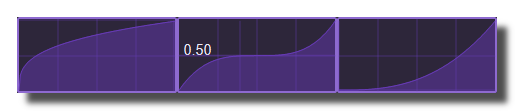
mapping curve coeff
Coefficient of the mapping curve, from 0.001 to 100 (logarithmic scale), default 1. Has no effect when mapping curve is linear.
mapping range max
Upper limit of the mapped value in the [0..1] range, default 1. The received value (after the mapping curve) is rescaled between mapping range min and mapping range max before being applied to the control range. If it is lower than mapping range min, the control stays at mapping range min.
mapping range min
Lower limit of the mapped value in the [0..1] range, default 0. See mapping range max.
OSC
start OSC learn
Click on this button and use a control of your OSC device to assign it. The address of the first OSC message received is stored in OSC message and OSC tag order is reset to 1.
OSC message
OSC address assigned to the control (for example /1/fader1). Each message received with exactly this address sets the control (buttons ignore messages with a 0 value, panels are enabled when the value is above 0.5). Empty means no OSC assignation.
OSC mode
Determines how the received OSC value is interpreted. Default real value.
- real value: the value is applied to the control as it is received, without scaling.
- in [0..1]: the value is considered to be in the [0..1] range and is scaled to the control range, after the mapping settings.
OSC tag order
Index (1 to 256, default 1) of the argument used when the OSC message carries several values at once (for example the X and Y of an XY pad): 1 uses the first argument, 2 the second, etc. Reset to 1 by the OSC learn.
timecode
Timecode position at which the control is triggered (buttons and other trigger controls). The trigger happens once, when the incoming timecode passes this position. 0 means no timecode assignation.
timecode OFF
Timecode position at which a switch control is set to its minimum (OFF). Only checked if the timecode ON position was not reached at the same time.
timecode ON
Timecode position at which a switch control is set to its maximum (ON). 0 means no timecode assignation.
VCA
vca
Name(s) of sources VCA's. One control can be controlled by several VCA at the same time so the VCA values are multiplied together.
To enter several names use comma separated string like VCA1,VCA2,VCA3. Names are converted to uppercase and trimmed when applied.
See use-vca for more info.
clusters
cluster name
Name(s) of the owner cluster(s). One control can be in many clusters at the same time, but be aware that you could have conflicts (different value sent at the same time).
To enter several names use comma separated string like CLUSTER1,CLUSTER2,CLUSTER3.
See use-clusters for more info.
DMX
DMX universe
Art-Net universe number (0 to 32767, default 0) the control listens to. Only DMX packets received on this universe are taken into account.
DMX channel
DMX channel (1 to 512) assigned to the control in the universe, 0 (default) means no DMX assignation. The received byte (0 to 255) is scaled to [0..1] then applied: faders follow the value (through the mapping settings and soft take over), switches and panels are ON when the value is above or equal to 0.5, buttons are triggered when the value rises above 0.5, listboxes select the item proportionally.
size tab settings
settings related to size and position of controls.
orientation
rotation angle
Rotation of the control around its center, expressed as a fraction of a full turn in the range [0..1] (0.25 = 90 degrees, 0.5 = 180 degrees, 0.75 = 270 degrees). Default 0. A value of 0.75 also switches is vertical ON, any other value switches it OFF. Only available on controls that can be rotated (faders, modules...).
is vertical
When ON, the control is displayed vertically, which is the same as a rotation angle of 0.75 (270 degrees). When OFF, the rotation angle is reset to 0. Changing it also triggers the auto resize and the reorganization of the parent panel.
zoom
zoom scale
Scale factor applied to the whole control: its visual is drawn scaled by this factor. Range [0.2..5] (logarithmic scale), default 1. Changing it triggers the auto resize and auto reorganize of the parent panel. This value is not saved in design templates.
can zoom
When ON, the control can be zoomed with the mouse wheel or a pinch gesture. On most controls this changes the zoom scale; on XY/XYZ style panels it changes the inner zoom factor instead. When OFF, wheel and gesture zooms are ignored by the control.
zoom at mouse position
Only available on XY/XYZ style panels. When ON, zooming with the mouse wheel keeps the point under the mouse cursor fixed, by moving the zoom center accordingly. When OFF, the zoom is centered on the current zoom center (the center of the panel by default).
Size & positions
top
Position of the top edge of the control in pixels, relative to its parent panel. Range [-5 x screen height..5 x screen height].
left
Position of the left edge of the control in pixels, relative to its parent panel. Range [-5 x screen width..5 x screen width].
height
Height of the control in pixels. Range [0..5 x screen height].
width
Width of the control in pixels. Range [0..5 x screen width].
percent
position percent x
Horizontal position of the control in the range [0..1], relative to the free horizontal space of the parent panel (parent width minus the control width and the borders): 0 = against the left border, 1 = against the right border. This value is computed from left and is not saved.
position percent y
Vertical position of the control in the range [0..1], relative to the free vertical space of the parent panel (parent height minus the control height, the borders and the caption area): 0 = just below the caption, 1 = against the bottom border. This value is computed from top and is not saved.
height percent
Height of the control in the range [0..1], relative to the parent panel height. This value is computed from height and is not saved.
width percent
Width of the control in the range [0..1], relative to the parent panel width. This value is computed from width and is not saved.
resize grip
resize grip enabled
When ON (default for modules), the control displays selection handles when the patch is unlocked and can be moved or resized with the mouse or the arrow keys. When OFF, the control cannot be unlocked, moved nor resized in the patch. On XY/XYZ style panels this setting is named resize grip enabled (global).
Interface Builder position
interface builder top
Position of the top edge of the control in pixels when it is displayed in the interface builder panel. Memorized automatically when the control is moved in the interface builder and restored the next time it is displayed there; the position in the patch is kept separately. Only available on controls that can be also visible in the interface builder.
interface builder left
Position of the left edge of the control in pixels when it is displayed in the interface builder panel. Memorized automatically when the control is moved in the interface builder and restored the next time it is displayed there; the position in the patch is kept separately.
interface builder width
Width of the control in pixels when it is displayed in the interface builder panel. Memorized automatically when the control is resized in the interface builder and restored the next time it is displayed there; the size in the patch is kept separately.
interface builder height
Height of the control in pixels when it is displayed in the interface builder panel. Memorized automatically when the control is resized in the interface builder and restored the next time it is displayed there; the size in the patch is kept separately.
floating panel
floating x
When ON, the control can be dragged horizontally with the mouse inside its parent panel (the cursor becomes a horizontal move cursor when only this axis is enabled). Floating controls are also the moving bodies of the parent's physics engine (see physics enabled): a control with both floating x and floating y OFF is a static obstacle.
floating y
When ON, the control can be dragged vertically with the mouse inside its parent panel (the cursor becomes a vertical move cursor when only this axis is enabled). Floating controls are also the moving bodies of the parent's physics engine (see physics enabled).
floating constrain to parent x
When ON (default), a control dragged along the X axis (floating x) is kept entirely inside the borders of its parent panel. When OFF, it can be dragged partly outside the parent, as long as at least 10 pixels remain visible.
floating constrain to parent y
When ON (default), a control dragged along the Y axis (floating y) is kept entirely inside the borders of its parent panel. When OFF, it can be dragged partly outside the parent, as long as at least 10 pixels remain visible.
resizable panel
resizable left
When ON, the control can be resized with the mouse by dragging its left edge (the cursor changes to a resize cursor near the edge). When OFF, the left edge cannot be dragged.
resizable right
When ON, the control can be resized with the mouse by dragging its right edge (the cursor changes to a resize cursor near the edge). When OFF, the right edge cannot be dragged.
resizable top
When ON, the control can be resized with the mouse by dragging its top edge (the cursor changes to a resize cursor near the edge). When OFF, the top edge cannot be dragged.
resizable bottom
When ON, the control can be resized with the mouse by dragging its bottom edge (the cursor changes to a resize cursor near the edge). When OFF, the bottom edge cannot be dragged.
physics
See physics-engine
physics enabled
When ON, the physics engine of the panel is started: the child controls with floating x or floating y ON become moving bodies subject to gravity x, gravity y, friction and elasticity, and they collide with each other and with the panel borders; the other child controls are static obstacles. The simulation runs only while the main ON/OFF switch is on, the patch is running and the main lock switch is off. Available on XY/XYZ style panels, container panels and popup panels.
physics speed
Speed of the simulation: the number of physics iterations computed at each refresh is multiplied by this value. Range [0..100] (logarithmic scale), default 1; 0 freezes the engine. It also scales the speed x, speed y and angular speed values reported by the child controls.
init with random speed
When ON (default), every moving body gets a random initial velocity and rotation speed when the physics engine is (re)started, for example after reset positions. When OFF, the bodies start at rest.
same masses
When ON (default), all moving bodies have the same mass. When OFF, the mass of each body is proportional to its area (width x height), so bigger controls push smaller ones on collision.
ignored in physical engine
Setting of a child control. When ON, the control is excluded from the physics engine of its parent panel: it is neither moved nor used as an obstacle, and it is not affected by reset positions.
friction
Friction coefficient applied to the moving bodies, in the range [0..10] (logarithmic scale), default 0 (no friction). Higher values slow the controls down faster.
elasticity
Energy conservation coefficient on collision, in the range [0..1], default 1: 1 = fully elastic bounce (no energy lost), 0 = the body stops on collision.
gravity x
Horizontal gravity applied to the moving bodies, in the range [-5..5], default 0. Positive values pull the controls to the right, negative values to the left.
gravity y
Vertical gravity applied to the moving bodies, in the range [-5..5], default 0. Positive values pull the controls downward, negative values upward.
reset pos x
Horizontal position, in the range [0..1] of the parent panel width, where the child controls with floating x ON are placed by reset positions. Default 0.
reset pos y
Vertical position, in the range [0..1] of the parent panel height, where the child controls with floating y ON are placed by reset positions. Default 0.
reset positions
Button which moves all the child controls managed by the physics engine (see ignored in physical engine) to reset pos x / reset pos y and restarts the simulation (with random speeds if init with random speed is ON). Only effective when physics enabled is ON.
angular speed
Read-only, not saved. Rotation speed of the control computed by the physics engine of its parent panel (scaled by physics speed). Range [-10..10].
collide
Read-only trigger, not saved. Sends a trigger each time the control collides with another child control or with a border of its parent panel in the physics engine. On the panel itself, it is triggered when one of its child controls hits a border.
collide info
Read-only, not saved, in the range [0..1004]. Identifies what the control collided with during the last collide:
- 0 to 999: index of the other child control (in the order of the panel's children managed by the physics engine),
- 1001: top border of the parent,
- 1002: bottom border of the parent,
- 1003: left border of the parent,
- 1004: right border of the parent.
On the panel itself, it gives the index of the child control which hit a border.
speed x
Read-only, not saved. Horizontal speed of the control in the range [-10..10], computed by the physics engine of its parent panel (scaled by physics speed), or from the mouse movement while the control is being dragged.
speed y
Read-only, not saved. Vertical speed of the control in the range [-10..10], computed by the physics engine of its parent panel (scaled by physics speed), or from the mouse movement while the control is being dragged.
minimize
minimized
When ON, the panel is minimized: only its header is displayed, its size is memorized and restored when the setting is switched OFF. Only available on panels having the minimize button in their toolbar. Not saved in design templates.
reorganization
auto reorganize
When ON, the child controls of the panel are automatically laid out one after the other (in rows and columns) each time a control is added, removed, moved or resized, using reorganize margin, reorganize interspace H and reorganize interspace V. When OFF, the controls keep the positions given by the user.
reorganize margin
Left and top margin in pixels, in the range [0..20], between the panel border and the first control when the panel is reorganized. Default 4.
reorganize interspace H
Horizontal space in pixels, in the range [0..20], between two columns of controls when the panel is reorganized. Default 4.
reorganize interspace V
Vertical space in pixels, in the range [0..20], between two rows of controls when the panel is reorganized. Default 4.
auto resize options
auto resize
When ON, the panel automatically adjusts its width and height to its content each time child controls are moved or resized, keeping auto resize margin around them. Switch it OFF if you use floating panels inside.
auto resize margin
Margin in pixels, in the range [0..20], kept between the child controls and the panel borders when auto resize is ON. Default 4.
force reorganize
Button which lays out the child controls immediately (as auto reorganize does), even if auto reorganize is OFF, then applies the auto resize. It can also be exposed as an inlet.
align to grid
snap to grid
When ON, in unlock mode, the position and the size of the child controls are snapped to a grid of grid size pixels when they are moved or resized with the mouse. Floating controls dragged inside the panel are snapped too.
grid size
Step of the grid in pixels, in the range [1..40], used when snap to grid is ON. Default 2.
curve tab settings
Settings related to automation curve recording and playback.
curve
auto record on click
When ON, the recording of the automation curve of the control starts automatically when the user presses the mouse on the control, and stops when the mouse button is released, without using the global record switch. Each click therefore replaces the previous recording of the control.
delete curve
Deletes the recorded automation curve of the control. The control keeps its current value.
is playing record
Read-only output which sends 1 while the control is playing a recorded automation curve and 0 otherwise. Not saved with the patch, typically exposed as an outlet to know when the control is driven by its curve.
header toolbar
show toolbar
When ON, the toolbar icons (close, enable, and the other commands of the panel) are displayed in the header of the panel; when OFF, the toolbar is removed and the header only shows the caption. Default ON. Only available when the header is enabled (show header ON).
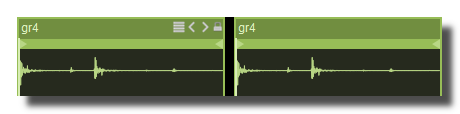 Example ON and OFF
toolbar size factor
Size of the toolbar icons, expressed as a factor of the header height: 1 gives icons as high as the header, 0.5 gives icons half the header height. Range [0..4], default 1.
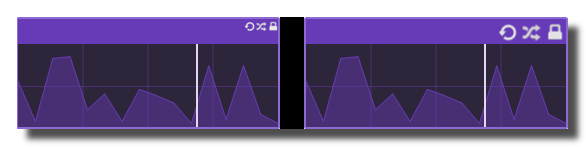 Example toolbar size on a panel.
header
show header
Displays or not the header bar at the top of the panel. The header holds the caption of the panel and, when enabled, its toolbar buttons (minimize, close, etc.). When OFF, the caption and the toolbar are hidden and the whole height of the panel is available for its content.
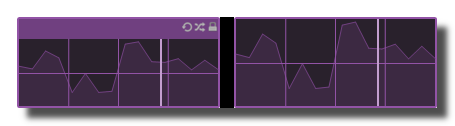 Example on sequenced-lines.
header height
Height of the header in pixels, from 0 to 50. The toolbar buttons and the caption are scaled to this height.
header color
Background color of the header. When the panel is being MIDI learned, the header takes the MIDI learn color instead.
solid header color
When ON, the header is drawn as a solid bar spanning the whole width of the panel (HH5 style), with the rounded corners of the panel. When OFF, only a small bar is drawn in the upper left corner of the panel and the rest of the header area shows the panel background.
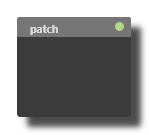 plain ON
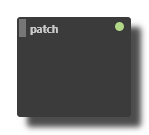 plain OFF
vertical lock
When ON the control can be modified, with the mouse, only vertically.
Grid
show grid
Displays or not a grid on the panel, drawn 1 pixel wide with the grid color. The number of lines is set by horizontal divisions and vertical divisions, and their look by grid lines full span. ON by default.
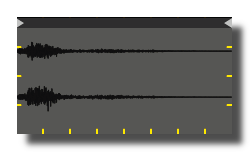 Example with 8 x 4 grid.
grid lines full span
When ON (default), each division is drawn as a full line across the panel. When OFF, only short ticks (5 pixels) are drawn at the edges of the panel: at the top and bottom for the vertical divisions, at the left and right for the horizontal ones.
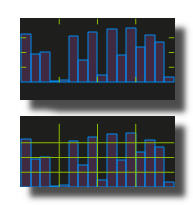 Example OFF and ON.
grid color
Color of the grid lines and ticks. When the panel quick color is changed, it takes the grid color of the current color set.
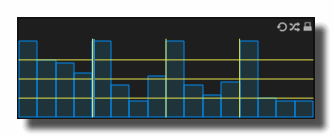 Example with a Yellow grid on a data-generator-sequenced-steps.
horizontal divisions
Number of equal divisions along the horizontal axis: the grid draws one vertical line (or tick) between two divisions, so 8 divisions give 7 vertical lines. Default 4; from 0 to 32 on the sequenced steps panels, from 0 to 256 on the wave display and sampler panels. On the panels with a logarithmic horizontal scale (equalizers and filters), the lines follow the frequency scale. On the wave displays, the full-span lines follow the zoomed portion of the waveform.
0 = no grid division visible
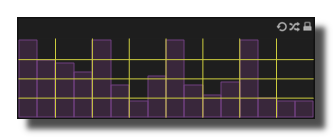 Horizontal division set to 8 on a data-generator-sequenced-steps.
vertical divisions
Number of equal divisions along the vertical axis: the grid draws one horizontal line (or tick) between two divisions, so 4 divisions give 3 horizontal lines. Default 2 on the sequenced panels; from 0 to 32 on the sequenced steps panels, from 0 to 256 on the wave display and sampler panels. On the sequenced panels it is only available for the bar, line, points curve and equalizer types, not for the switches and triggers types.
0 = no grid division visible
Example of 4 vertical divisions.
Common Settings
info
show manual
Button. Opens the manual page of the selected object (or of its parent module for a control) in the web browser. If no page exists for this object, an error is traced in the trace panel.
For more details about information/help creation, see create-help-file.
description
Free multi-line text attached to the module, saved with the patch. It is only meant as an internal note for the patch designer: it is not displayed in the interface.
ID's
visible only in god mode, see setup-panel-tab-expert.
unique ID
Read-only, not saved. Current private numeric ID of the object, used internally to identify it (for example as the target of a bind ID).
preset ID
Read-only, not saved. Private ID used to store and recall the values of this control in presets.
recreate ID
Button. Generates a new unique ID, original ID and preset ID for the object. Use it if you experience difficulties in Polyphonic mode or if two objects share the same ID. Preset values and binds referring to the old IDs are lost.
Object Remote Address
absolute
Read-only, not saved. Absolute address of the object in the Usine objects tree, built from the workspace root. This is the address to use to reach the object from scripts, the objects panel or remote messages. Only shown for objects that are registered in the objects list. See objects-address.
local
Read-only, not saved. Address of the object relative to the current patch, valid inside that patch only. See objects-address.
user addr
Free user-defined address for the object (empty by default). When set, the object is also registered in the objects tree under this name, so it can be reached independently of its position in the workspace (the value is also reported in the mouse-over and mouse-down chunks). Changing it rebuilds the objects list. Only available on objects that support a user address. See objects-address.
See also
- FILTER Simple
- FILTER Vocoder
- FILTER Resonator
- FILTER Formant
- Audio Filter Parametric EQ Legacy
- Audio Filter Vocoder Legacy
- Filters
- Audio Filter Waveguide
- Audio Filter Multi Bandpass
- Audio Filter Butterworth
- Audio Filter Oberheim SEM
- Audio Filter Comb
- Audio Filter Formant Morph
- Audio Filter Resonator
- Audio Filter Moog
- Audio Filter DC Blocker
- Audio Filter Biquad
- Audio Filter One Pole
- Audio Filter Equalizer
- Audio Filter Linkwitz Riley
- Audio Filter Vocoder
- Audio Filter Korg MS-20
- Audio Filter Transients
- Audio Filter Steiner
- Audio Filter Simple
- Audio Filter FIR
- Audio Filter Diode Ladder
- Audio Filter Dynamic EQ
- Audio Filter Formant
version 7.0.250921
Edit All Pages